Use Matrx On Smart Screens
Introduction
Matrx can be used on Smart Screens. Smart Screens that runs on Windows, Android, and you can install applications on. Such as Huawei IdeaHub B2/B3, Huawei IdeaHub S2, Huawei IdeaHub ES2/ES2 Plus.
User Guide of Using Matrx on Smart Screens
1 Install Matrx on Smart Screens
You can install Matrx on your smart screens.
Either Matrx Windows version or Android version can be installed on smart screens.

2 Set up Server Settings
If you are using an on-prem version of Matrx, please set the server settings before using Matrx.
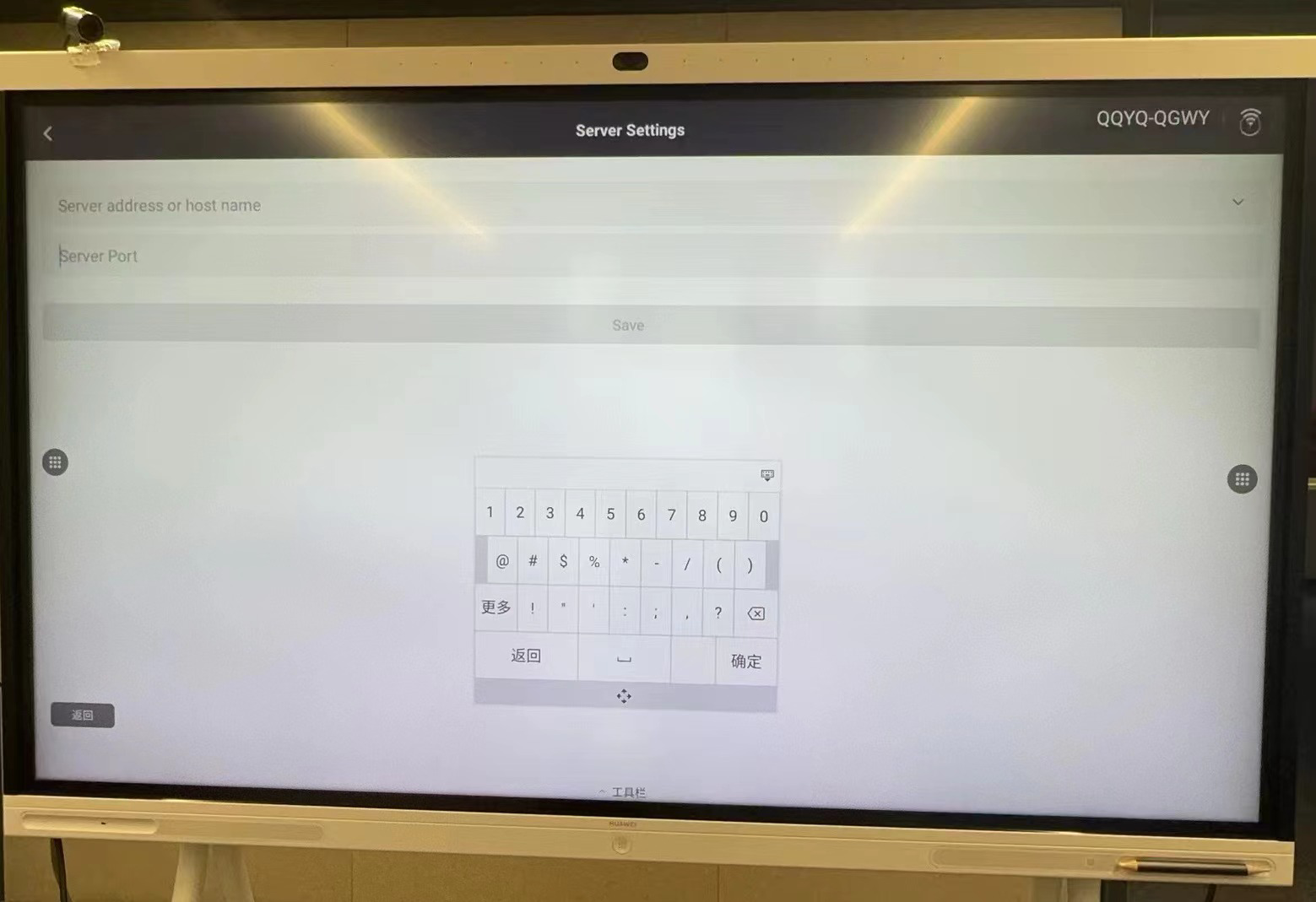
3 Join Matrx Meetings
After the set-up finished. Then you can use Matrx.

Join a meeting without login
If you have a meeting ID and password. You can join a meeting as a guest without login.
Login as a Matrx user to schedule meetings or create instant meetings or join a meeting
Once you logged in. You can use all the features on Matrx. Which means you can schedule meetings and invite others, join a meeting with meeting ID and password, and create an instant meeting and invite others inside the meeting.
Frequently Asked Questions
Can I use Matrx in my old conference room solutions
If your conference room solutions need SIP. Then you can’t use Matrx directly on it for now. Because Matrx does not support SIP protocol yet. While It’s in our product roadmap. Please look forward to it.
As a compromise, you can use Matrx on your computer or pad, and then mirror the meeting content to a large screen device using wireless projection or an HDMI cable.
Why can't I use the hardware microphone to control Matrx Meeting?
Sorry, currently Matrx does not support hardware microphones yet.