Enabling SSO
The Microsoft account system is one of the most widely used user management systems for enterprises or organizations. Matrx allows admins to enable SSO so that the employees can sign into Matrx with their Microsoft accounts.
Prerequisites
This is a customized feature and is available for Enterprise accounts only Microsoft Azure AD admin access
Submit SSO Feature Request
- Submit the SSO feature request to the Matrx sales team
- Collect all the email domain names (email address suffix) used in the enterprise and provide the list to the Matrx sales team Note: There can be multiple enterprise domain names (email address suffixes) and we will configure them to the enterprise system according to the submitted content. Users whose email accounts are with the provided domain names (email address suffix) will automatically join the enterprise when they sign into Matrx.
Enable SSO (Sign in with Microsoft)
Only after the admin enables SSO can the employees sign into Matrx with their Microsoft accounts. Enterprise admin authorization is required to enable SSO.
-
Click the Sign In button from the Matrx website or any Matrx clients (Windows, macOS, Android, iOS).

-
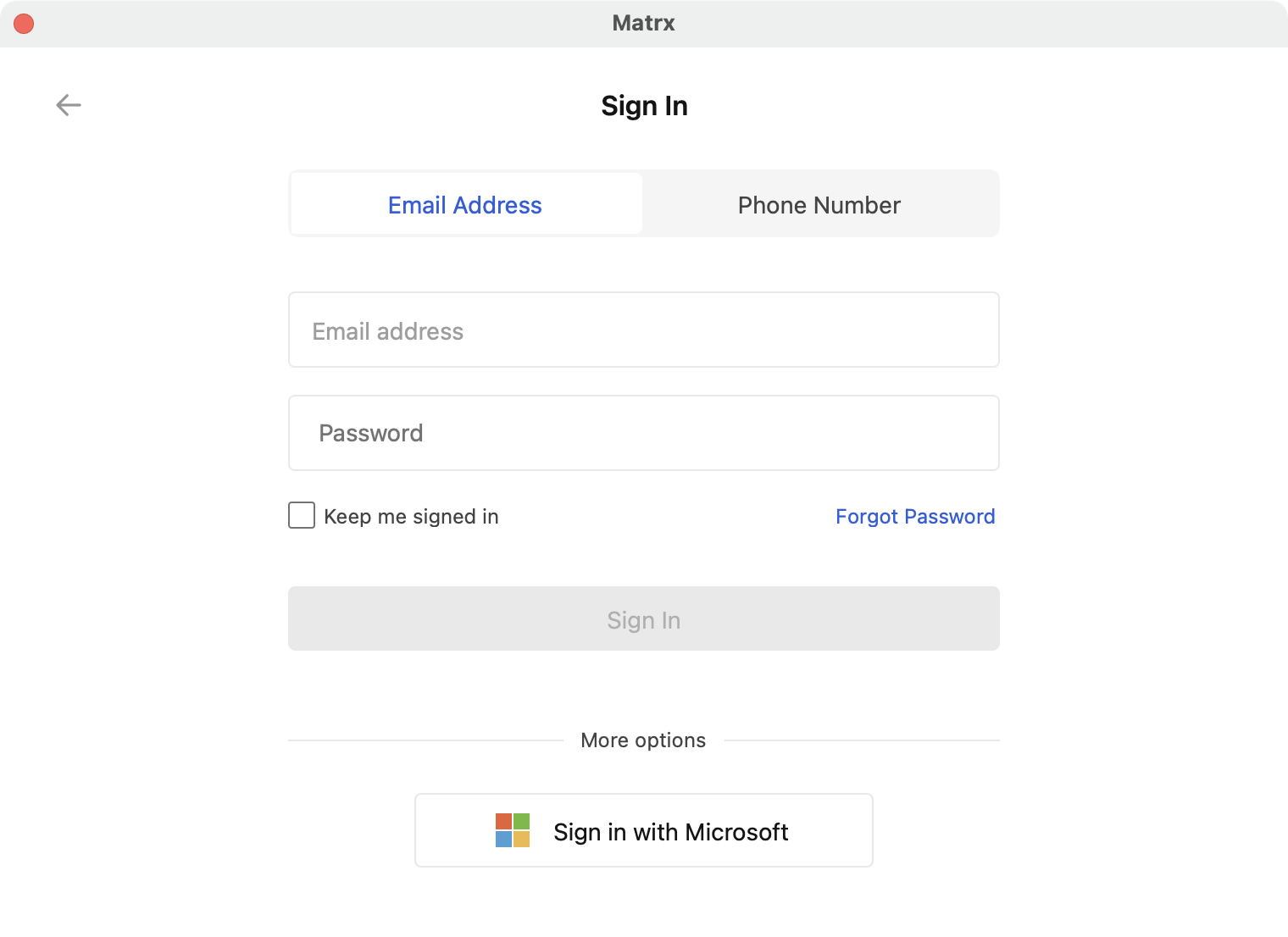
Click Sign in with Microsoft.
-
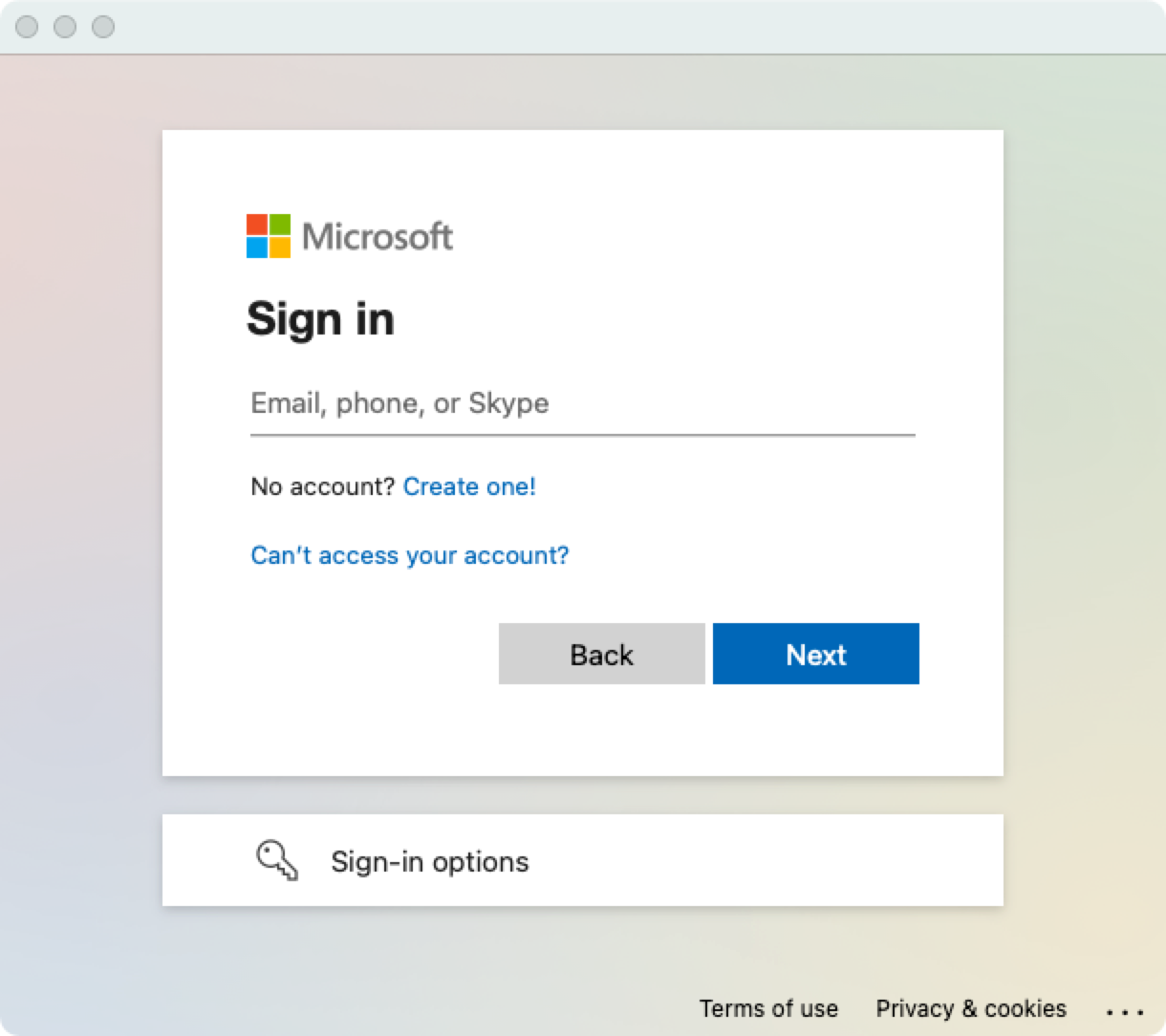
Enter your Microsoft account and click Next.
-
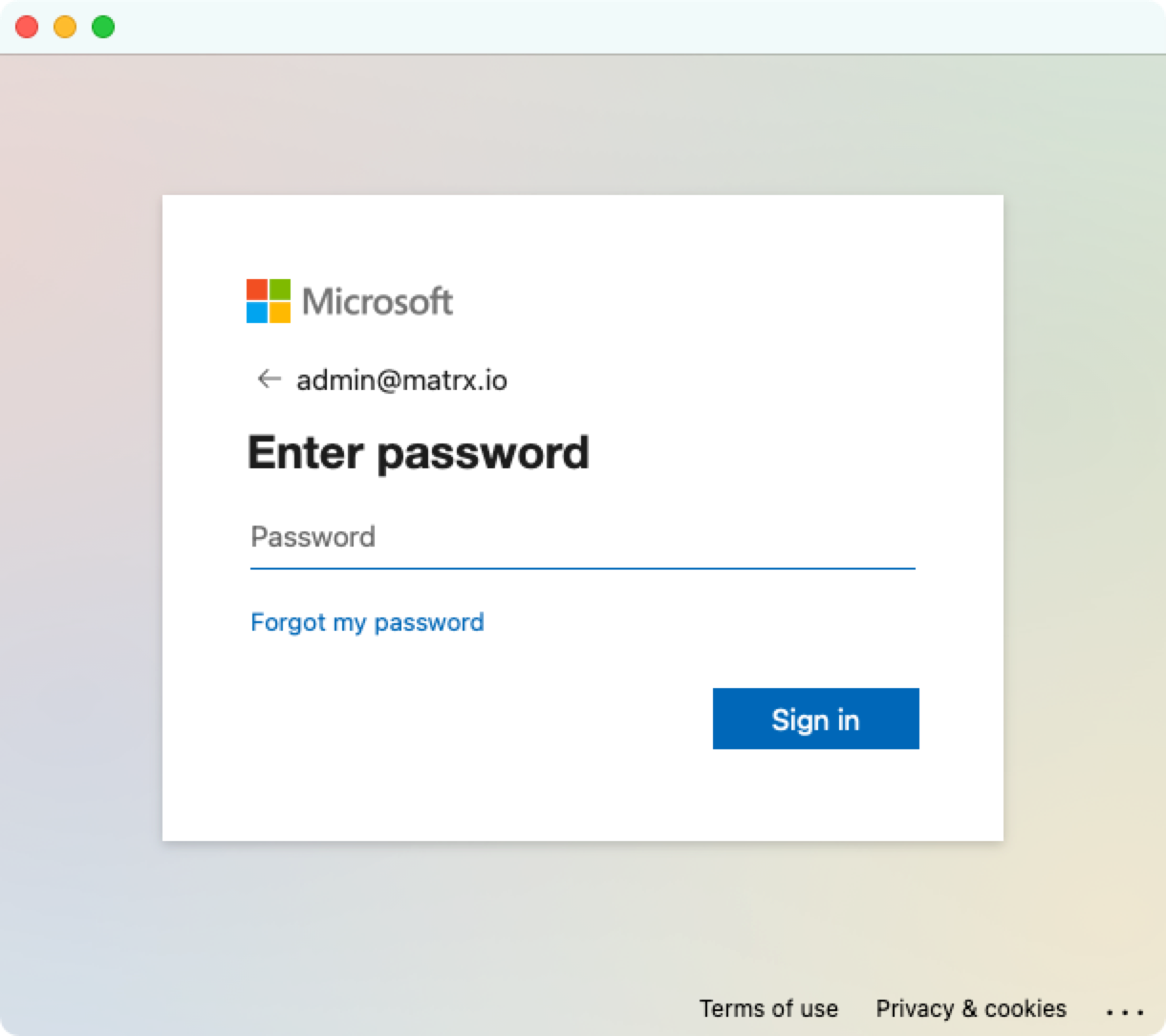
Enter your Microsoft password and click Sign in.
-
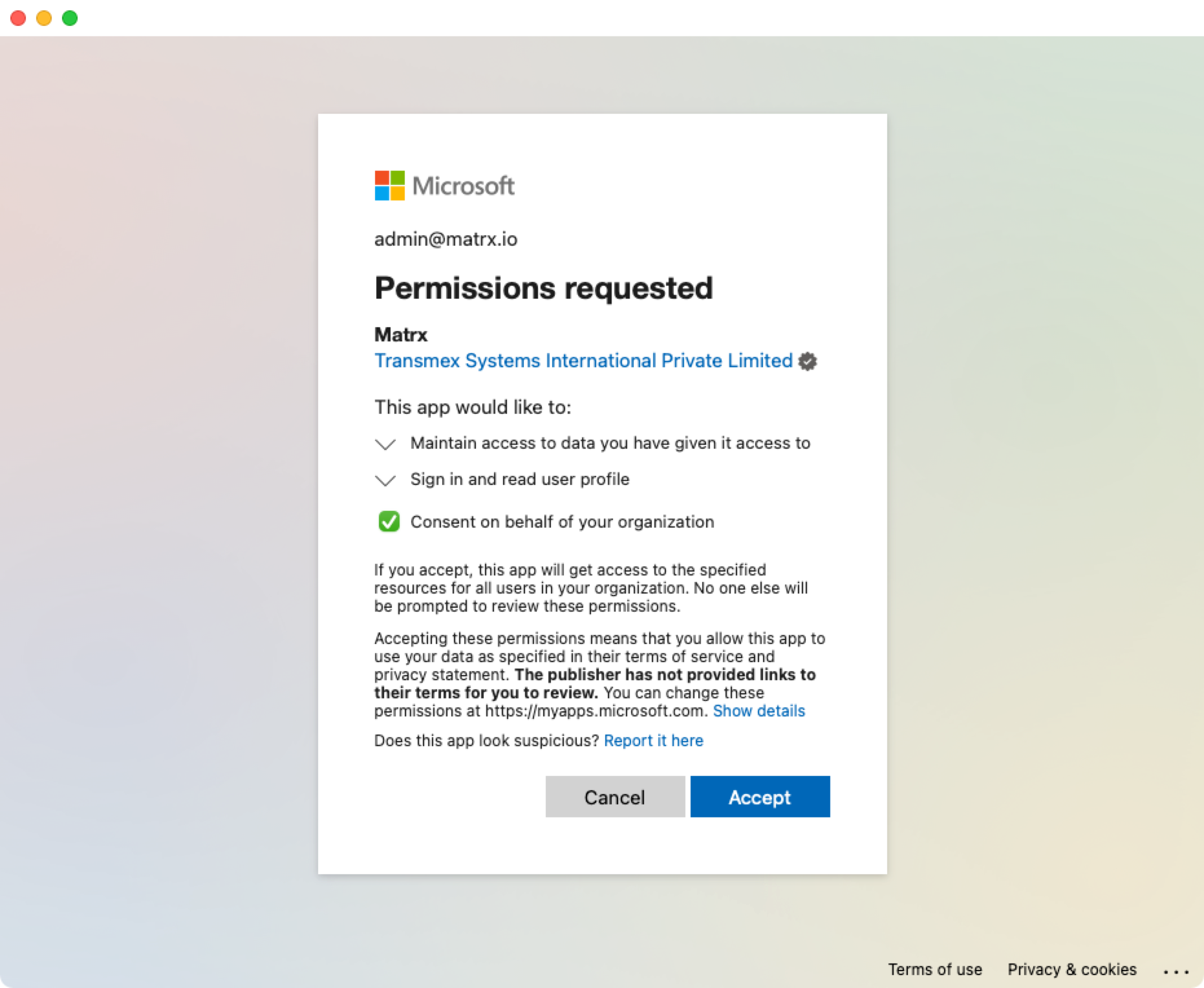
Enable the option "Consent on behalf of your organization" and then click Accept (for the first time only).
-
The authorization process is completed and the SSO is enabled. The enterprise employees can sign into Matrx with their Microsoft accounts now.
Sign in with Microsoft (Windows and macOS)
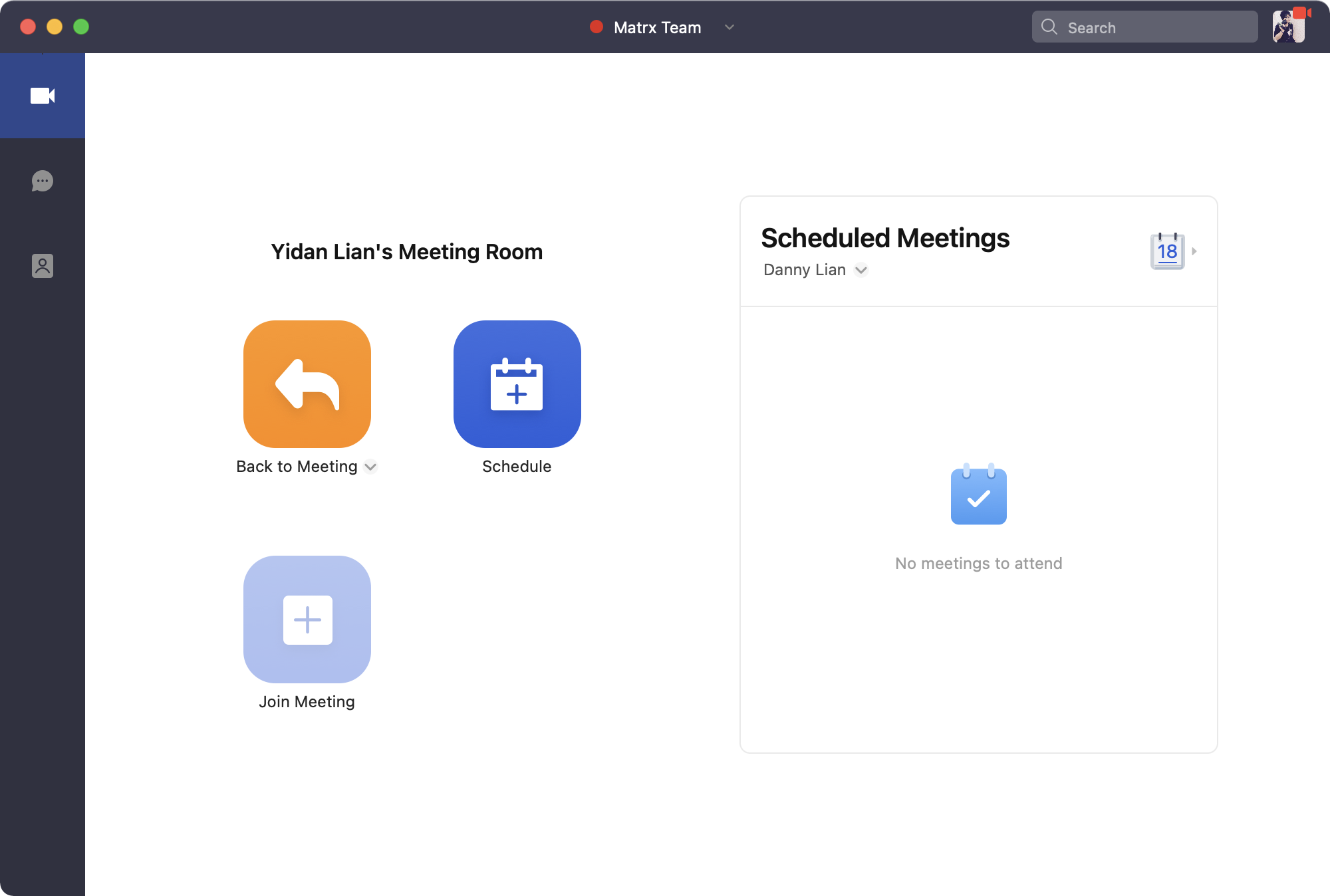
- Open the Matrx application you've installed and click the Sign In button.

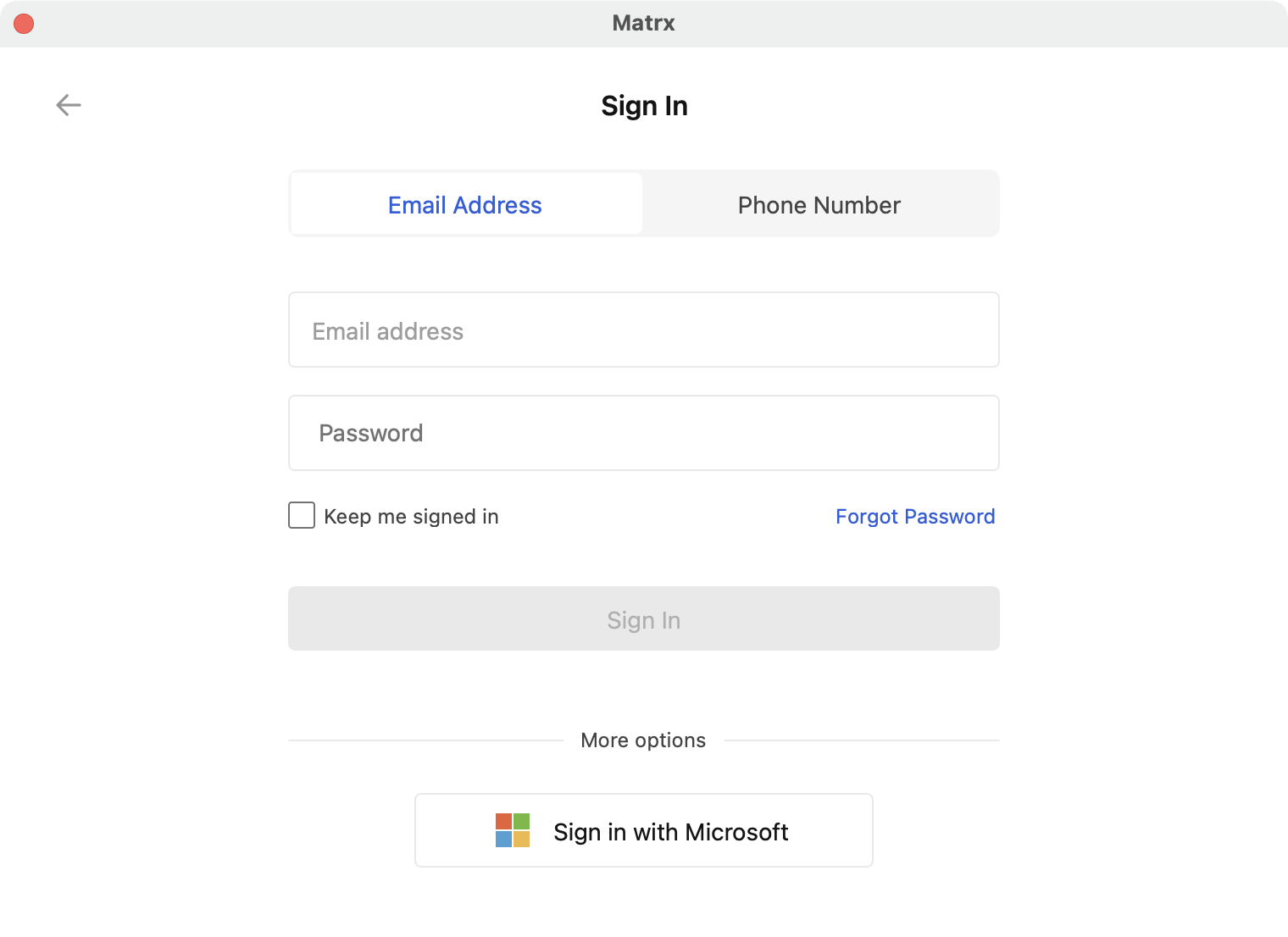
- Click Sign in with Microsoft.
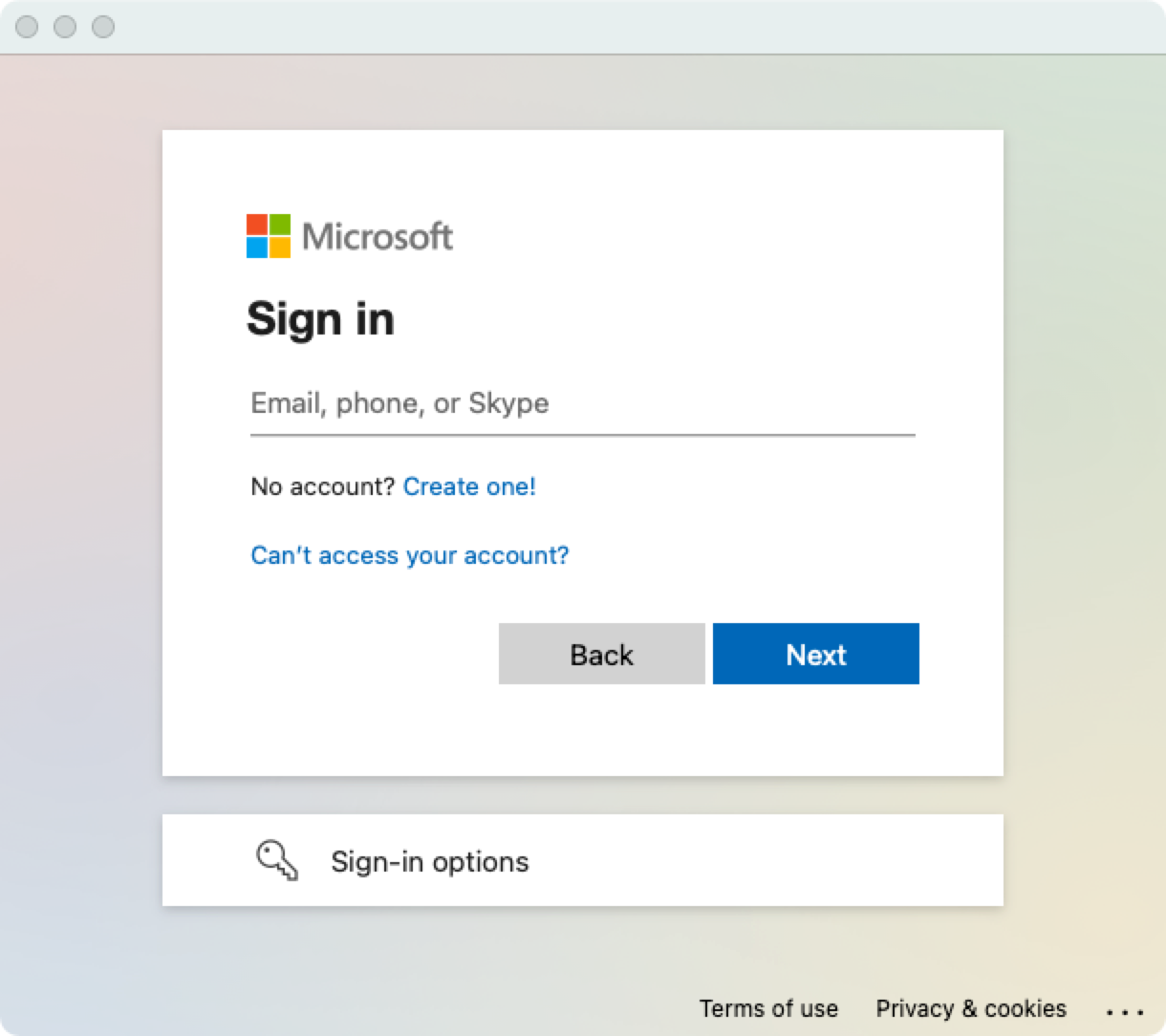
- Enter your Microsoft account and click Next.
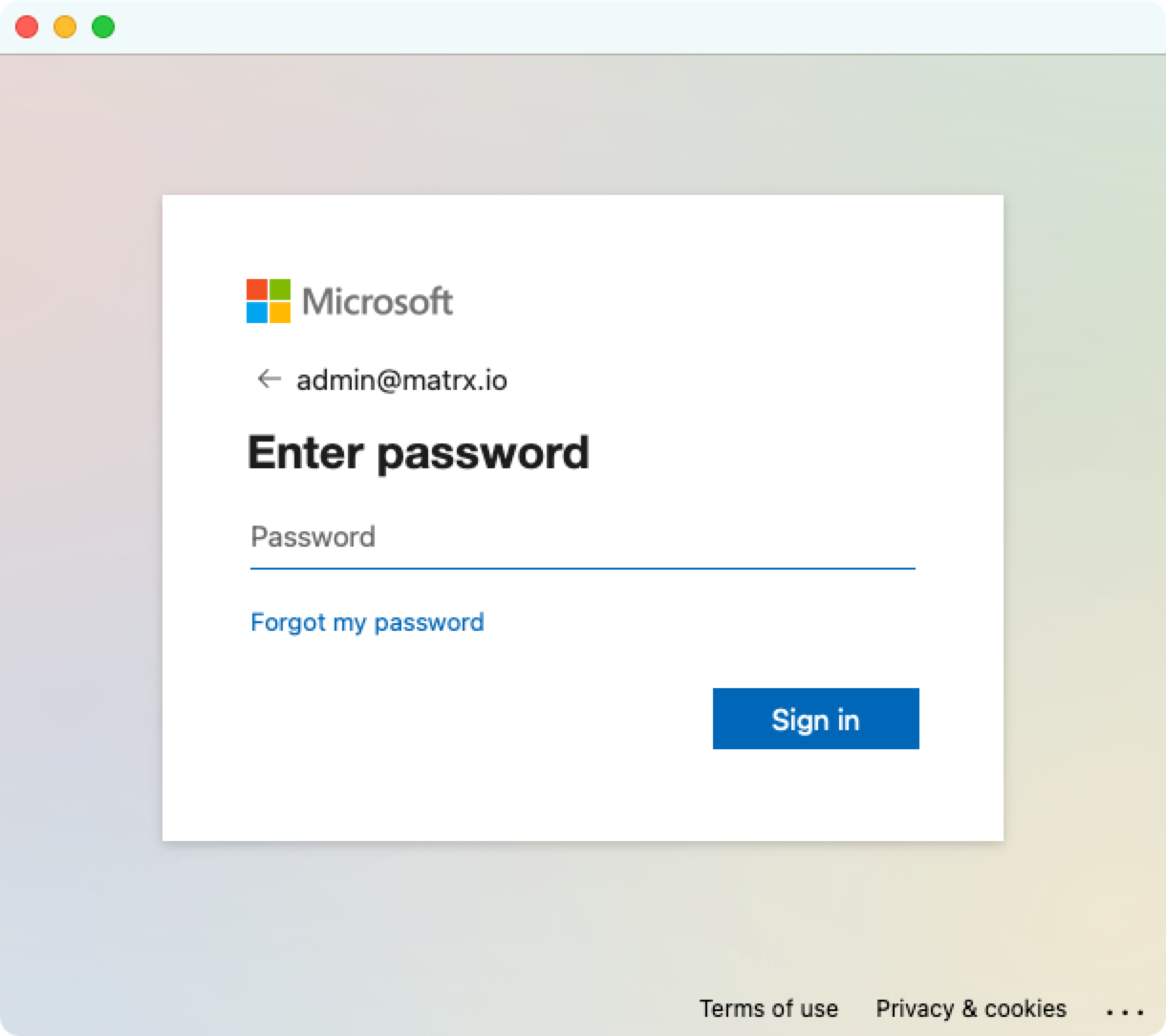
- Enter your Microsoft password and click Sign in.
- Sign-in is completed.
Sign in with Microsoft (Android and iOS)
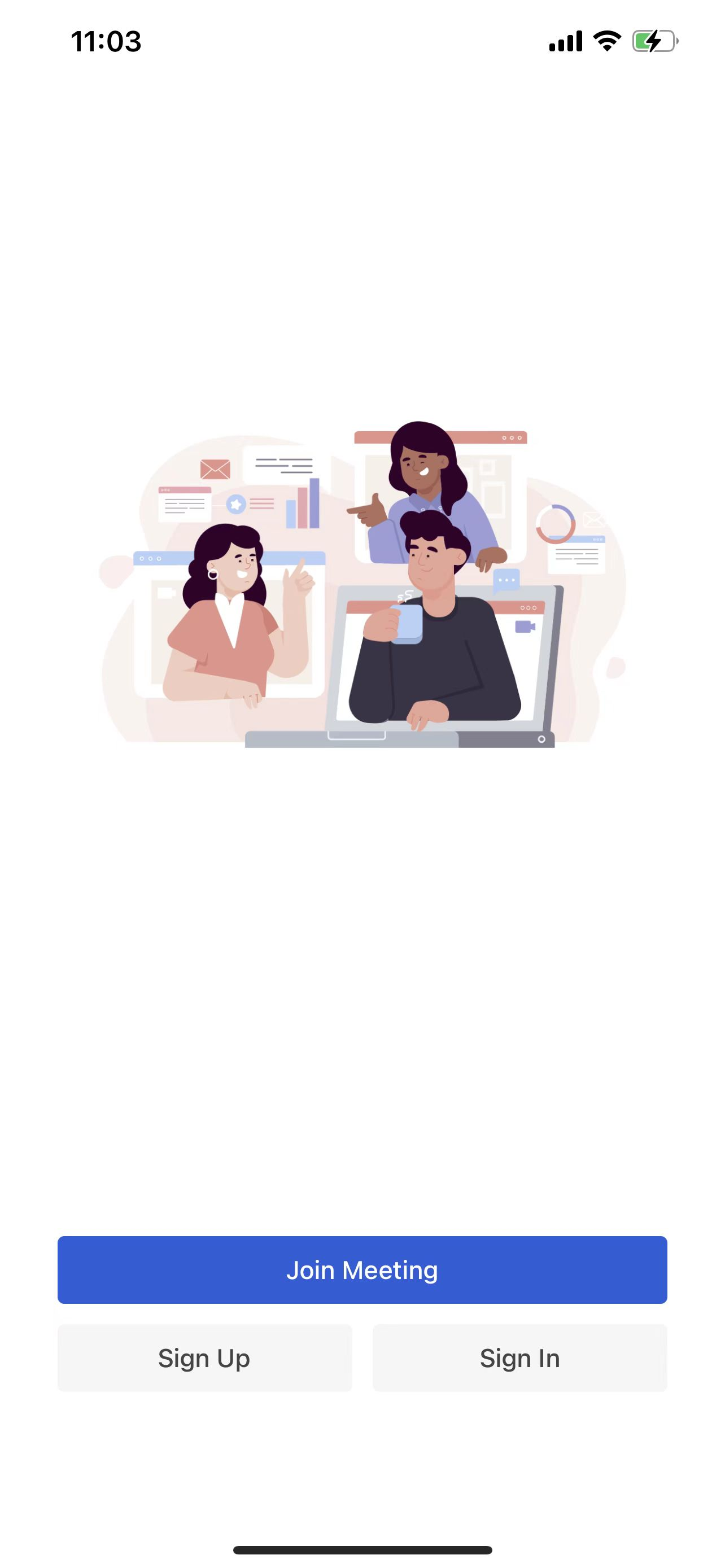
- Open the Matrx application you've installed and click the Sign In button.
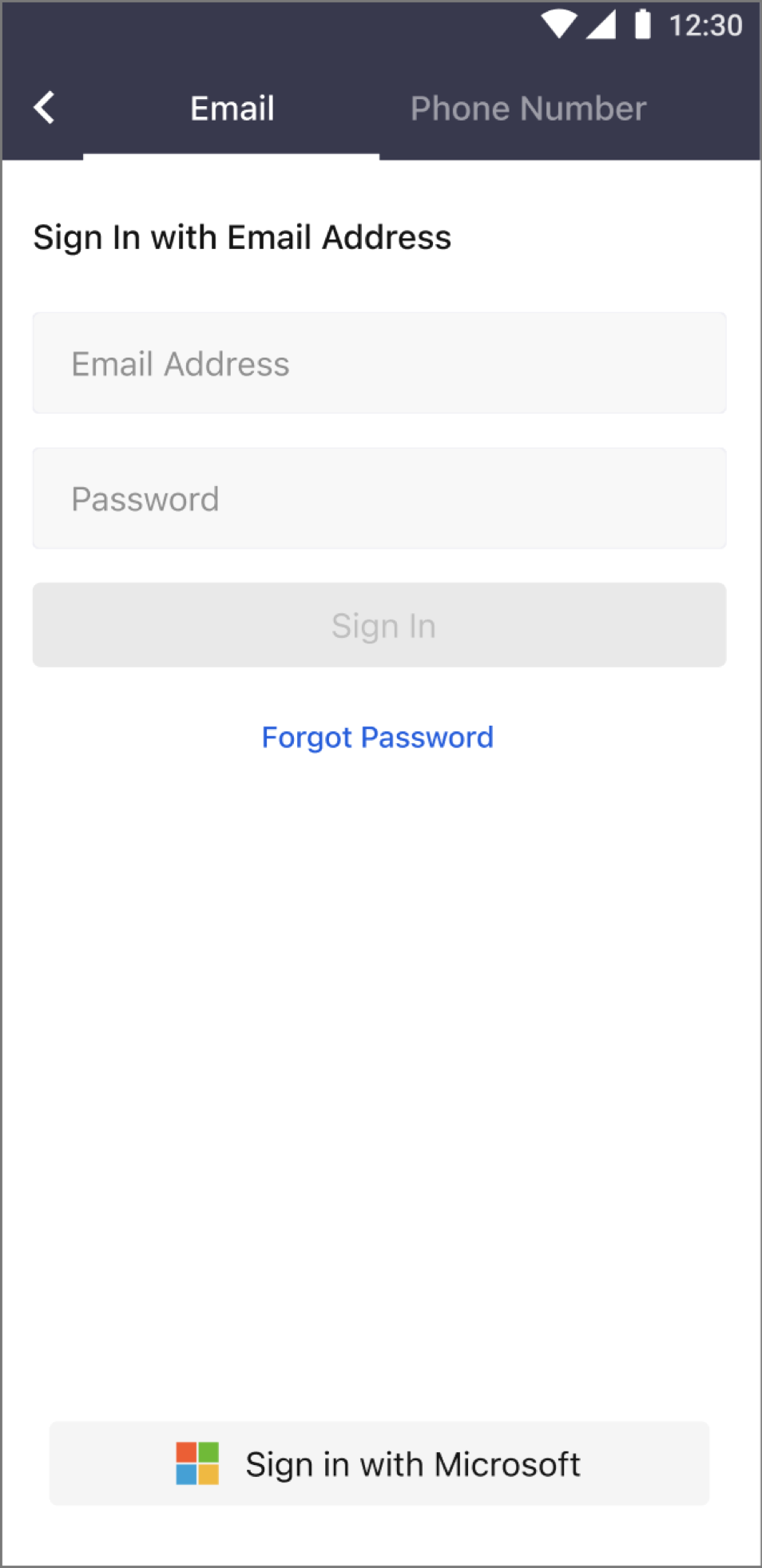
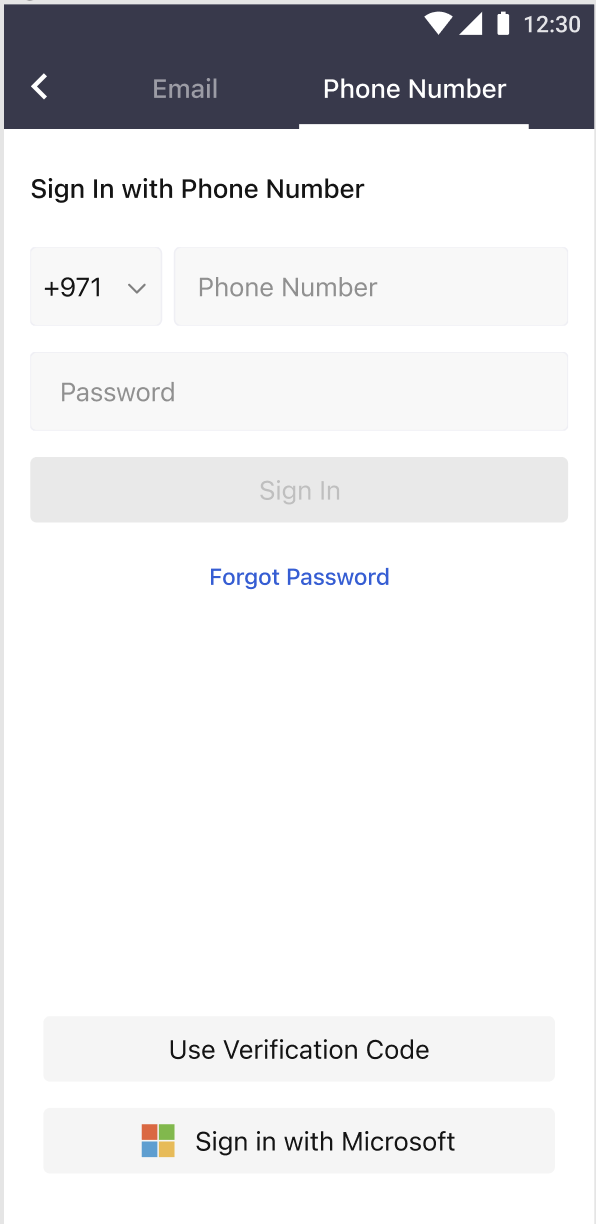
- Click Sign in with Microsoft.
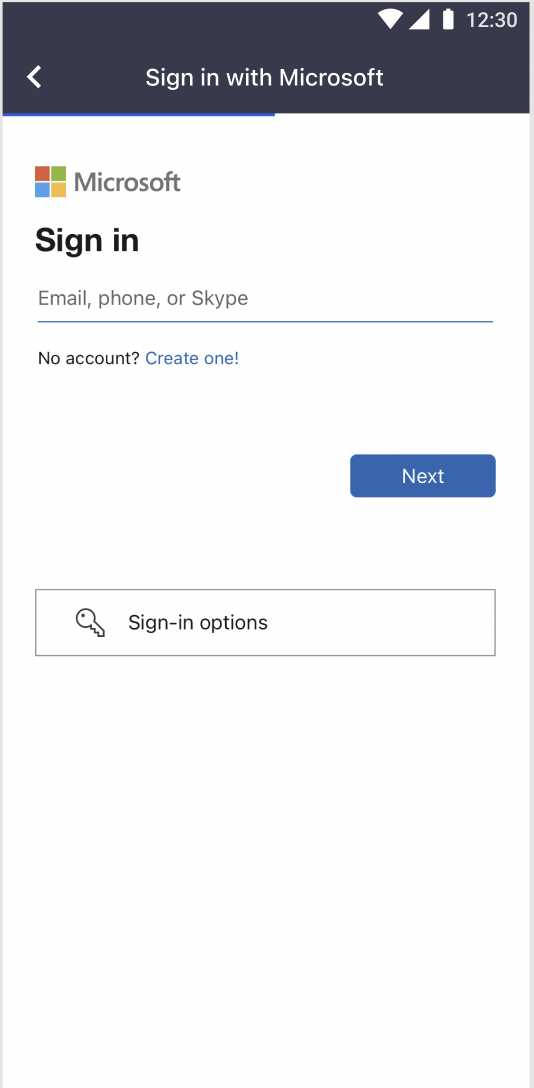
- Enter your Microsoft account and click Next.
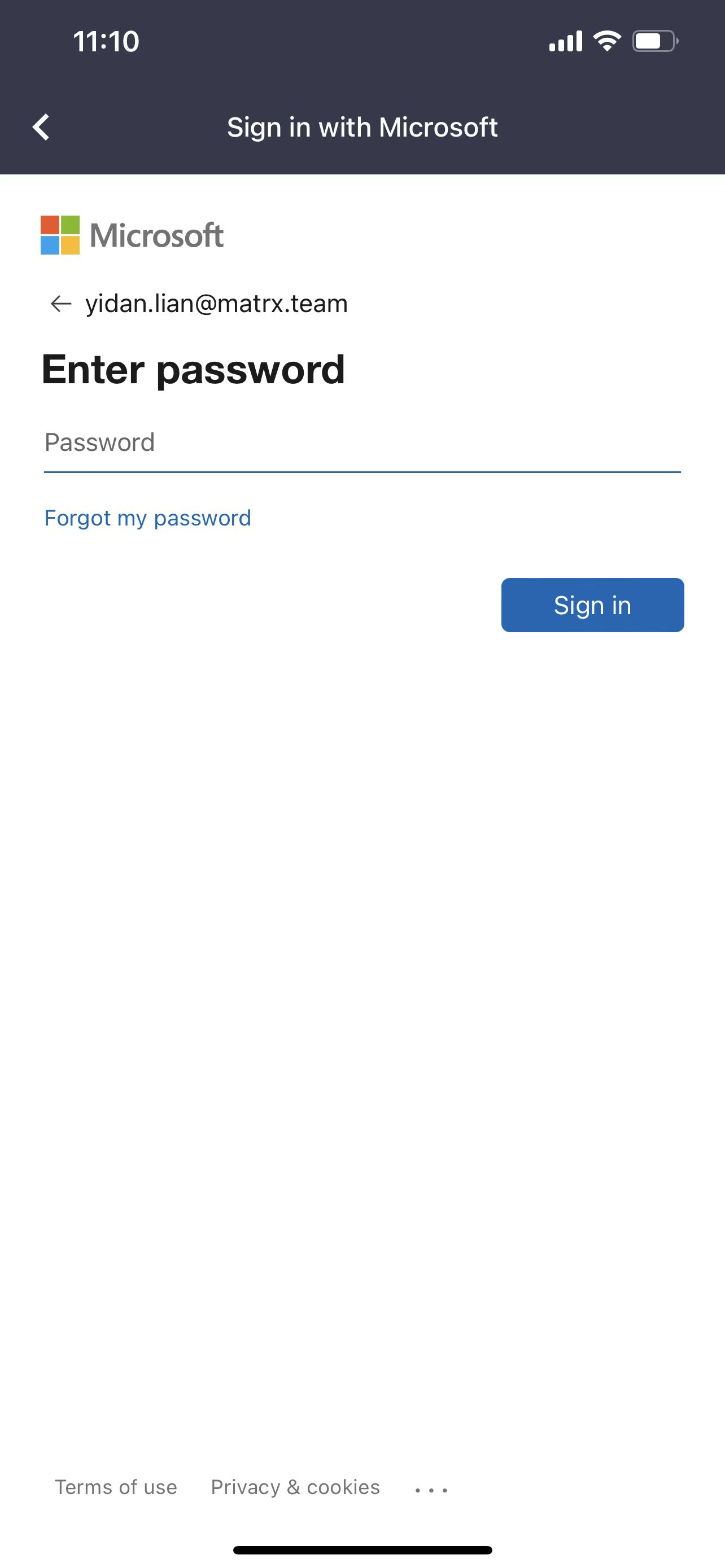
- Enter your Microsoft password and click Sign in.
- Sign-in is completed.