Configure Matrx for Single sign-on with Microsoft Entra ID
Prerequisites
- Available for Ultimate plan accounts only
- Only users on Matrx versions 1.26 or higher can use this feature.
Enable SSO with Matrx
Using SSO makes managing your enterprise user information much easier. Once the internal company account is configured and SSO is set up, your enterprise users can use Matrx without having to register a Matrx account.
For Enterprise plan enterprises, please contact your customer success manager to enable this feature. And follow the steps below to enable SSO
- Configure Microsoft Entra SSO
- Configure in Matrx: share the information mentioned below with Matrx. And Matrx will help you to set SAML SSO up from our side.
1 Configure Microsoft Entra SSO
Before the configuration from Matrx side. Please follow the follow steps to configure SAML SSO in Microsoft Entra SSO.
- Log in to Microsoft Entra admin center as an administrator.
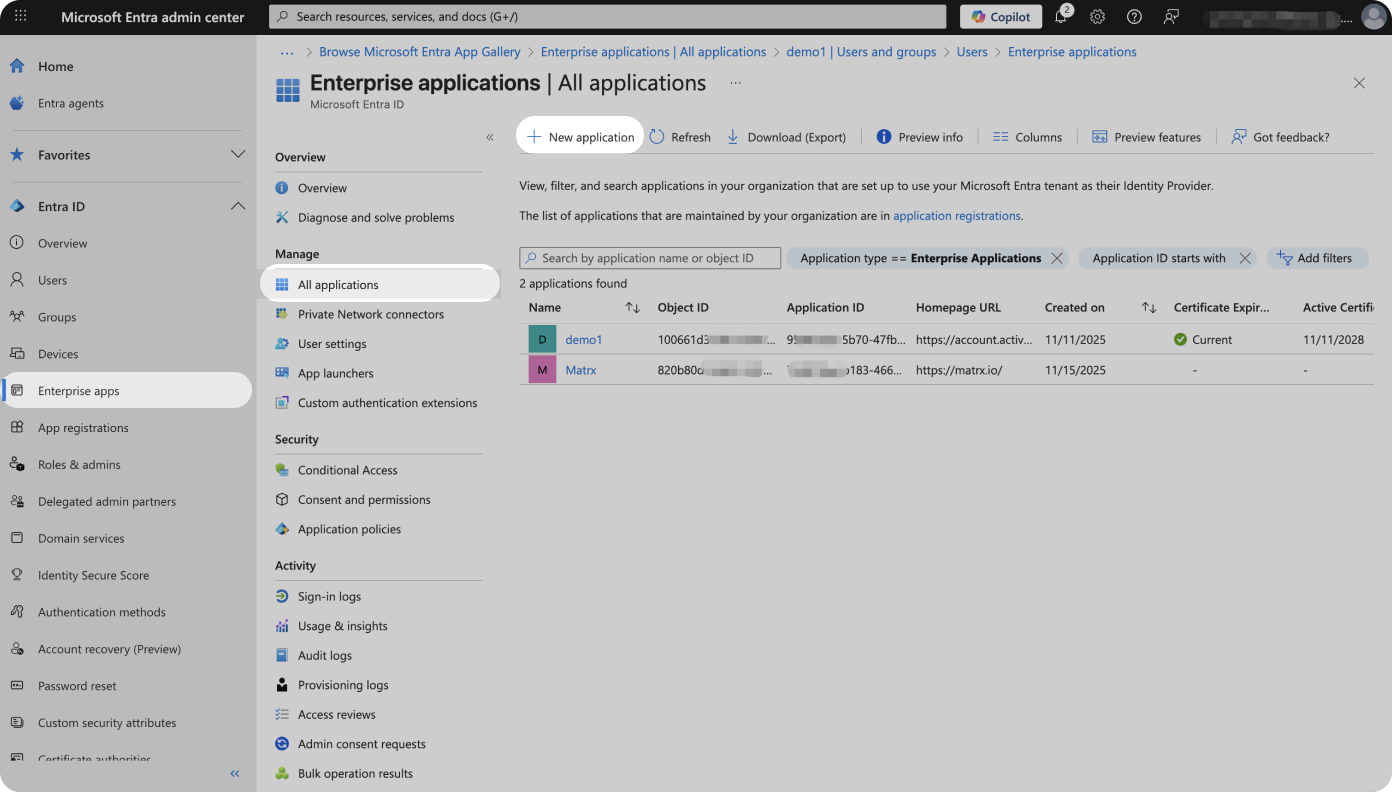
- Go to Entra ID -> Enterprise apps -> All applications -> +New application
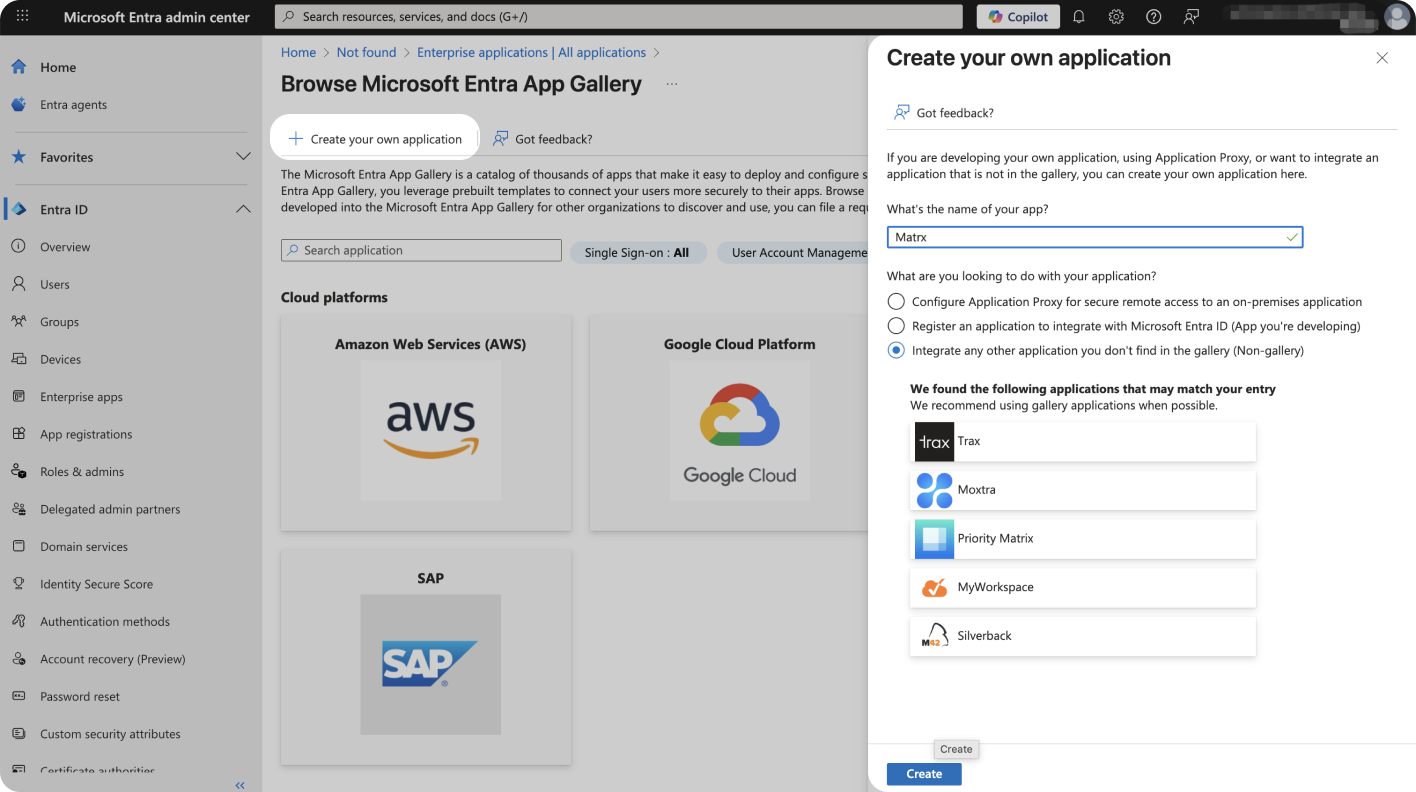
- Create a new application in Microsoft Entra
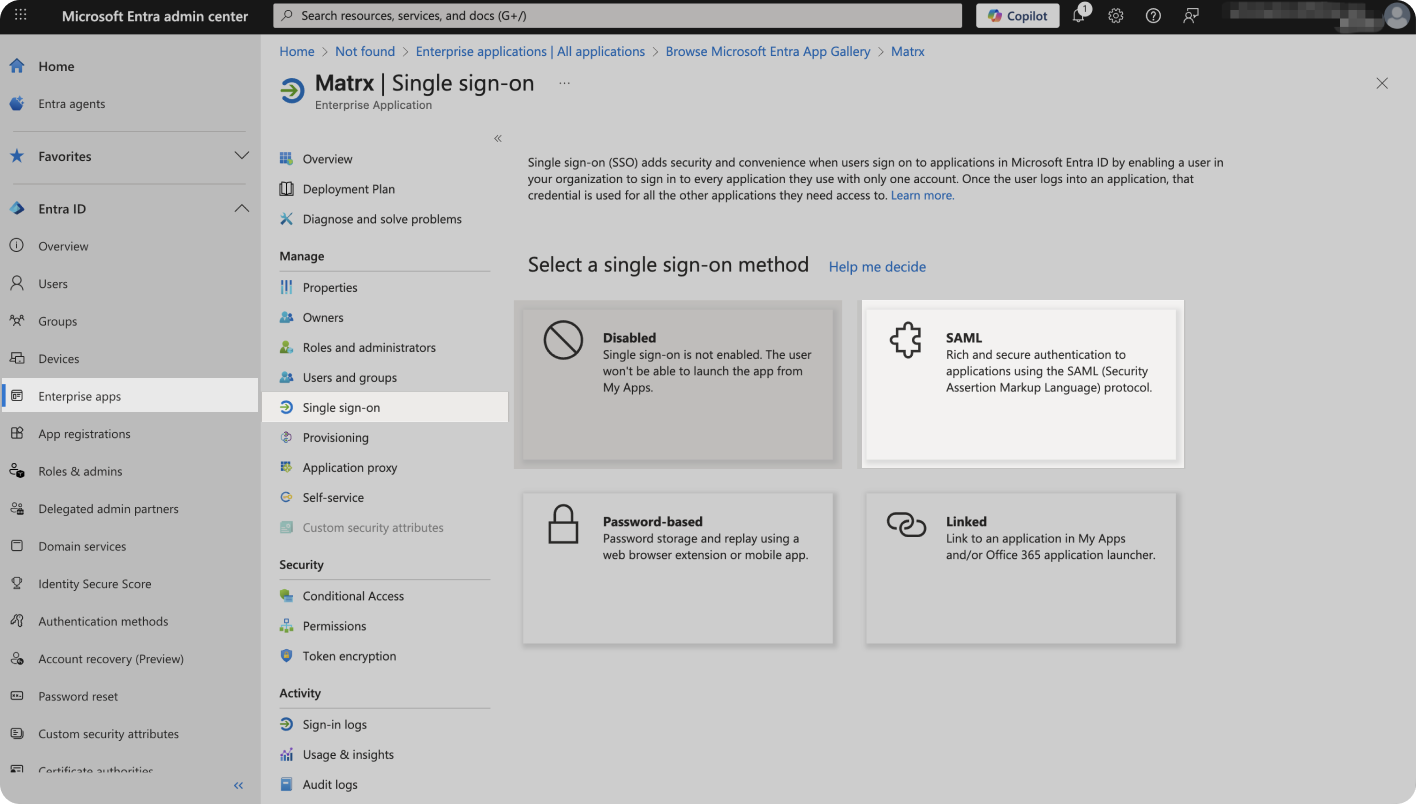
- Go to Entra ID -> Enterprise apps -> All applications , and select the application just created. And select SAML as the single sign-on method.
- Complete the configuration information on the SAML-based Sign-on page.
- Identifier(Entity ID): Please fill in -> https://www.matrx.io/wapi/auth-integration/saml2/service-provider-metadata/{{enterprise domain}}
- Reply URL(Assertion Consumer Service URL): Please fill in -> https://www.matrx.io/wapi/auth-integration/login/saml2/sso/{{enterprise domain}}
- App Federation Metadata Url: Please copy this and share with Matrx Team
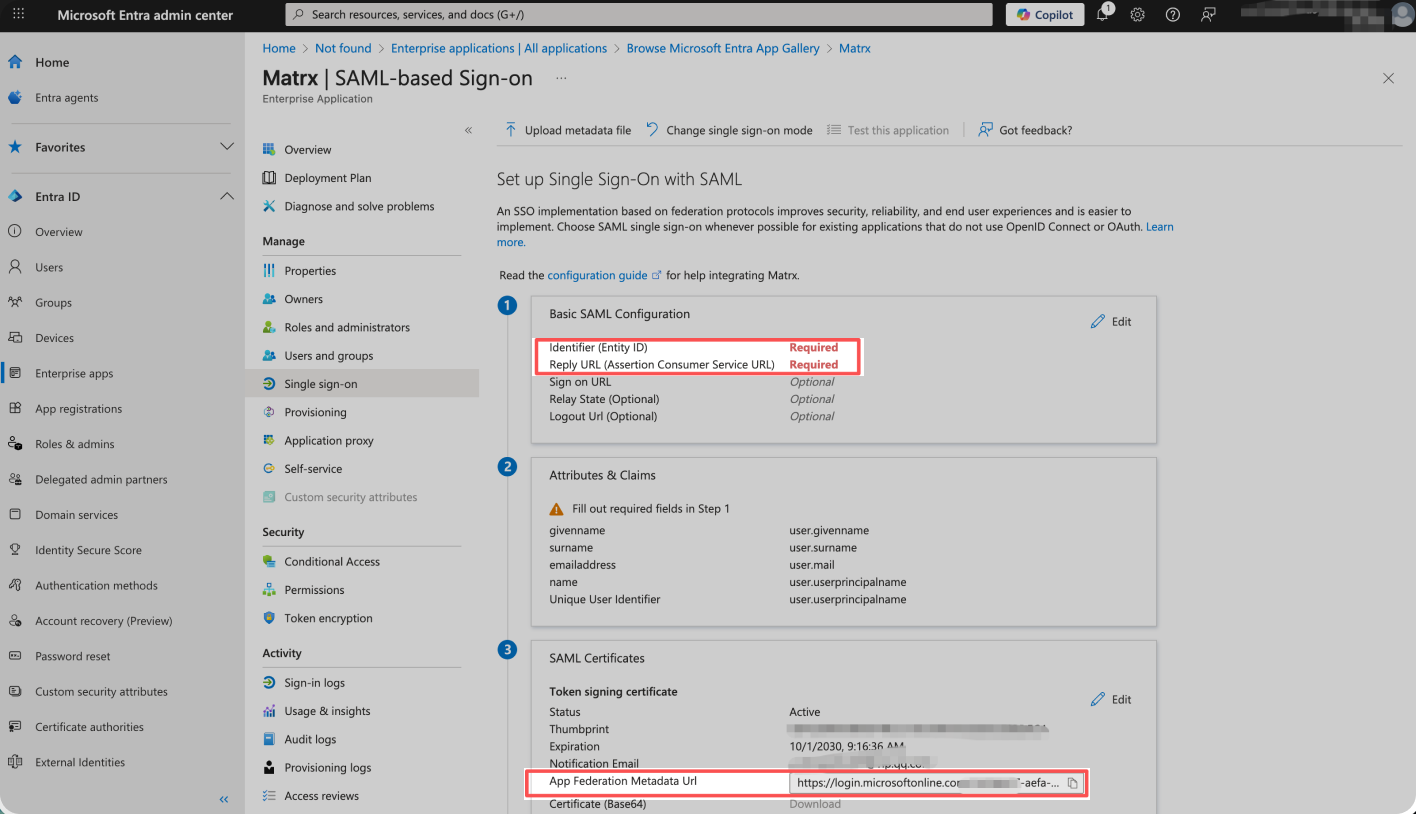
2 Share configure information with Matrx
After configuration in Microsoft Entra, please share “App Federation Metadata Url” with Matrx Team to finalize the configuration.
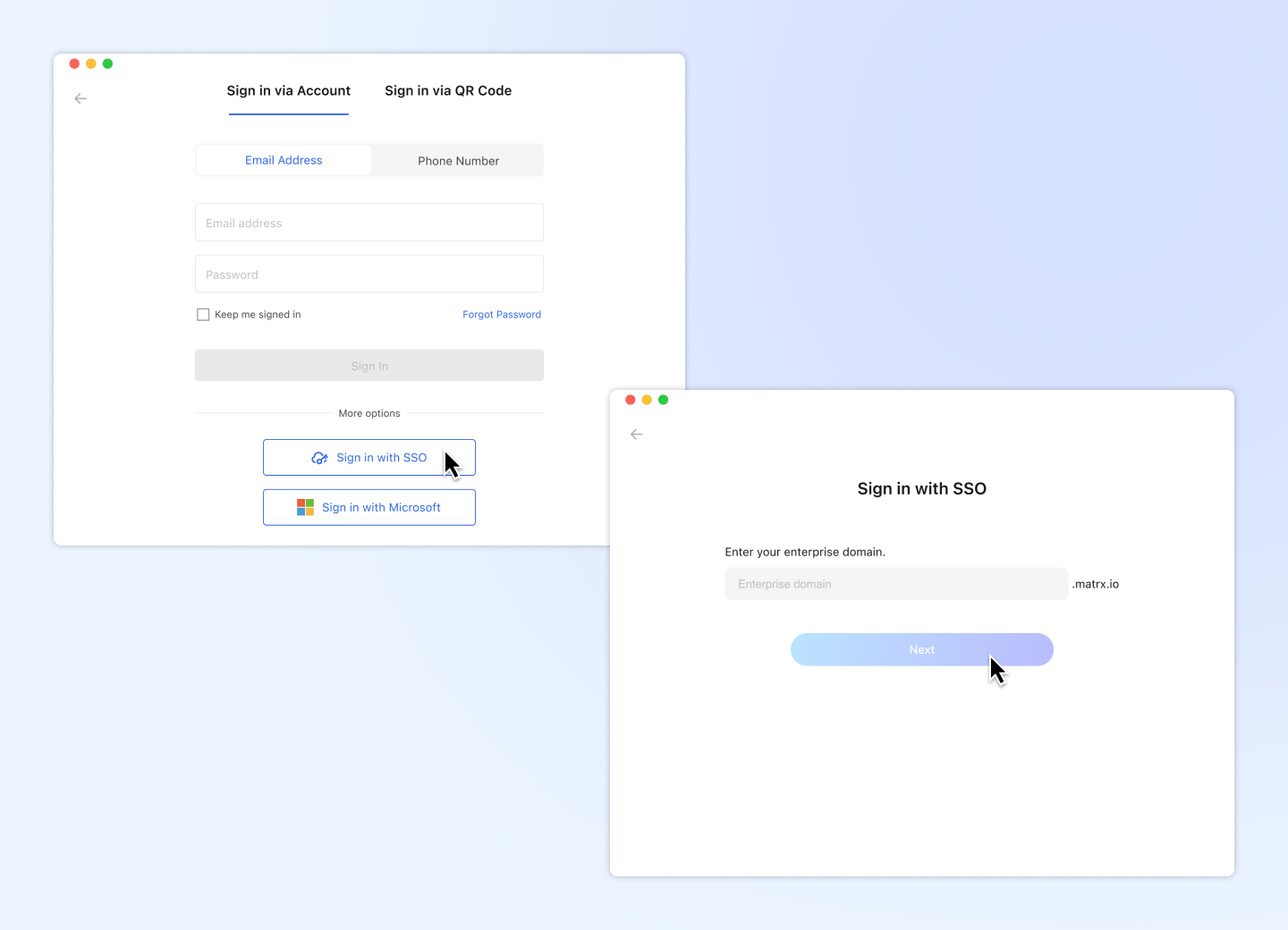
Sign in Matrx via SSO
After the configurations on both sides. You team members in the enterprise can sign in Matrx via SSO.
View more about Sign in Matrx via SSO
Q&A
What is my enterprise domain?
Enterprises typically choose domain names that are related to their company name, business operations, or brand. Common suffixes are .com and .cn. Thus generally, your company domain name is the suffix of your company email address.
If it’s not, please contact members who have completed SSO in your enterprise or your administrator to confirm your company domain name.
Will the users managed in Microsoft Entra be automatically enabled in Matrx?
Yes. Users you add in the Microsoft Entra admin center will automatically be able to sign in Matrx via SSO. And the ones you removed from Microsoft Entra, will be not able to sign in Matrx via SSO. You do not need to manually update them again in the Matrx admin portal.
⚠️ Please note:
Matrx will automatically enable user accounts based on the UPN(user principal name) in Microsoft Entra as their account in Matrx. But you may not see these accounts update in real time in Matrx Admin Portal.
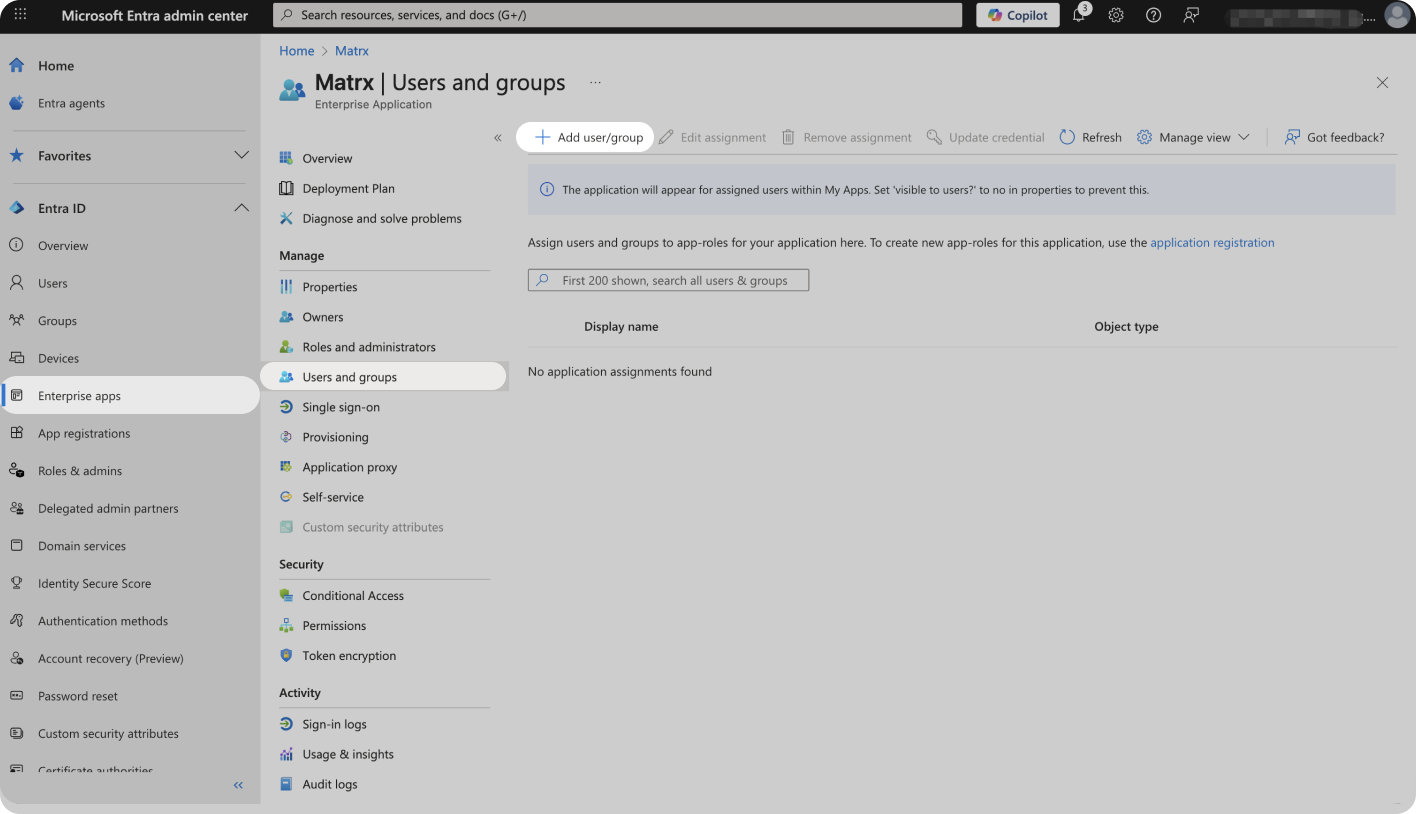
Additionally, please ensure that you have added the members who are allowed to use SSO on Matrx to the Matrx application in the Microsoft Entra admin center. Only these users will be automatically synced to Matrx's enterprise users.
Will the chat history remain if I had an exsiting account, and then enable the SAML SSO?
If your exsiting account it the same as the UPN in Microsoft Entra, then Yes. ⚠️If your Matrx exisiting account is not the same as the UPN. You need to change your account to the UPN BEFORE sign in via SSO.
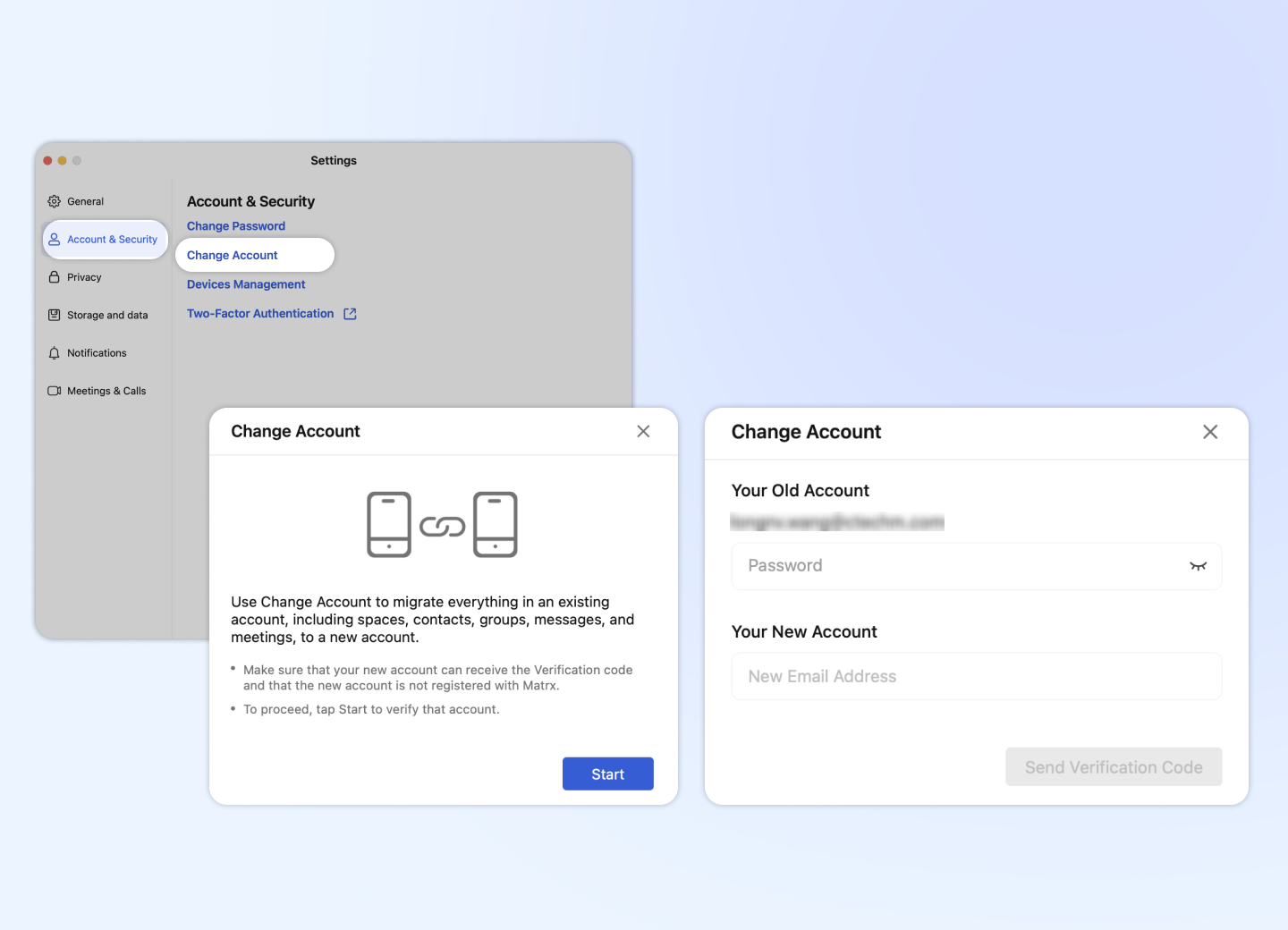
You can follow the below steps to Change Account ⚠️Do this BEFORE sign in via SSO
- Go to Settings -> Account & Security
- Click Change Account, and start the progress
- Input the UPN as your new account, verify the code and change the account