Add contacts in the Personal space
Add Contacts
Any user that has signed up for Matrx has a Personal space by default. To chat and meet others in the Personal space, you'll have to add the person as your contact on Matrx.
Windows and macOS
1. Go to the Contacts tab, click the + icon, and then click the Add a Contact button.
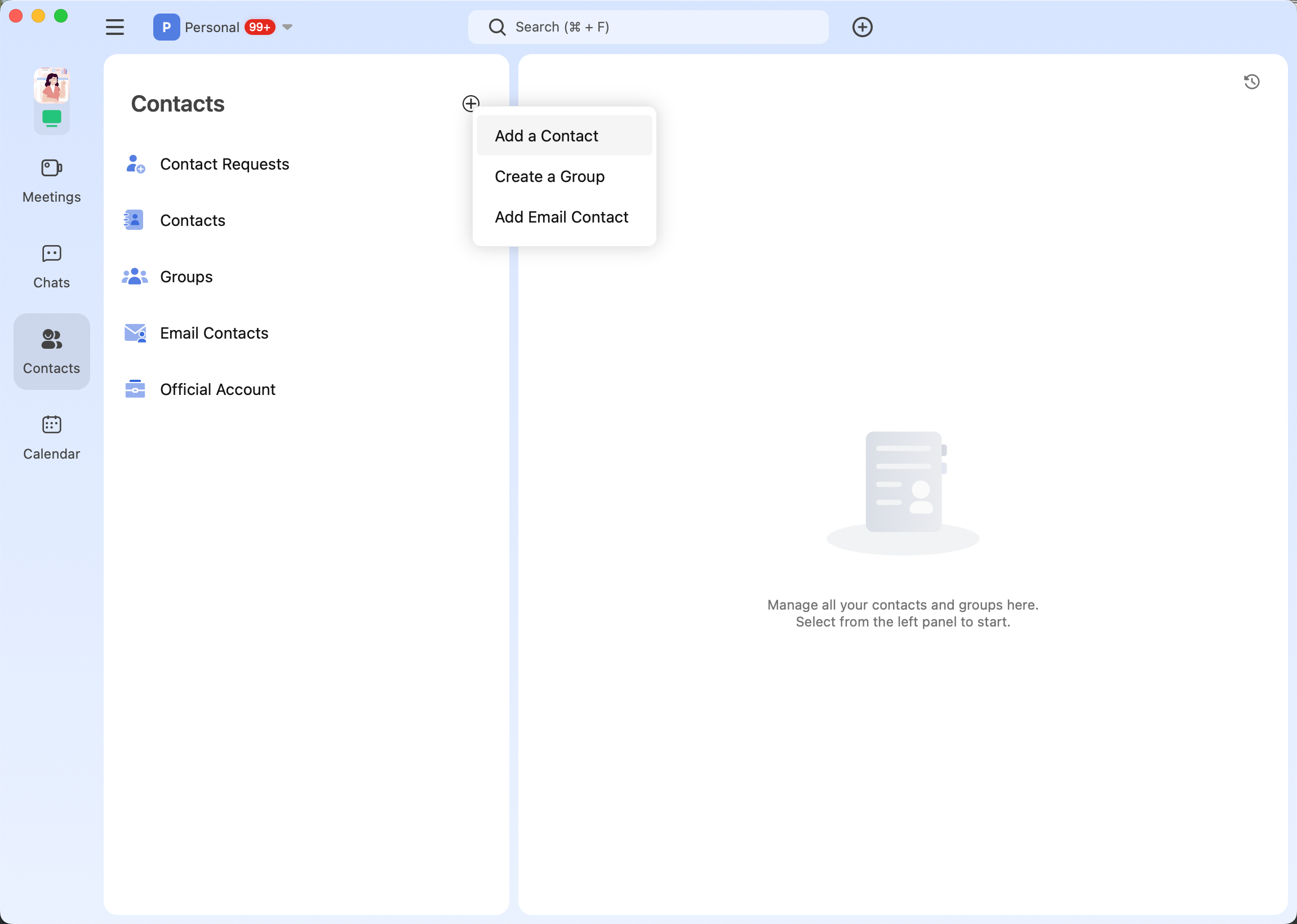
- Enter the contact’s email address or phone number that's used for Matrx sign-up and click Add / Send.
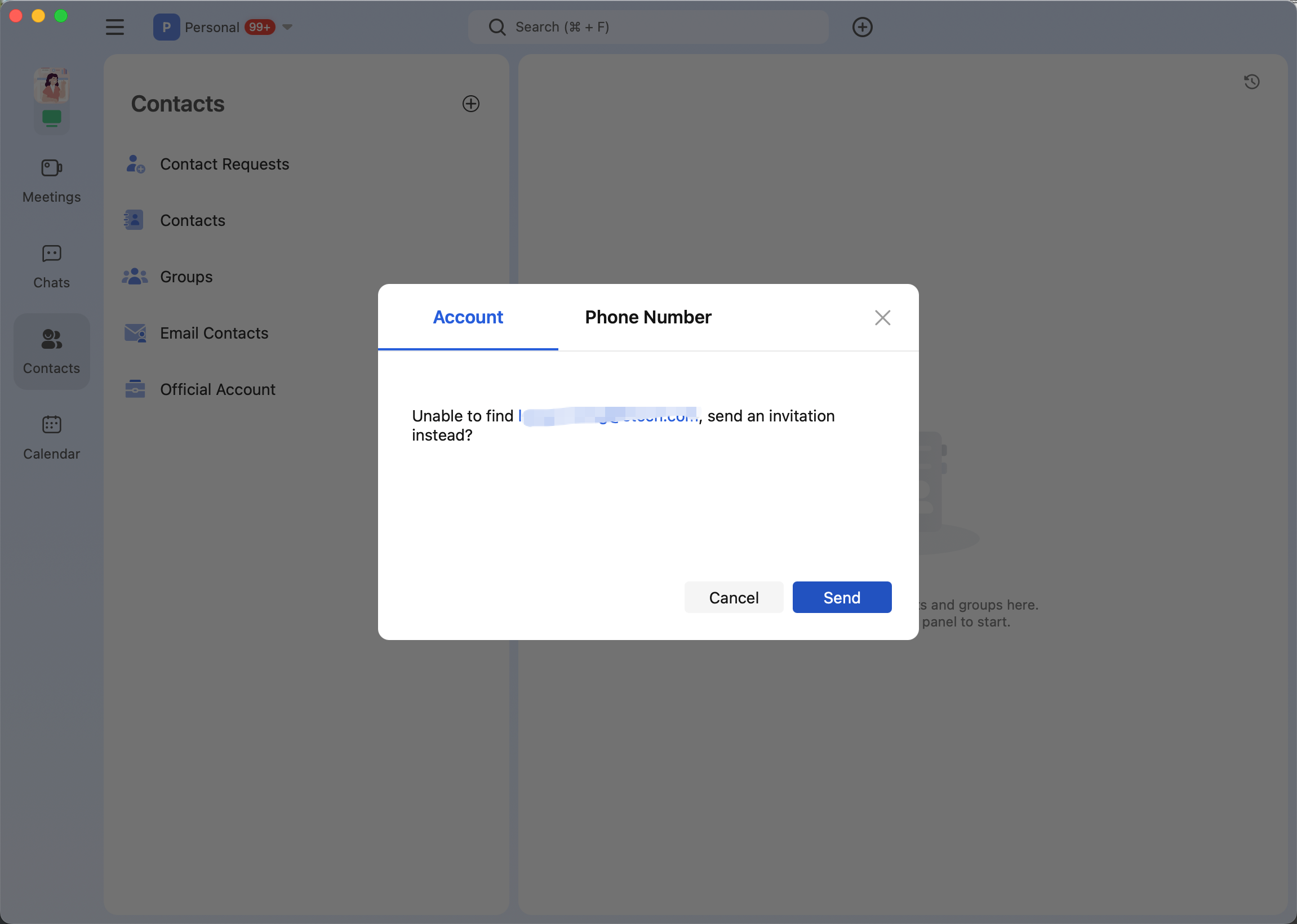
3. The contact will find your request in the Contact Requests. After the contact accepts your request, you two can start to chat or meet.
Android and iOS
1. Go to the Contacts tab, tap the + icon, and then tap the Add a Contact button.
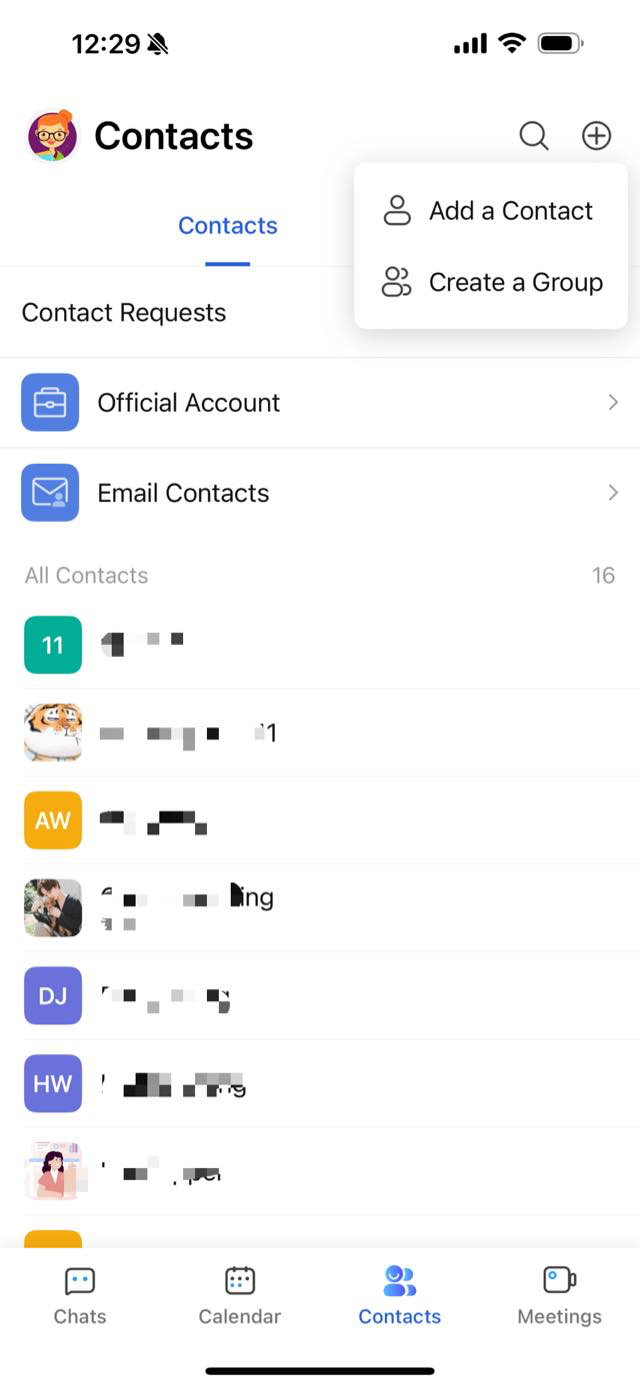
-
Enter the contact’s email address or phone number that's used for Matrx sign-up and tap Add / Send.
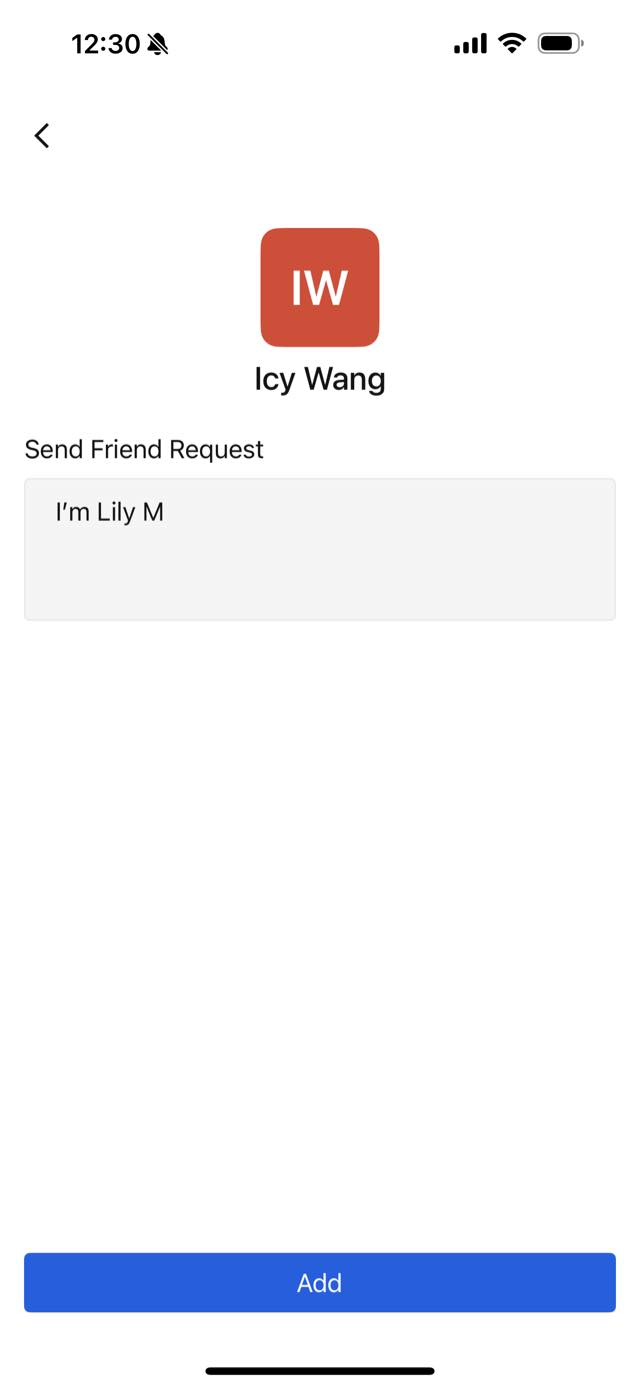
-
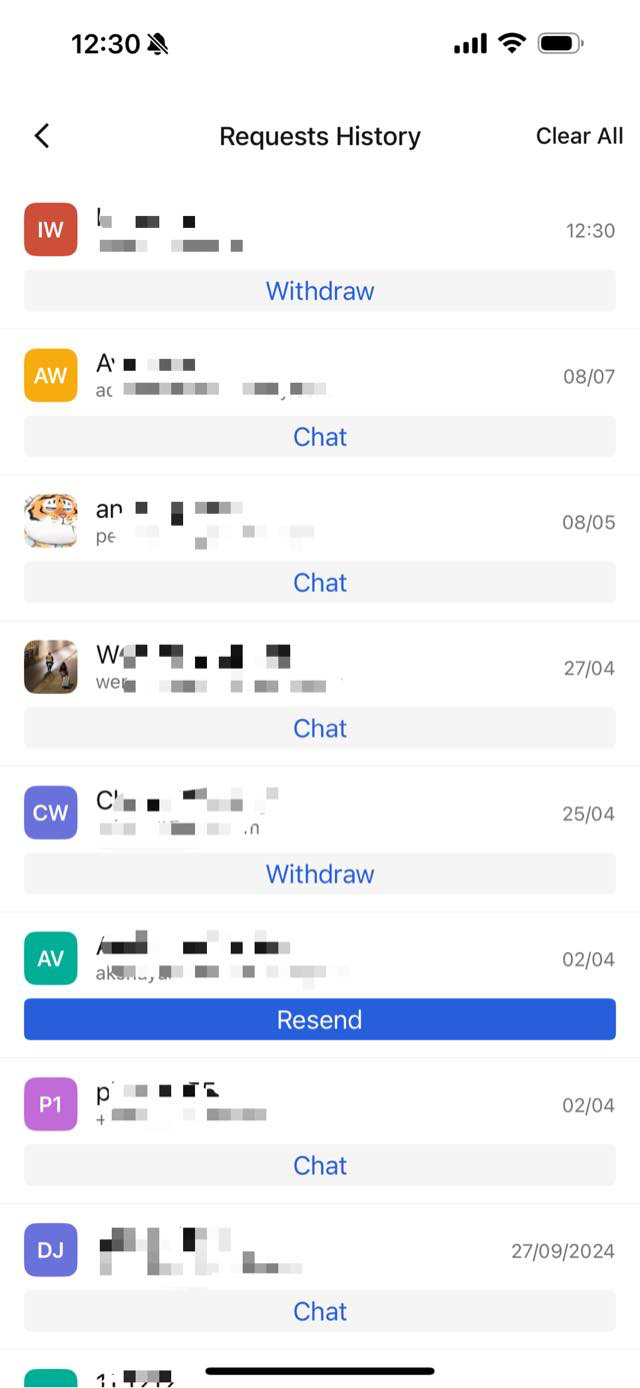
The contact will find your request in the Contact Requests. After the contact accepts your request, you two can start to chat or meet.
Please note: to chat and meet your teammates in the Workspace doesn't require adding them as contacts. Your contacts are in your contact list automatically in the Workspace.