4 Send voice messages
1. Function introduction
You can send voice messages on mobile devices, but not on desktop. You can play voice messages on both mobile and desktop.
2. Operation process
Send voice messages
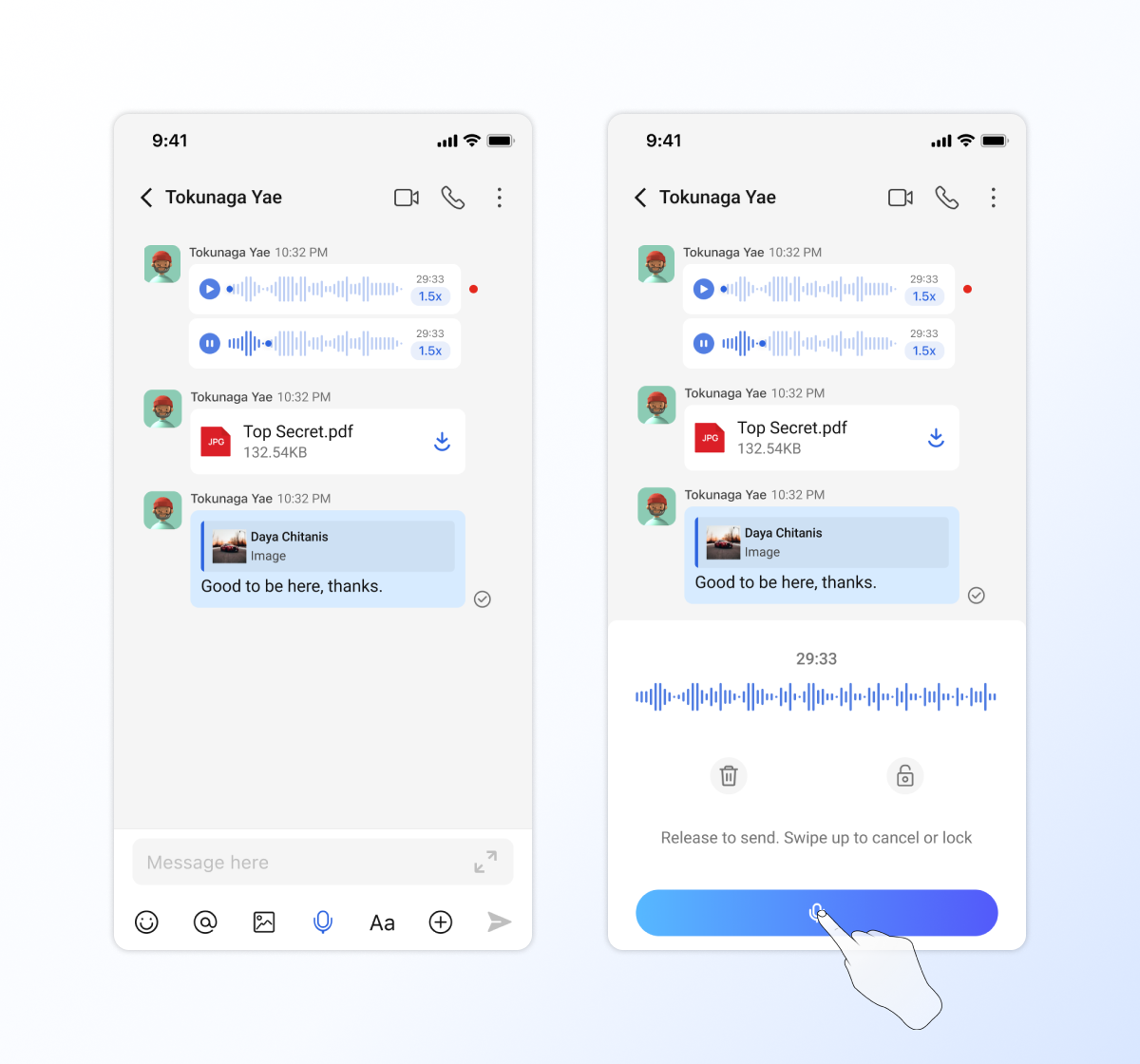
Quick send voice messages
- Long press the microphone button to start recording voice right away.
- After recording, release it to send.
- If you want to cancel sending, swipe up to select the delete icon on the left, and release to complete the cancellation operation.
Lock recording and send long voice
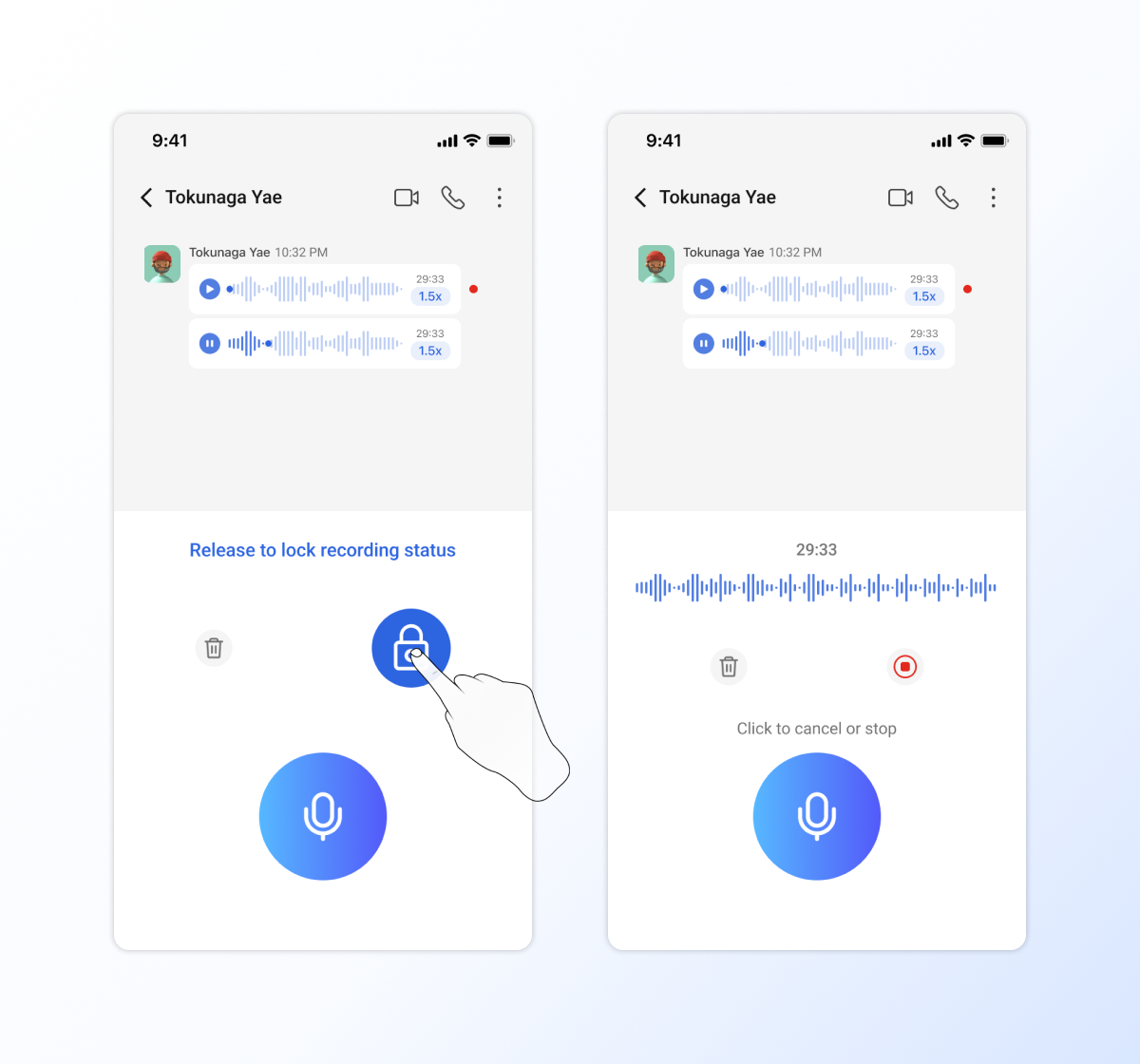
- Click the microphone button to expand the recording module
- Long press and swipe up to the lock icon on the right to select it, and release to complete the locking recording operation.
- You can send voice messages up to 2 hours.
- Once the recording is locked, you can keep recording without pressing the microphone, freeing your fingers
- ⚠️ During the recording process, please do not leave the current session, otherwise the recording will be canceled
- Click the stop button to stop recording.
- When the recording stops, click the microphone again to continue recording.
- When the recording stops, you can also click the play button to check the currently recorded audio content
- Click the delete button to delete the recording content and cancel sending
Receive & play voice messages
- 📱Mobile Users
- 💻Desktop Users
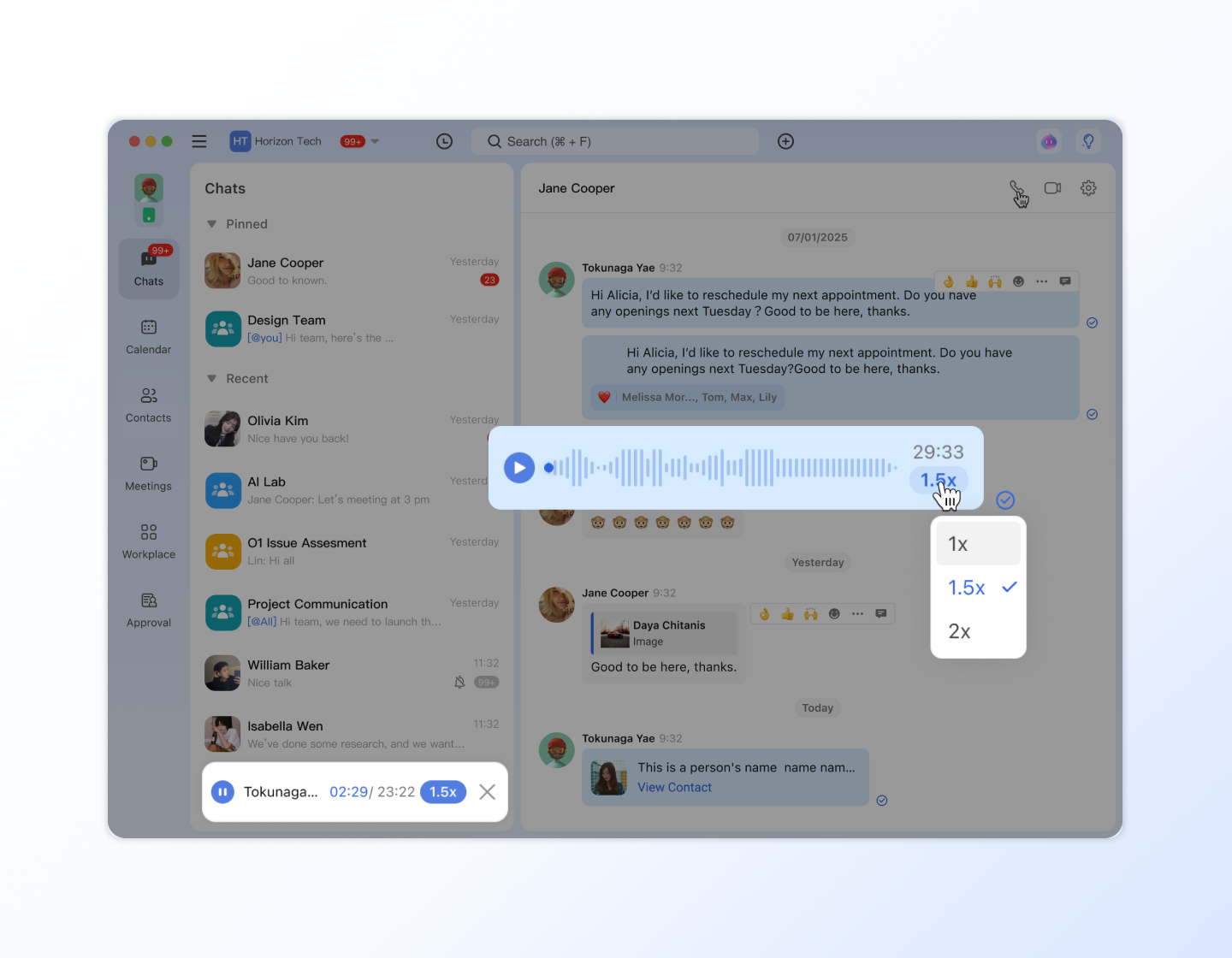
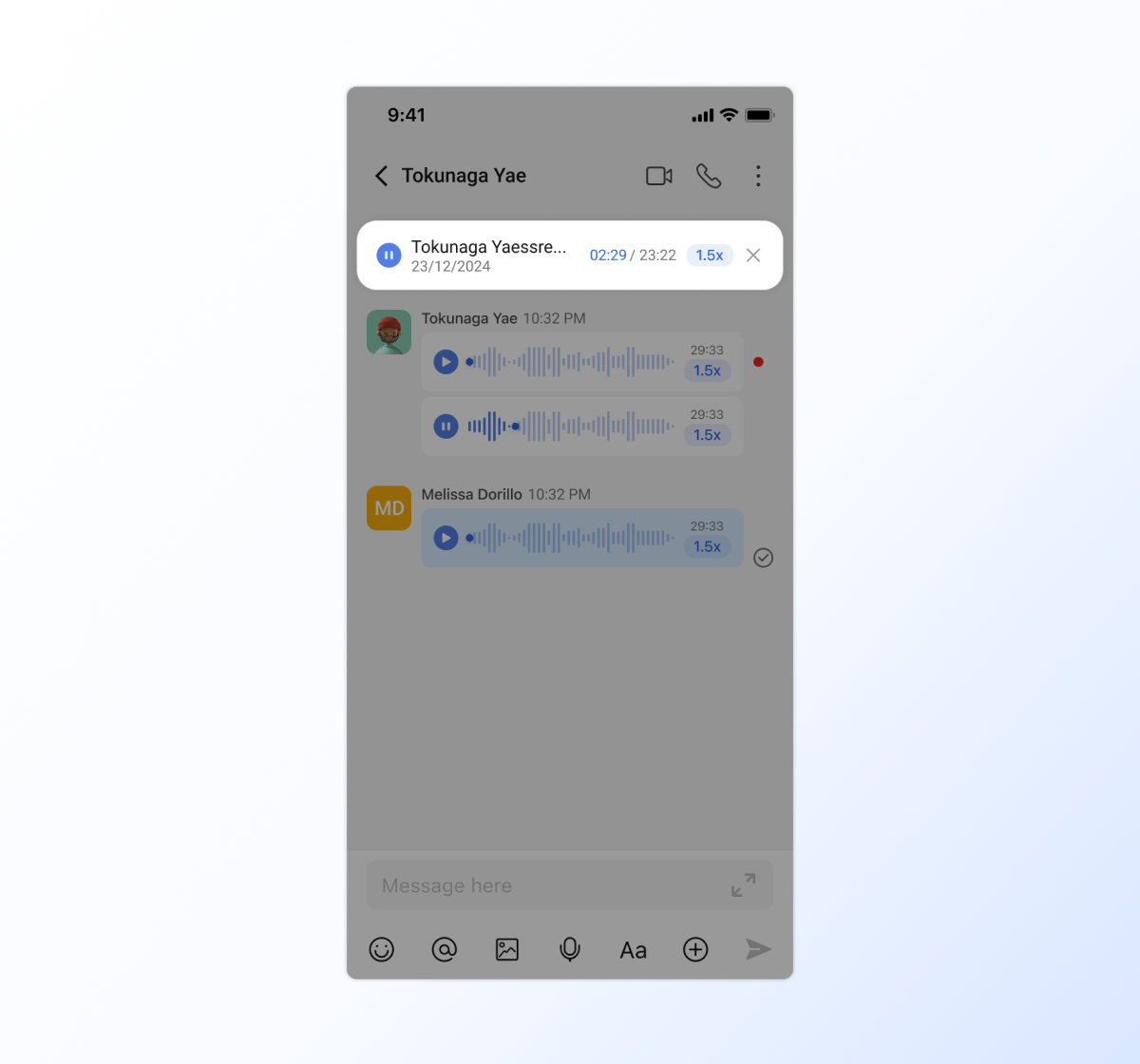
If you received a voice message on mobile, tap to play it instantly. Or you can drag it to the specified progress position of the voice message to play. You can adjust play speed (1x/1.5x/2x), as well.
Voice messages will be played in the built-in player, which means switching sessions will not interrupt the playback of voice messages. The player will automatically close when finished.
If you received a voice message on desktop, click to play it instantly. Or you can drag it to the specified progress position of the voice message to play. You can adjust play speed (1x/1.5x/2x), as well.
Voice messages will be played in the built-in player, which means switching sessions will not interrupt the playback of voice messages. The player will automatically close when finished.