Use emoticons to reply to messages
1.Function introduction
You can use emoticons to reply, efficiently express "OK", "Agree", "+1", "Thank you", "Come on" and other information, reduce communication costs, and solve the problem of redundant messages in multi-person chats.
- Desktop
- Mobile
2.Operation process
2.1 Reply to messages with emoticons
Hover the mouse over the message you want to reply to, and a like button will appear on the right side of the message. Click the like button directly to send an emoticon response indicating "like". If you hover the mouse over the emoticon button without clicking, more emoticons will appear.
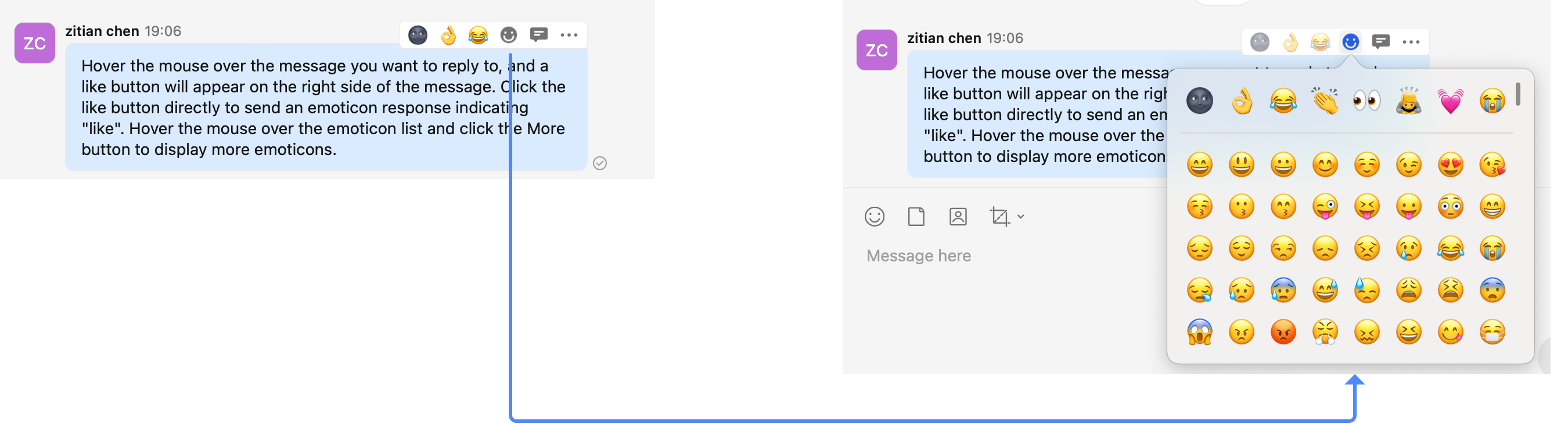 You can not only use emoticons such as "wait", "doing it", and "sigh" to express a variety of working status, but also use emoticons such as "happy", "thank you", and "salute" to make the collaborative atmosphere more relaxed and pleasant.
2.2 View the emojis that have been replied to
What emoji responses have been received:
All emoji responses received for a message will be displayed below the message and visible to all members in the conversation.
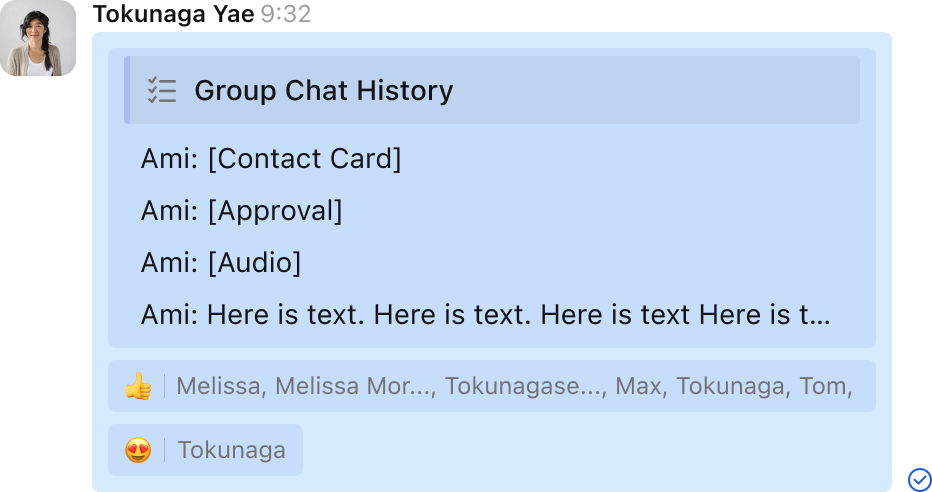 Whose emoji response was received:
Below the message, the name of the sender of the emoji will be displayed after the emoji response. Click the name to view the sender's business card.
Whose emoji response was received:
Below the message, the name of the sender of the emoji will be displayed after the emoji response. Click the name to view the sender's business card.

2.3 Retract a replied emoji
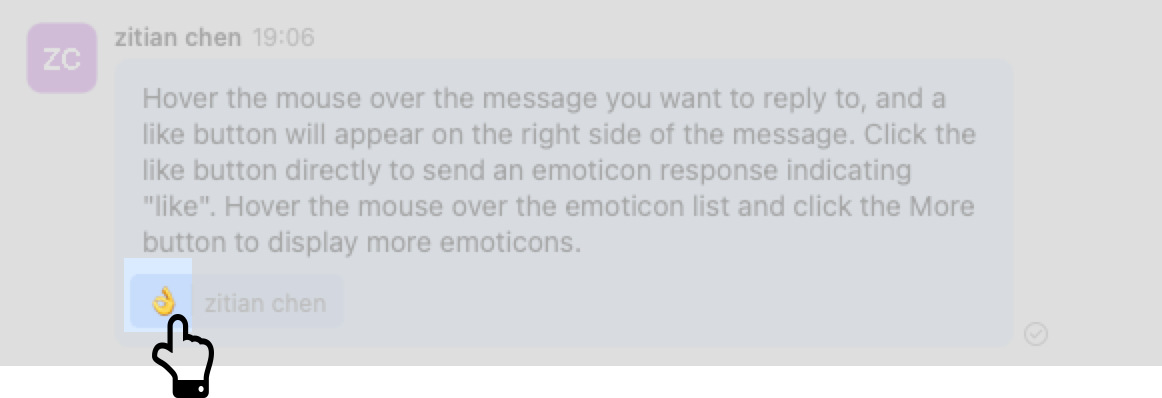
After the emoji is withdrawn, it disappears immediately without leaving any trace or notifying others. There are 2 ways to withdraw an emoji response that has been sent.
Method 1: Send the same emoji response to the same message again.
Method 2: Click the emoji response you sent below the message.
2.Operation process
2.1 Reply to a message with an emoticon
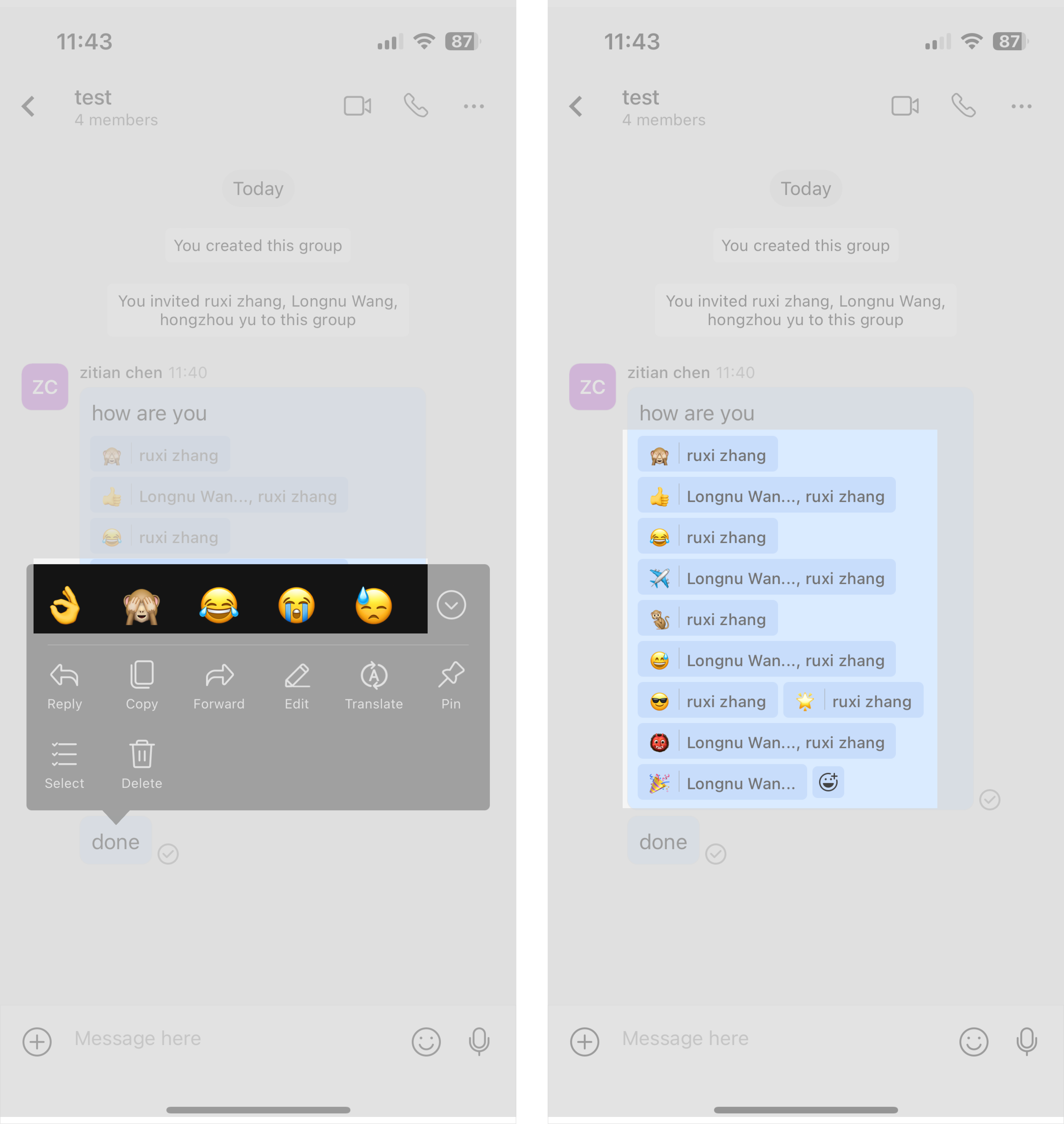
Long press the message you want to reply to, and a message menu will appear. The menu directly displays the 5 most recently used emoticons. Click an emoticon to send it, and the emoticon will appear below the message.
If you want to send other emoticons, click the drop-down button to see more emoticons. Click an emoticon to reply.
2.2View replied emojis
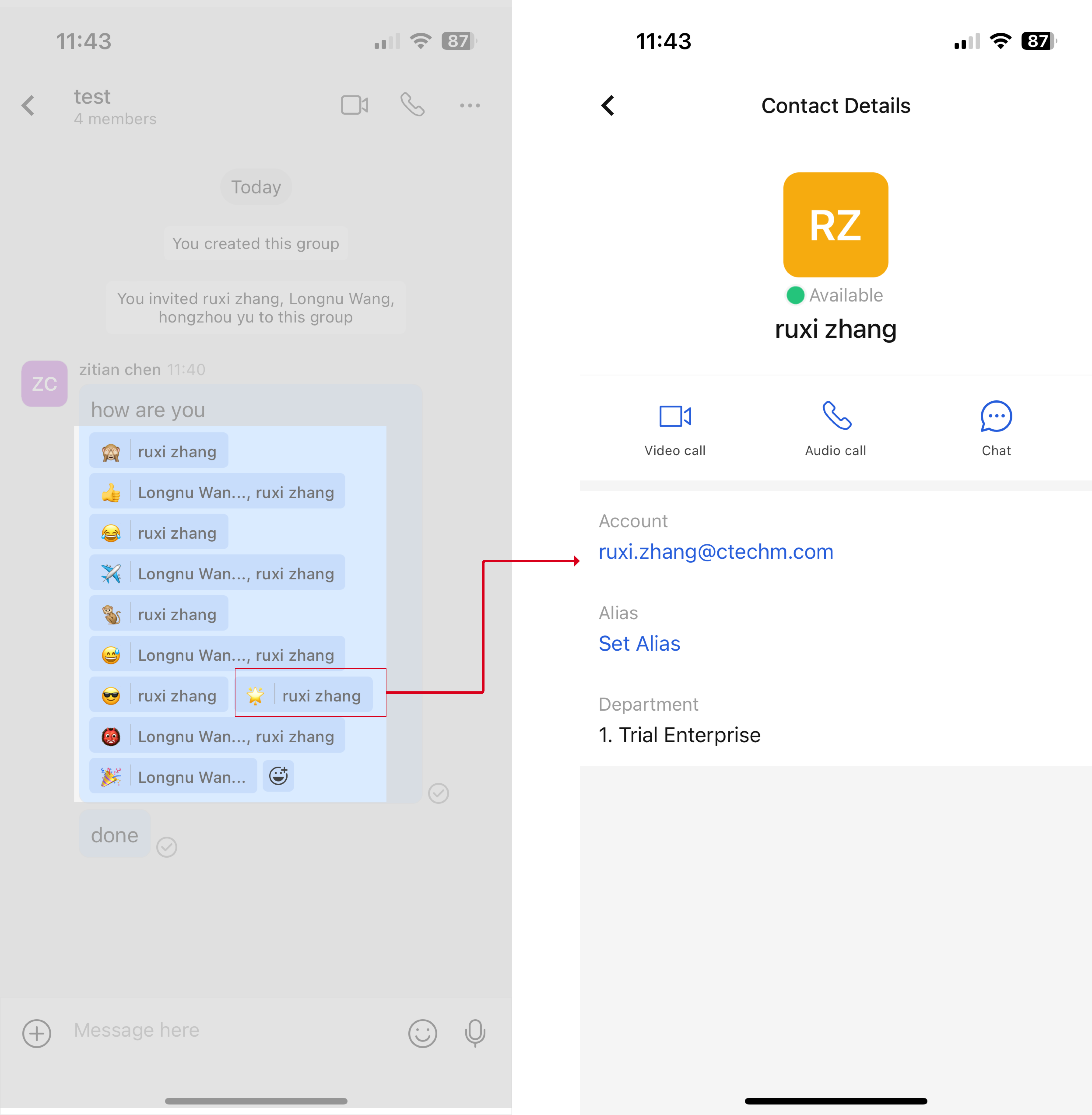
What emoji responses have been received
All emoji responses received for a message will be displayed below the message and visible to all members in the conversation.
Below the message, the name of the person who sent the emoticon will be displayed after responding to the emoticon. Click the name to view the sender's business card.
2.3 Retract a replied emoji
After the emoji is withdrawn, it disappears immediately without leaving any trace or notifying others. There are 2 ways to withdraw an emoji response that has been sent. Method 1: Send the same emoji response to the same message again. Method 2: Click the emoji response you sent below the message.