Manage Chats
To meet the needs for efficient communication and interaction, Matrx allows users to mute or unmute chat notifications, pin or unpin the chat, mark as read or unread, and hide the chat.
Mark a chat as Read or Unread
- 💻Desktop Users
- 📱Android Users
- 📱iOS Users
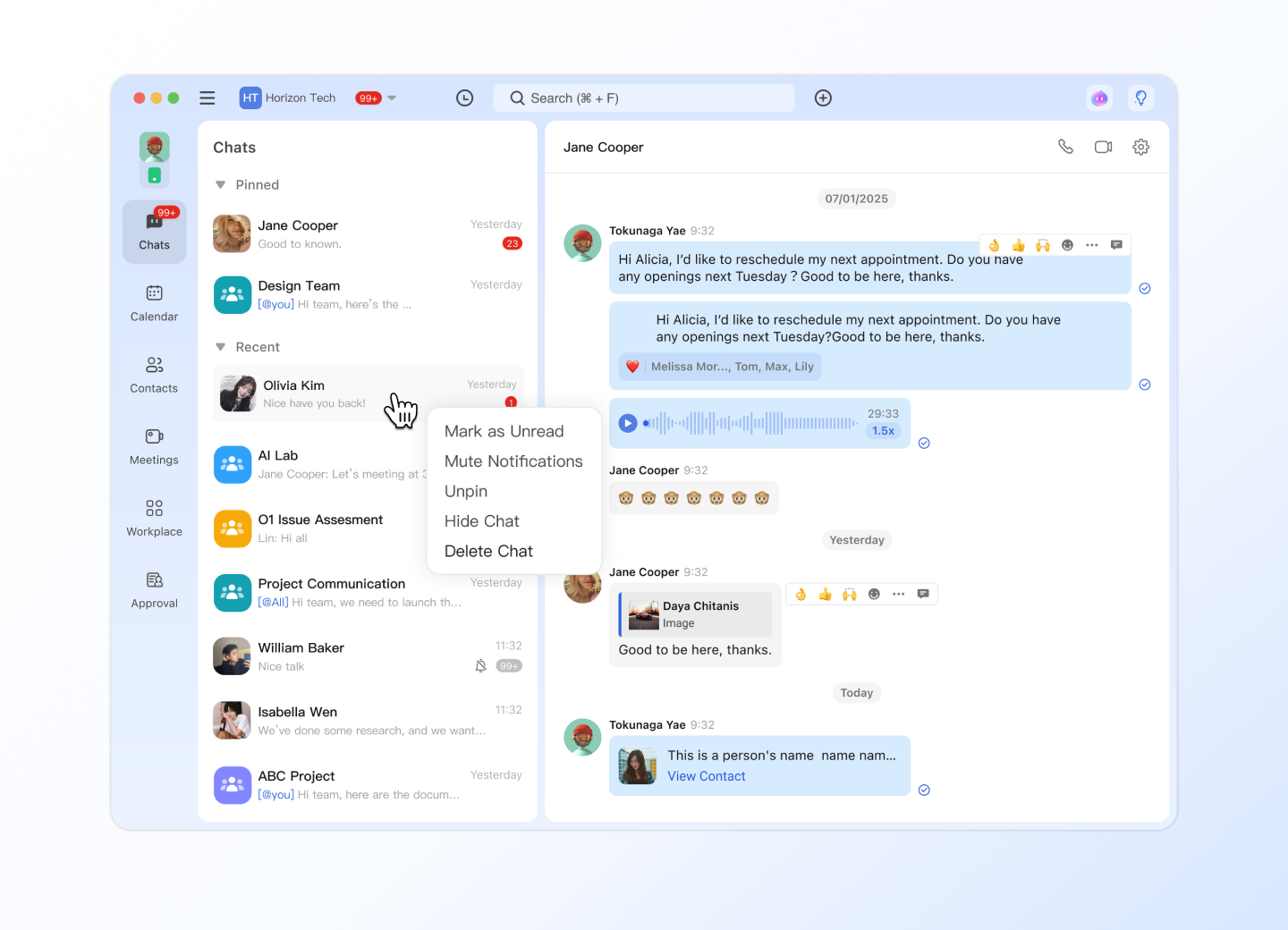
Right-click on the chat in the chat list and click Mark as Unread or Read. If marked as read, the unread reminder icon will disappear.
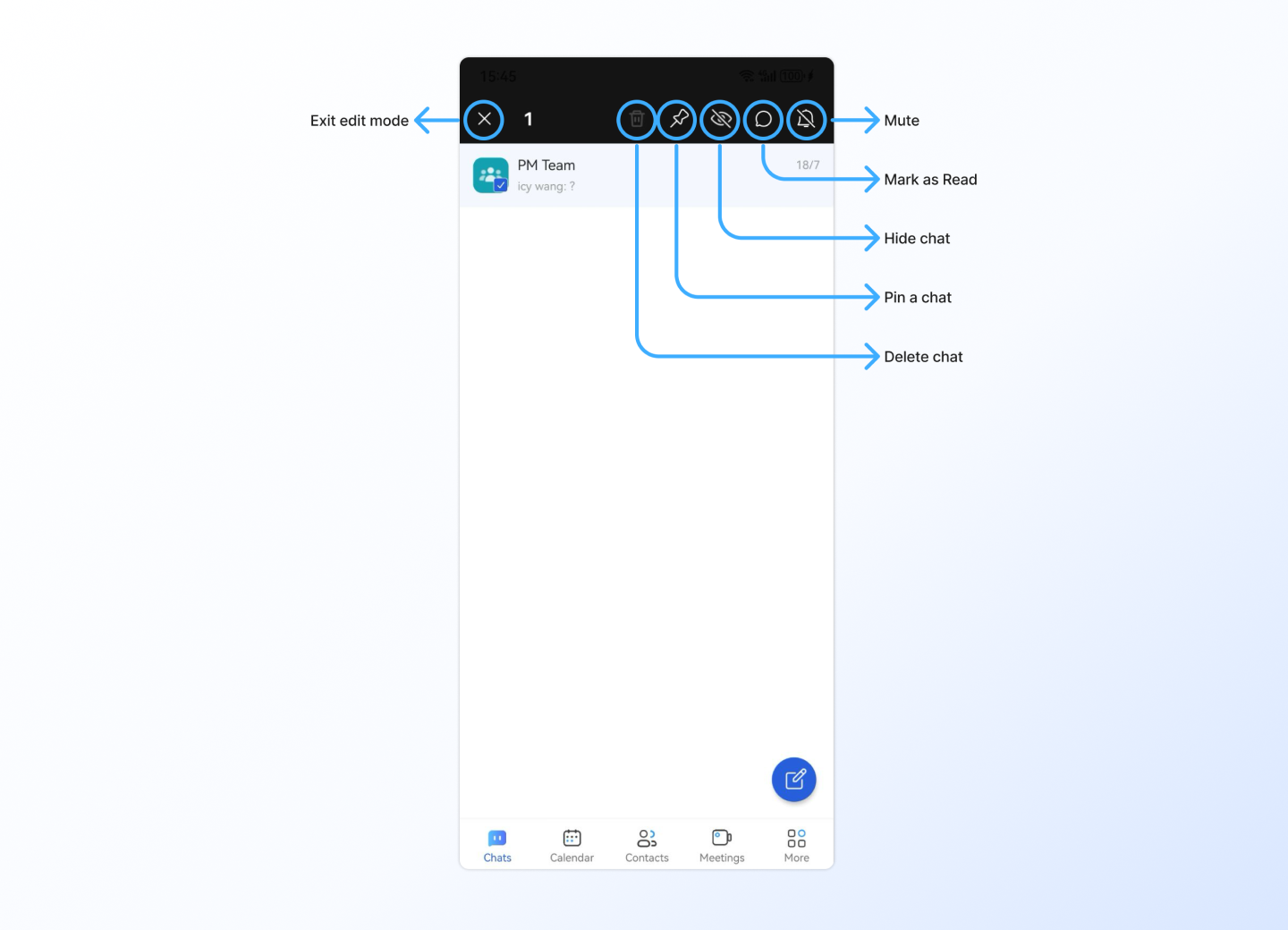
Long press the chat and the icons will appear at the top toolbar. Tap the  icon to mark it as read or unread. If marked as read, the unread reminder icon will disappear.
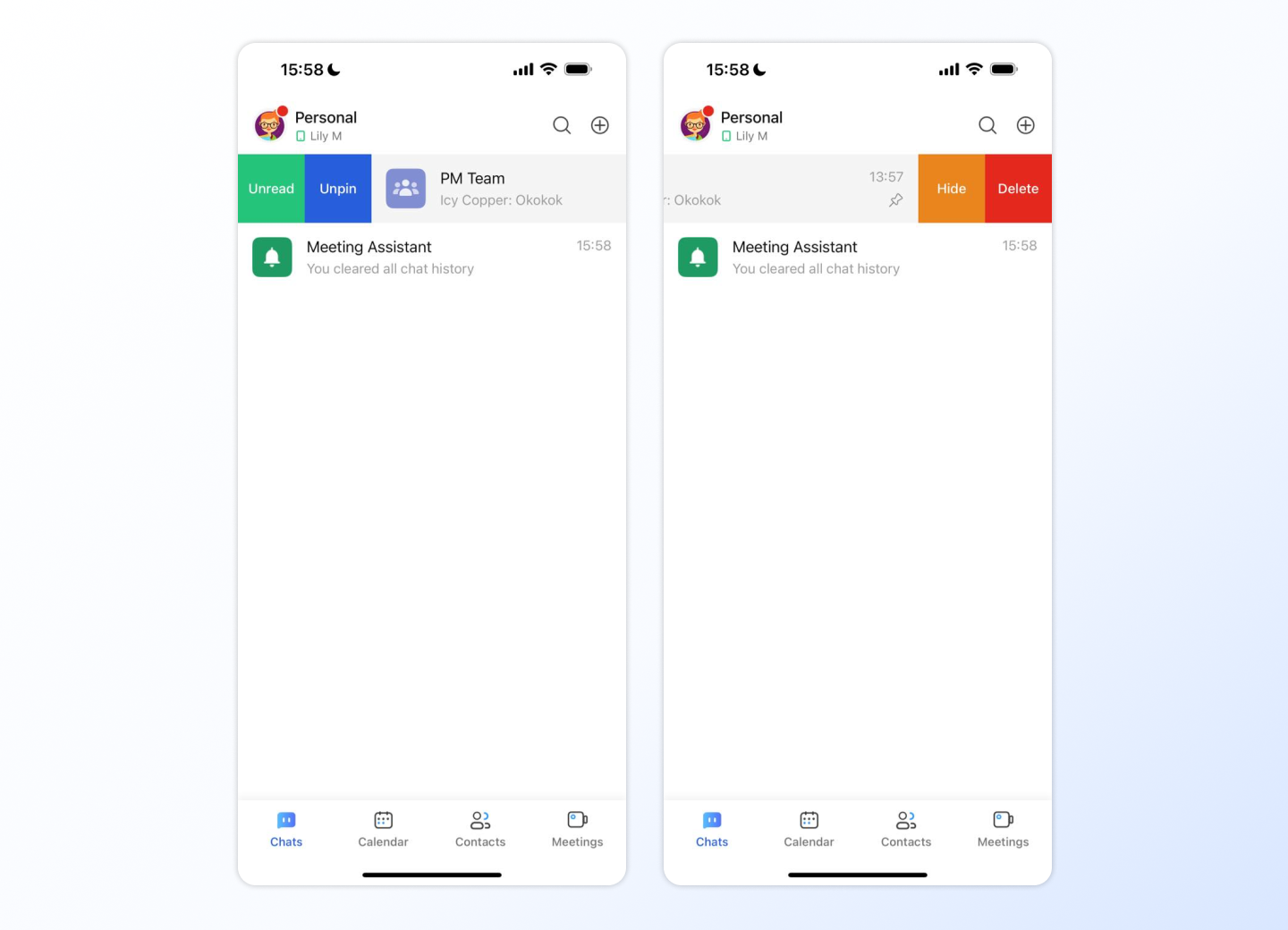
Swipe the chat to the right and tap on the green Unread or Read to mark it as read or unread. If marked as read, the unread reminder icon will disappear.
Mute or Unmute a chat
- 💻Desktop Users
- 📱Android Users
Right-click on the chat in the chat list and click Mute Notifications or Unmute Notifications if it's muted. If muted, there will be no notifications for new messages in the chat.
Long press the chat and the icons will appear at the top toolbar. Tap the  icon to mute or unmute notifications. If muted, there will be no notifications for new messages in the chat.
Pin a chat to top, or unpin it
- 💻Desktop Users
- 📱Android Users
- 📱iOS Users
Right-click on the chat in the chat list and click Pin to Top or Unpin. If pinned to the top, the chat will always appear as the first one in the chat list.
Long press the chat and the icons will appear at the top toolbar. Tap the  icon to pin or unpin. If pinned to the top, the chat will always appear as the first one in the chat list.
Swipe the chat to the right and tap on the blue Pin or Unpin button. If pinned to the top, the chat will always appear as the first one in the chat list.
Hide a chat
- 💻Desktop Users
- 📱Android Users
- 📱iOS Users
Right-click on the chat in the chat list and click Hide Chat. If the chat is hidden, it will disappear from the chat list, but the historical messages in the chat won't be cleared.
Long press the chat and the icons will appear at the top toolbar. Tap the  icon to hide the chat. If the chat is hidden, it will disappear from the chat list, but the historical messages in the chat won't be cleared.
Swipe the chat to the left and tap the orange Hide button. If the chat is hidden, it will disappear from the chat list, but the historical messages in the chat won't be cleared.
Delete a chat
- 💻Desktop Users
- 📱Android Users
- 📱iOS Users
Right-click on the chat in the chat list and click Delete Chat. Once a chat is deleted, all messages of that coversation will be cleared.
Long press the chat and the icons will appear at the top toolbar. Tap the trash can icon to delete the chat. Once a chat is deleted, all messages of that coversation will be cleared.
On Android mobiles, after long press a chat you will enter the chat modify mode. And in the modify mode you can select multiple chats to manage them at the same time.
Swipe the chat to the left and tap the red Delete button. Once a chat is deleted, all messages of that coversation will be cleared.