How to Add a Group Admin
This guide will walk you through the process of adding an administrator to your group. Admins can help you manage members and maintain order, which is crucial for the healthy development of the group.
Step 1: Access Group Settings
- 💻Desktop Users
- 📱Mobile Users
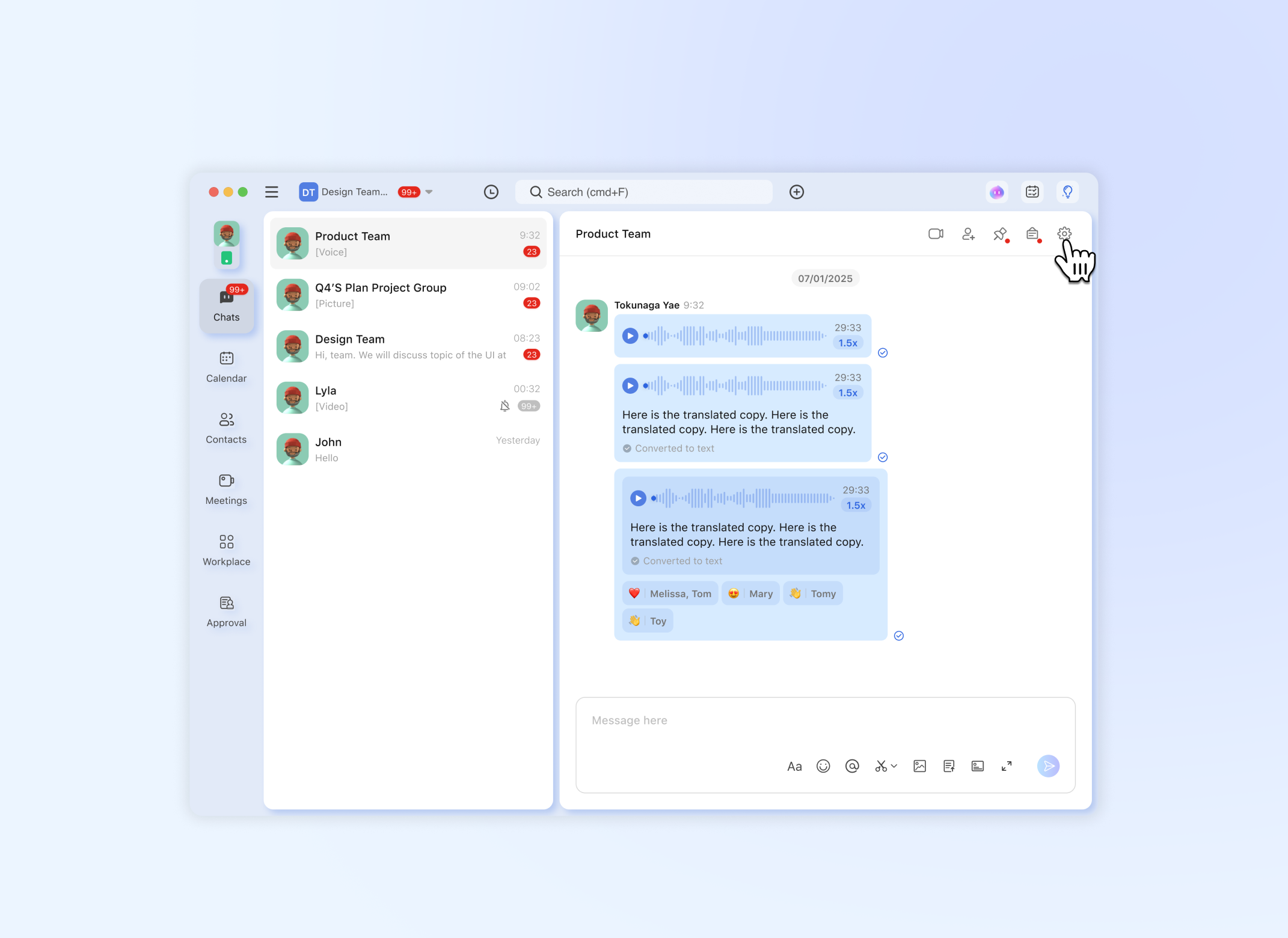
- Open the group chat window on your PC client.
- Locate and click the ⚙️ "Settings" button in the upper-right corner of the chat window.
- Clicking it will pop up the Group Info panel on the side or in the center.
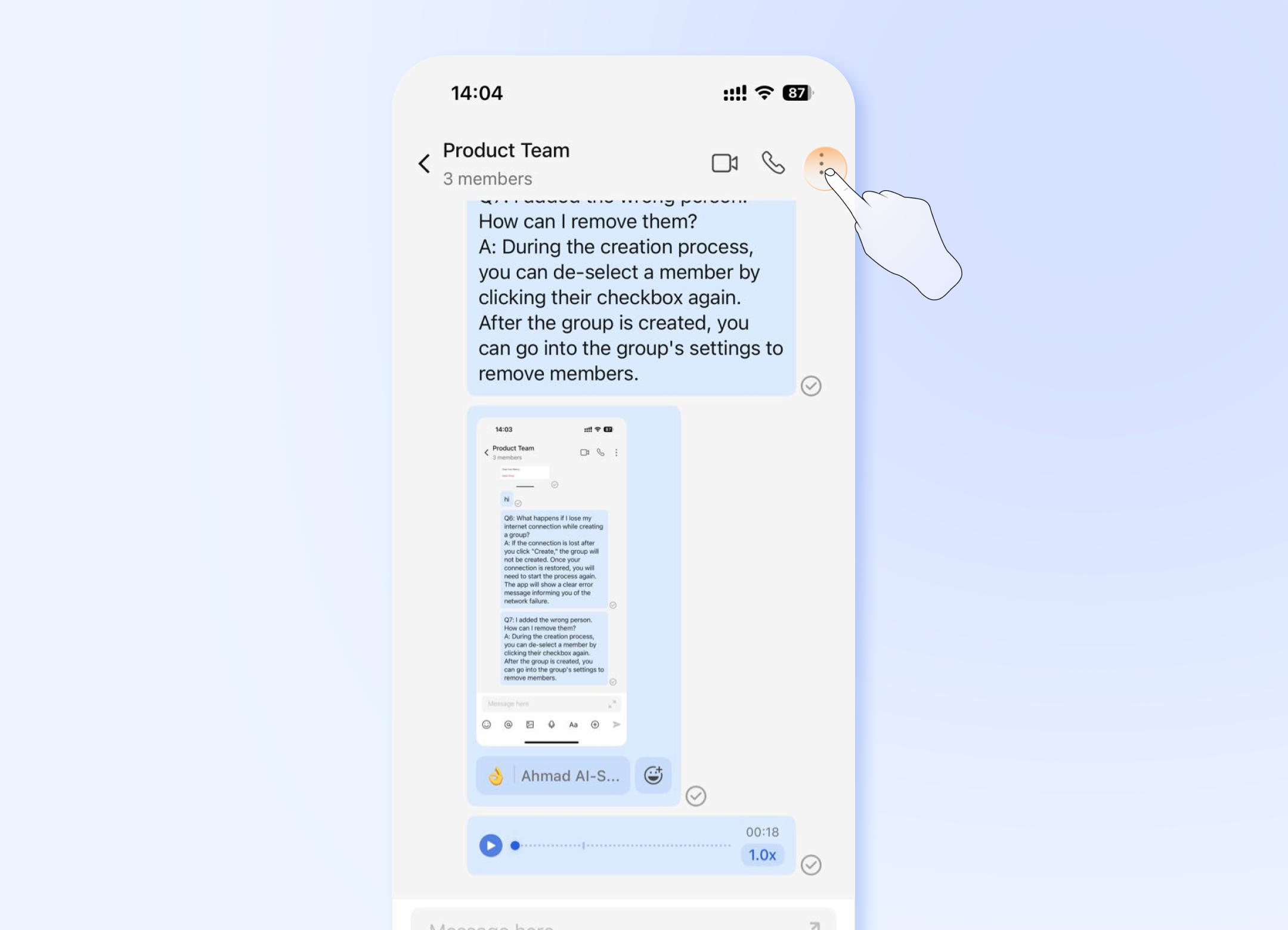
- Open the target group chat in the Mobile App.
- Tap the ⋮ icon in the upper-right corner of the chat screen.
- Tapping it will navigate you to the Group Info screen.
Step 2: Enter Group Management Menu
- 💻Desktop Users
- 📱Mobile Users
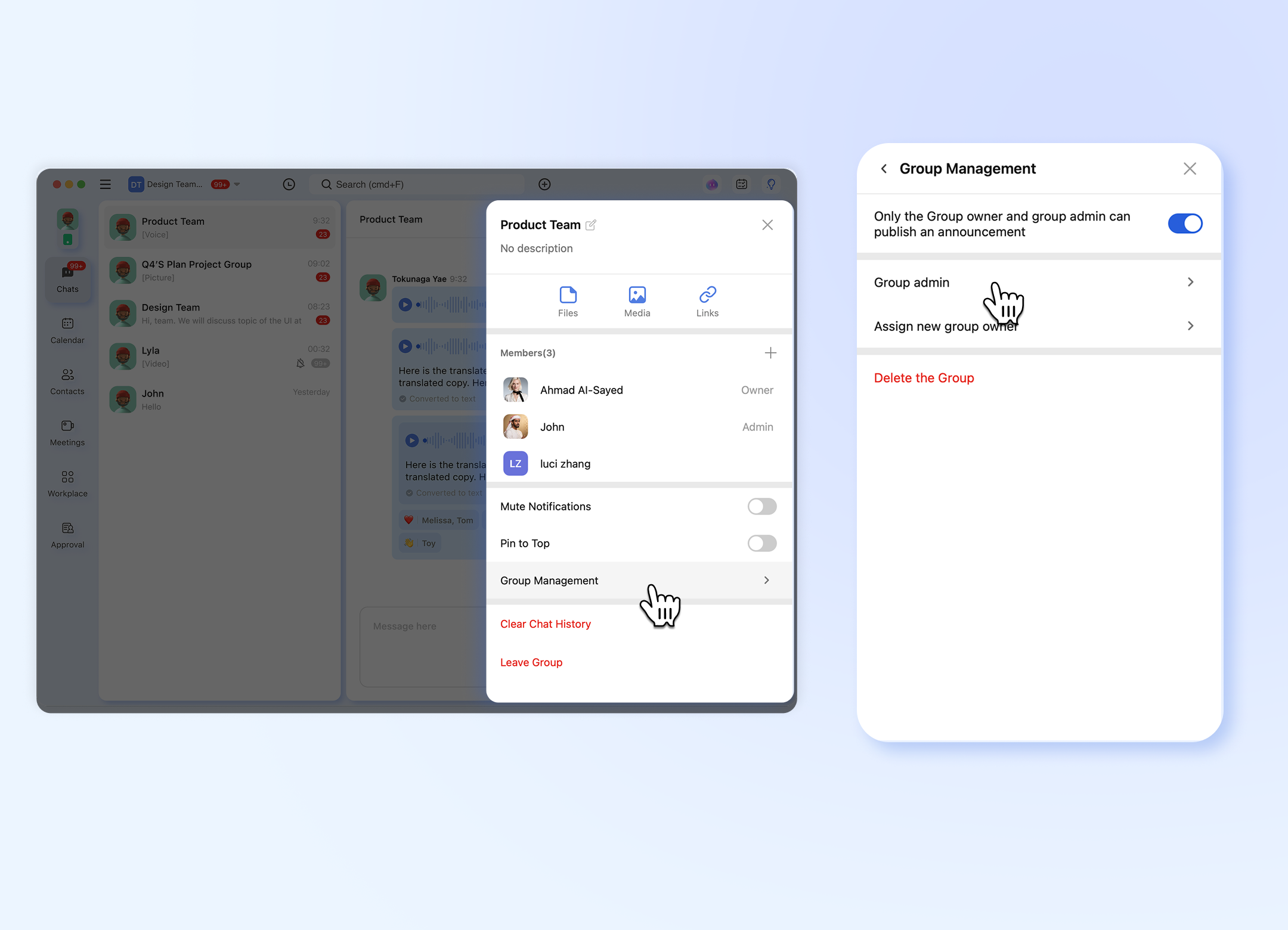
- In the Group Info panel, scroll down to find the "Group Management" menu item.
- Click on "Group Management" to enter the detailed settings page.
- On the Group Management page, select and click on the "Group Admin" tab.
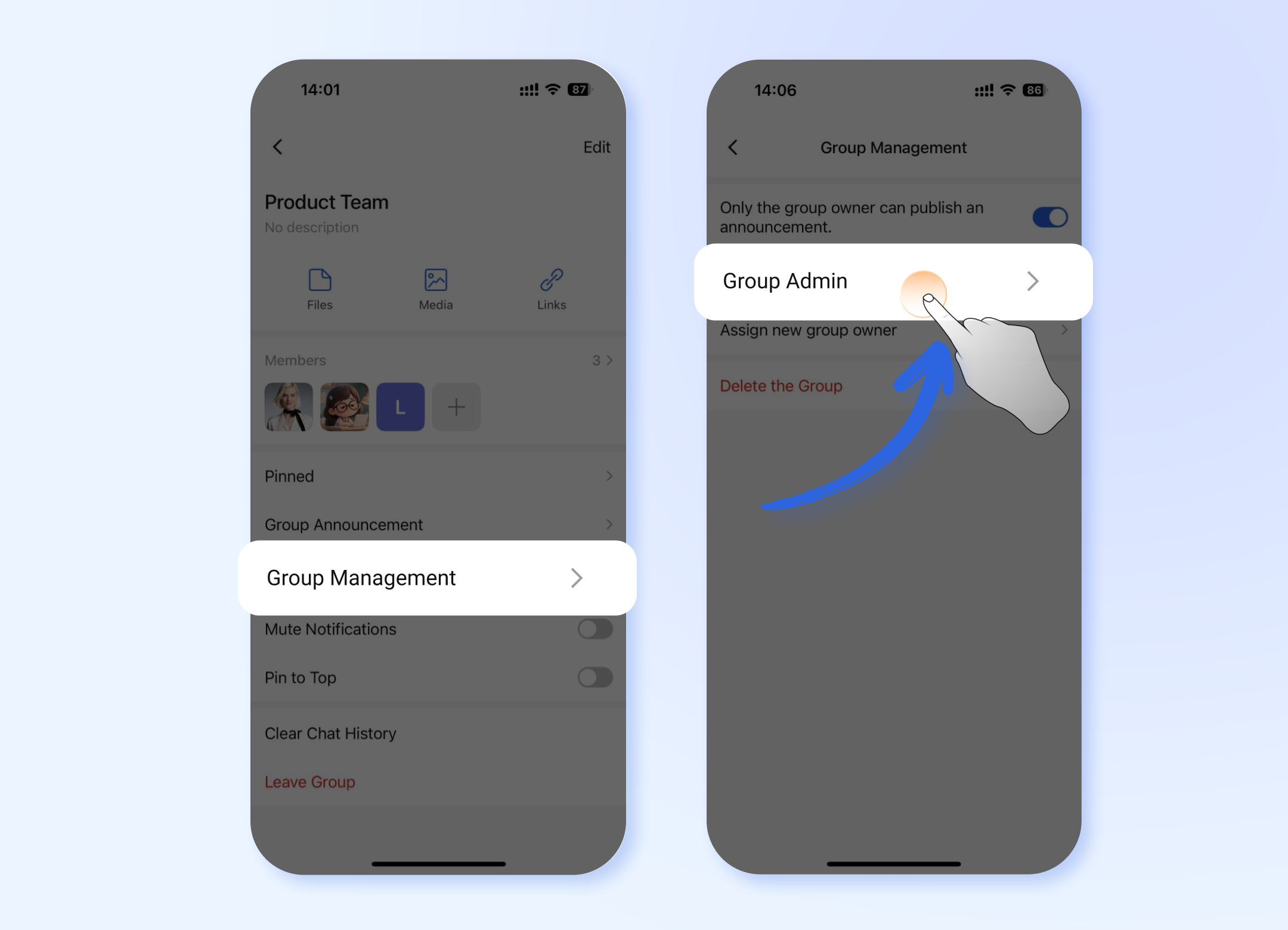
- On the Group Info screen, find and tap on the "Group Management" menu item.
- On the Group Management page, select and tap on "Group Admin".
Step 3: Manage Administrators
- 💻Desktop Users
- 📱Mobile Users
- Here you can add or remove administrators.
- Add Admin:
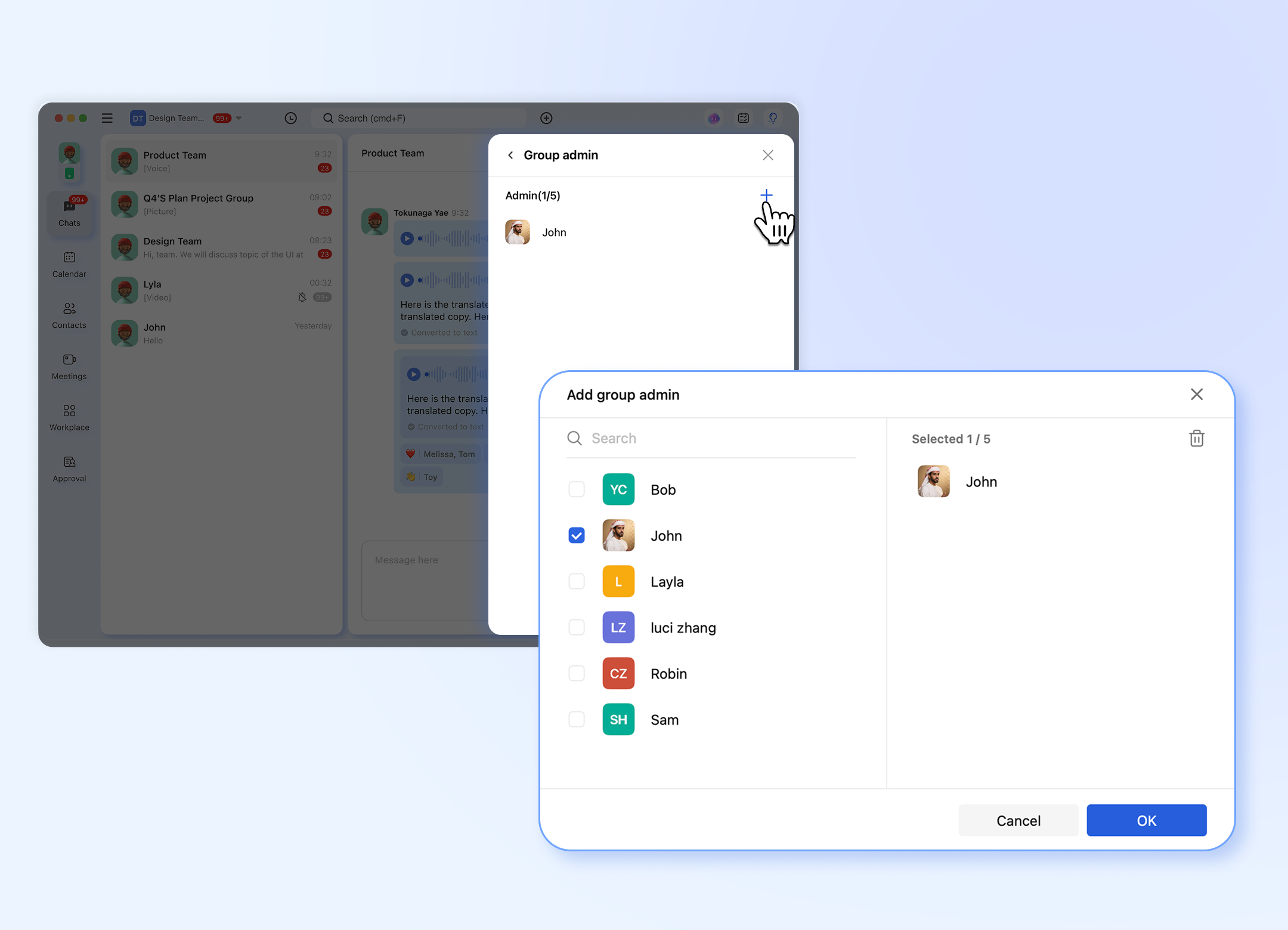
- Click the "+" button. A pop-up window with the member list will appear. You can select up to 5 members to promote.
- Click OK to confirm.
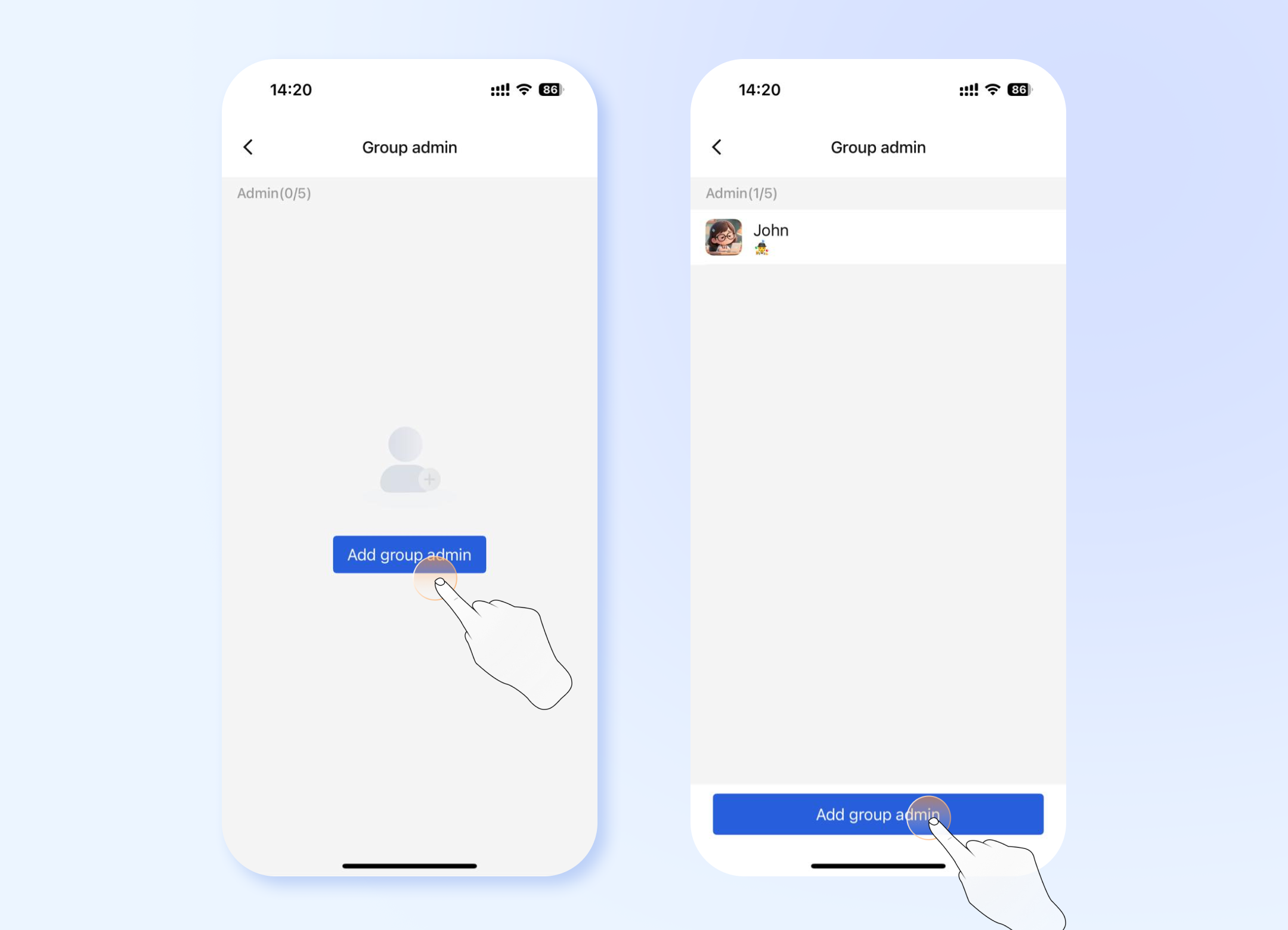
- Tap the "Add group admin" button. You will be taken to a member selection screen.
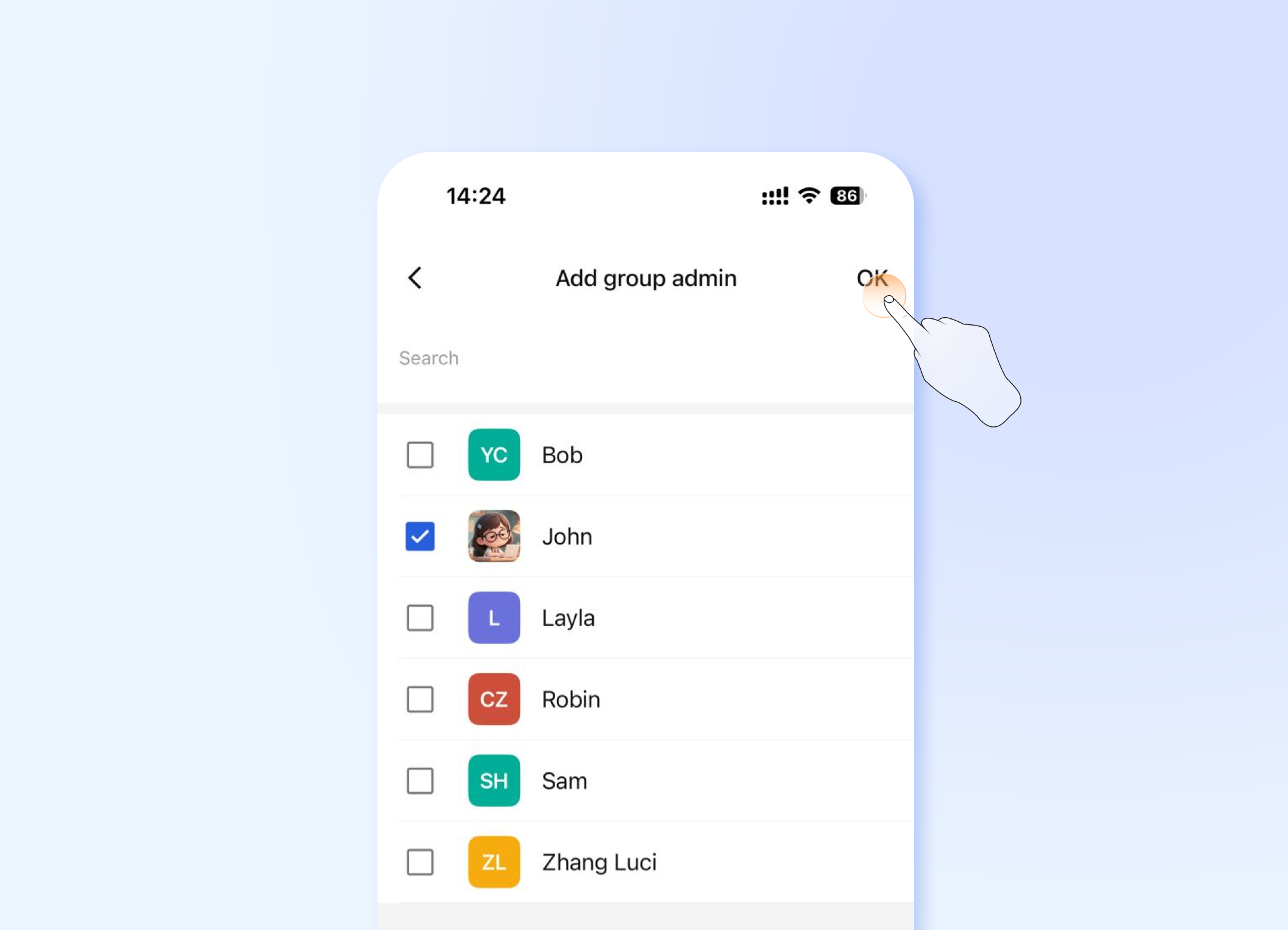
- You can select up to 5 members. After selection, tap "OK" to successfully add them as admins.
Step 4: Remove an Administrator
- 💻Desktop Users
- 📱Mobile Users
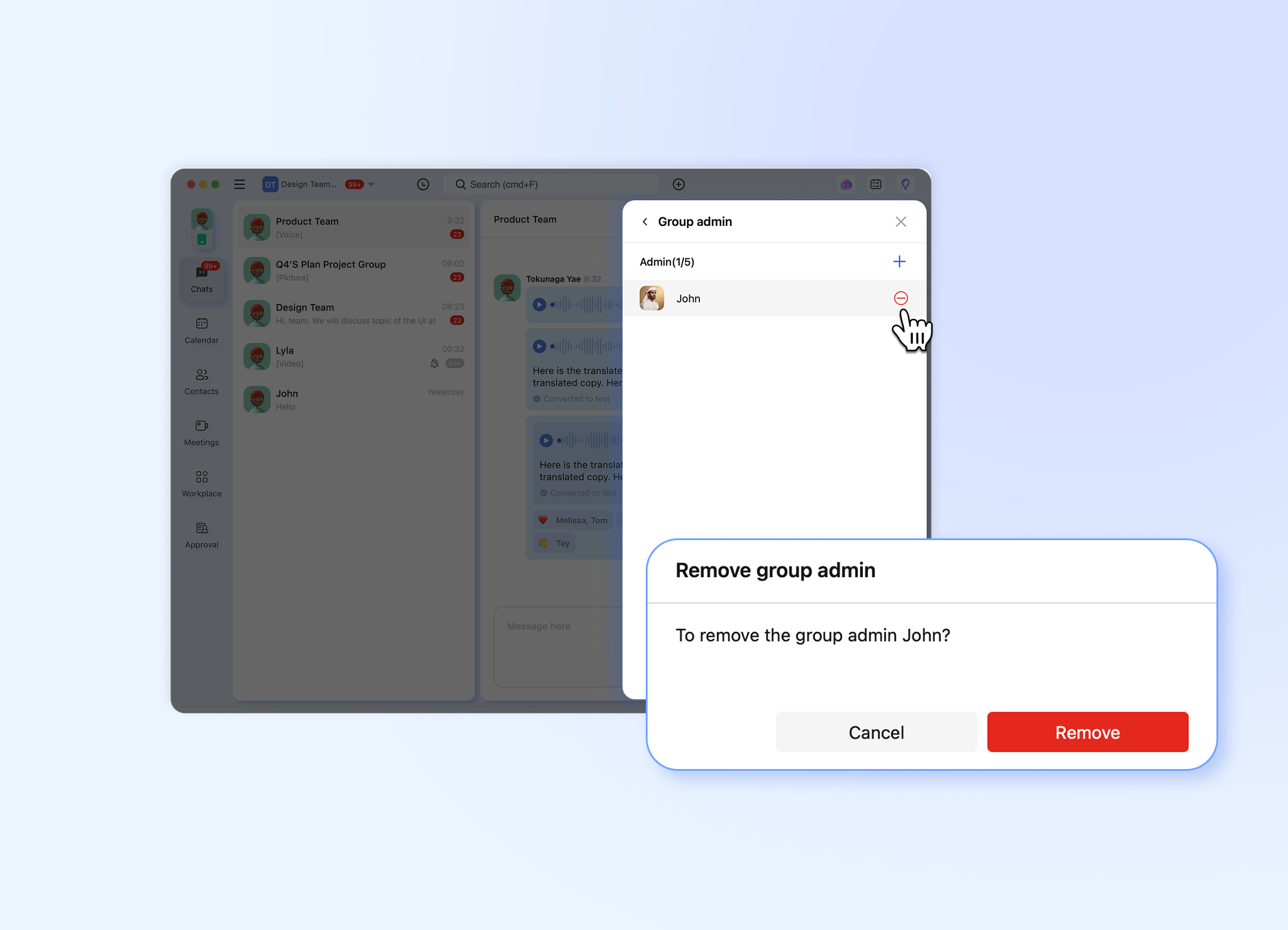
- Hover your mouse over an administrator's name. A "-" button will appear.
- Click it, and a confirmation pop-up will ask you to confirm the removal of admin rights. Confirm to proceed.
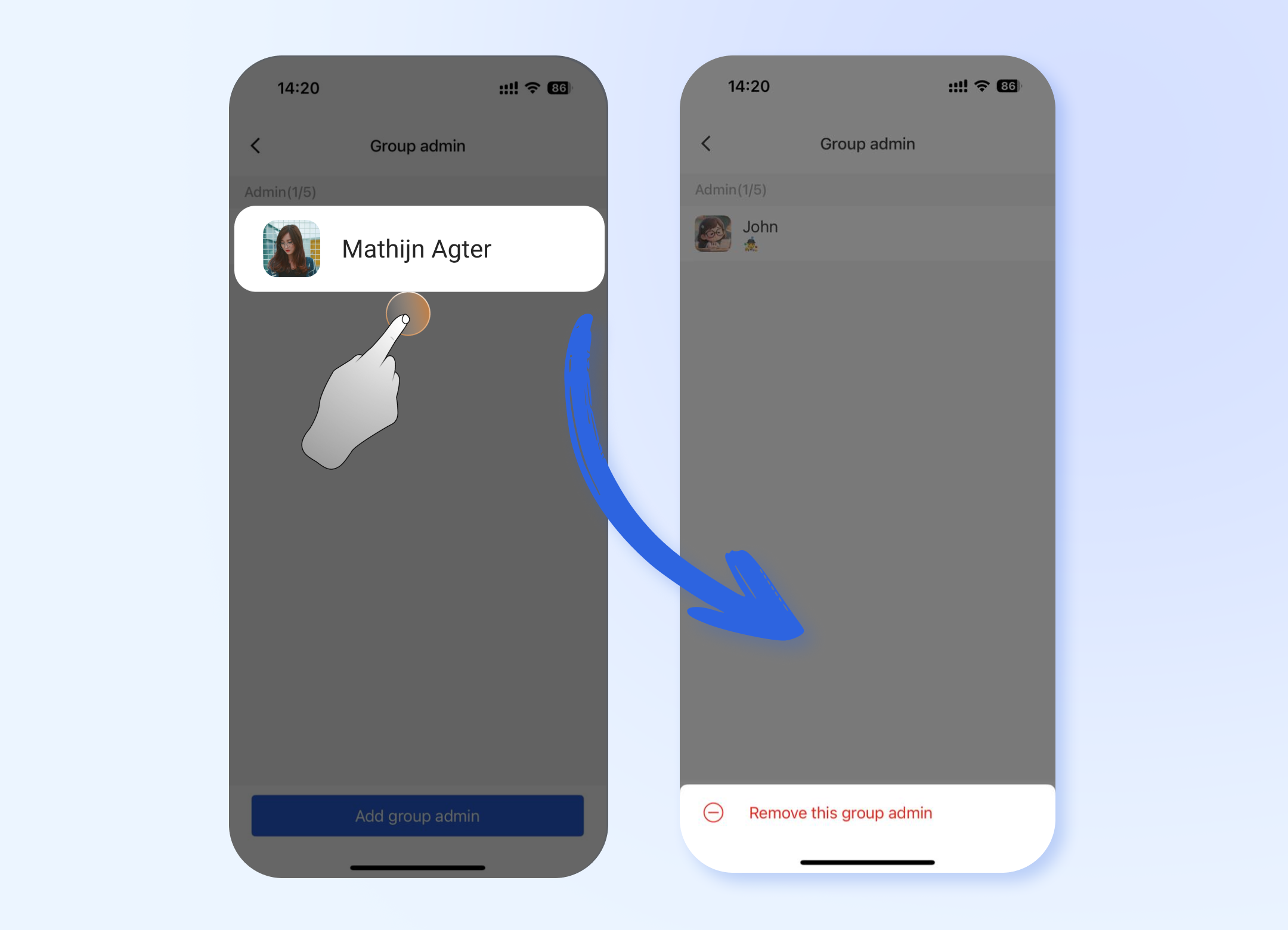
- In the administrators list, tap on the name of any existing admin.
- A confirmation pop-up will appear, saying "Remove this group admin".
- Tap on it to immediately revoke the admin rights from that user.
Completion
You have successfully managed your group's admin team. Proper assignment of permissions is key to maintaining an active and well-organized community.
Friendly Tips:
- ❗ Only grant admin privileges to members you trust.
- 🔧 You can always return to the members list, tap on an admin's name to edit their permissions or remove admin rights.
- 👥 Clear division of responsibilities helps the team collaborate better.
Frequently Asked Questions (FAQ)
Q1: Why can't I find the "Group Management" or "Settings" button?
A: This is usually because you are not the group owner. Only the group owner has the highest permissions to assign administrators. If you are the owner but still can't find it, please check if your app is updated to the latest version.
Q2: How many administrators can I add?
A: You can add up to 5 administrators.
Q3: Why can't I select a certain member when adding an admin?
A: The member might have left the group, or a network delay might be causing the member list to be outdated. Try exiting the page and re-entering, or check your internet connection.
Q4: Will the person be notified after I remove their admin rights?
A: Typically, the system does not actively notify the removed admin. However, they might notice by losing administrative abilities (e.g., inability to pin messages or manage members).
Q5: What's the difference between the group owner and an admin?
A: The group owner has the highest authority, with the exclusive ability to dissolve the group and appoint or remove other admins. Admins have partial management privileges assigned by the owner but cannot manage the owner.