Schedule a meeting
You can schedule a meeting and set the meeting in the way you want, such as meeting accessibility, participants that are required to attend, syncing to widely-used calendars, etc.
Schedule a Meeting
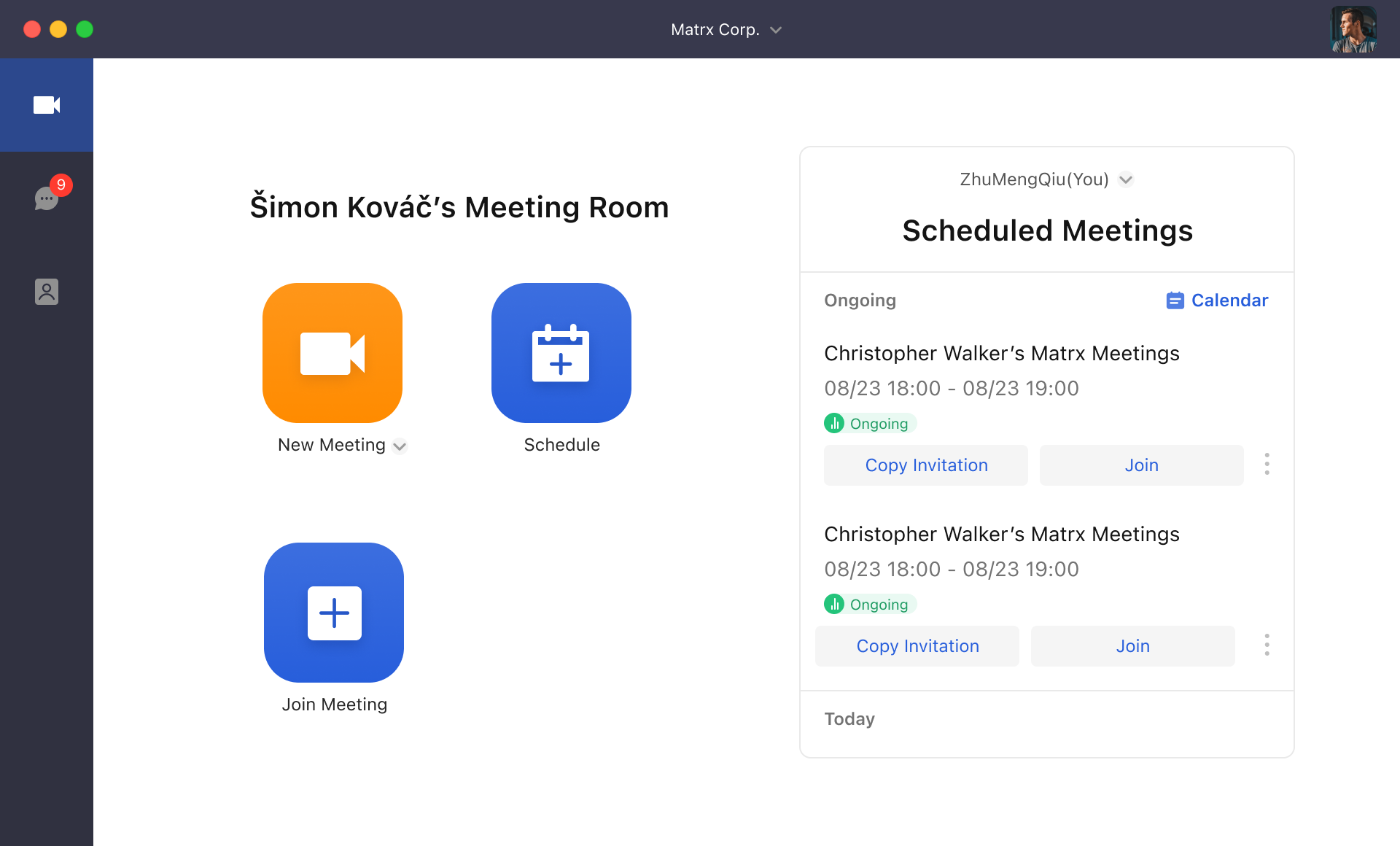
- Click on the "Schedule" button to schedule a meeting.
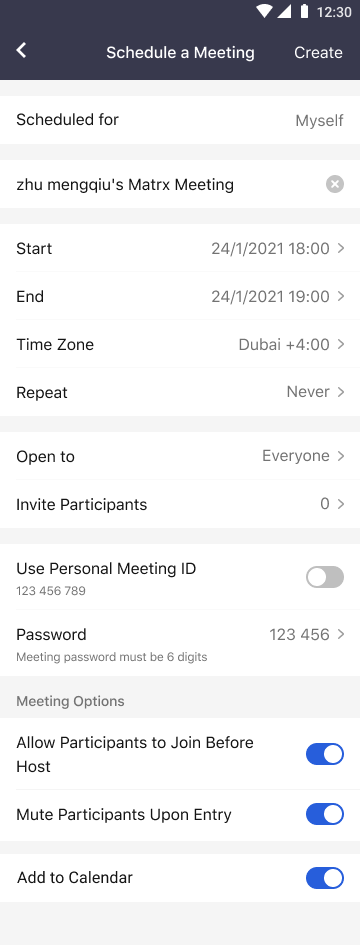
- You can enter the meeting topic, choose Time Zone and meeting time, and select "Open to" (3 options: Everyone, Users in your workspace only, or Invited users only), and search to add required participants.
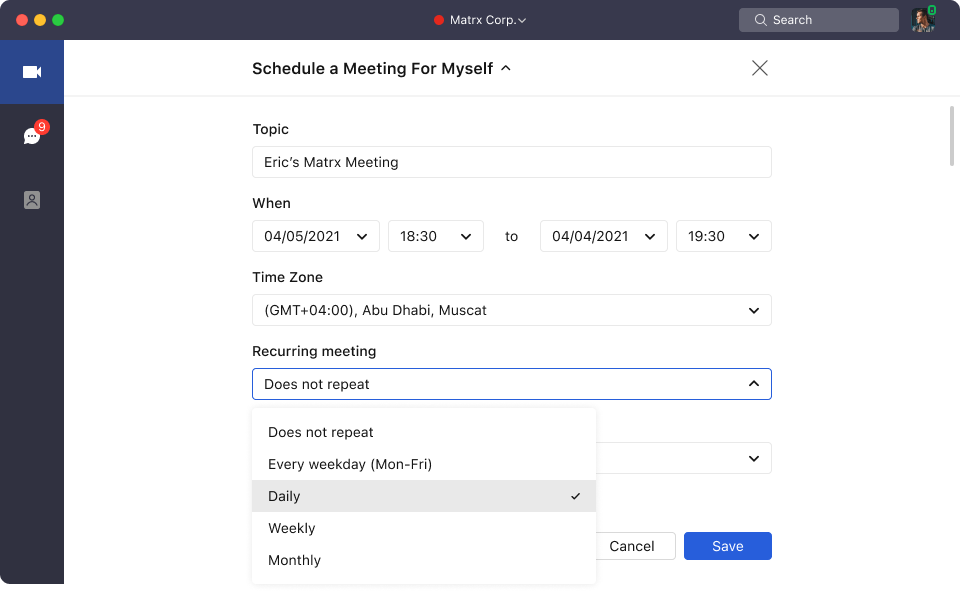
3. Recurring Meeting:
- Does not repeat: By selecting this, you are scheduling a one-time meeting.
- **Daily:**By Selecting this, you are scheduling a meeting that will repeat every day. Besides, you can set if the meeting is repeated every 1 - 15 days. And you can define when will the meeting repeating end. If it will be ended by a certain date, or it will be ended after several occurrences.
- **Every weekday (Mon-Fri):**By Selecting this, you are scheduling a meeting that will repeat every weekday. By default, the weekday means Monday to Friday. Besides, you can modify the days in a week to custom a weekday. And you can define when will the meeting repeating end. If it will be ended by a certain date, or it will be ended after several occurrences.
- **Weekly:**By Selecting this, you are scheduling a meeting that will repeat every week. Besides, you can set if the meeting is repeated every 1 - 5 weeks, and on which days of a week will the meeting repeats. . And you can define when will the meeting repeating end. If it will be ended by a certain date, or it will be ended after several occurrences.
- **Monthly:**By Selecting this, you are scheduling a meeting that will repeat every month. Besides, you can set if the meeting is repeated every 1 - 3 months, and on what day of a month will the meeting repeats. And you can define when will the meeting repeating end. If it will be ended by a certain date, or it will be ended after several occurrences.
- Click on "Advanced Options" and you can choose to change the meeting password, enable or disable Waiting Room and other advanced settings.
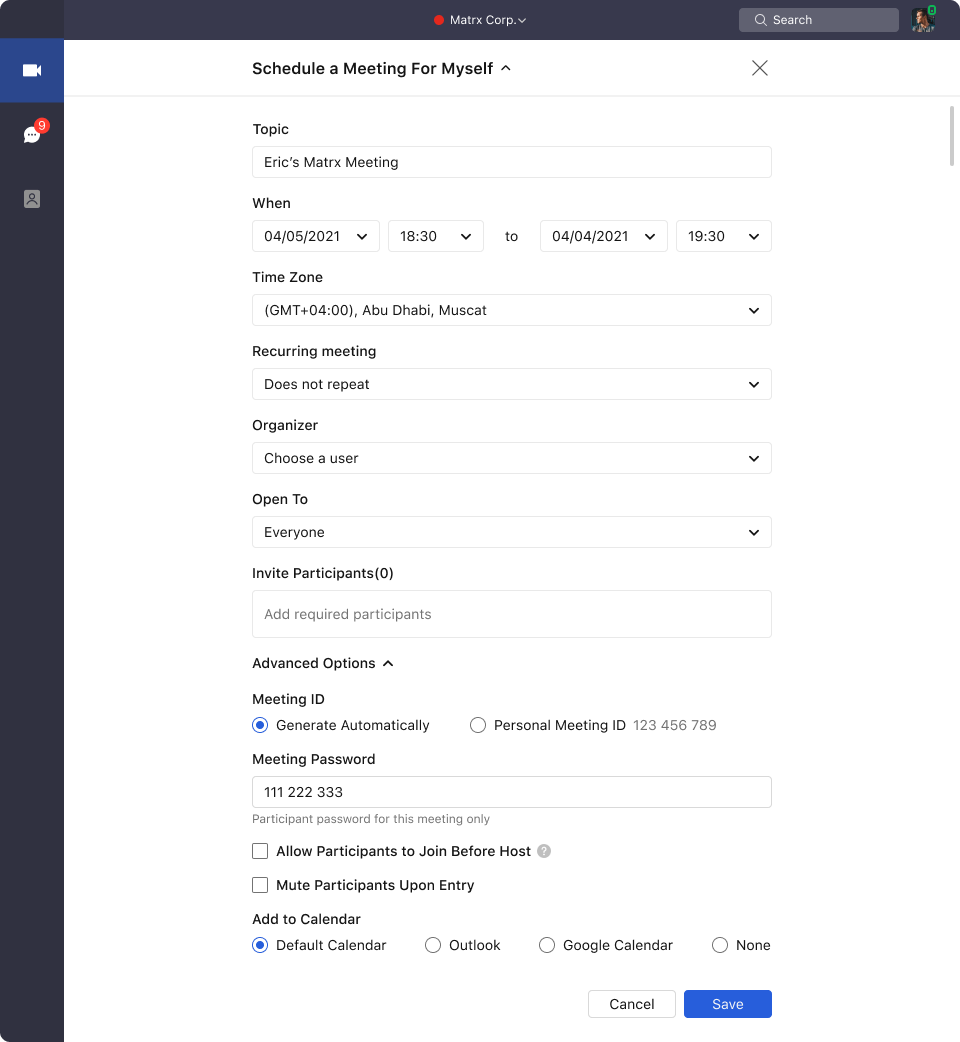
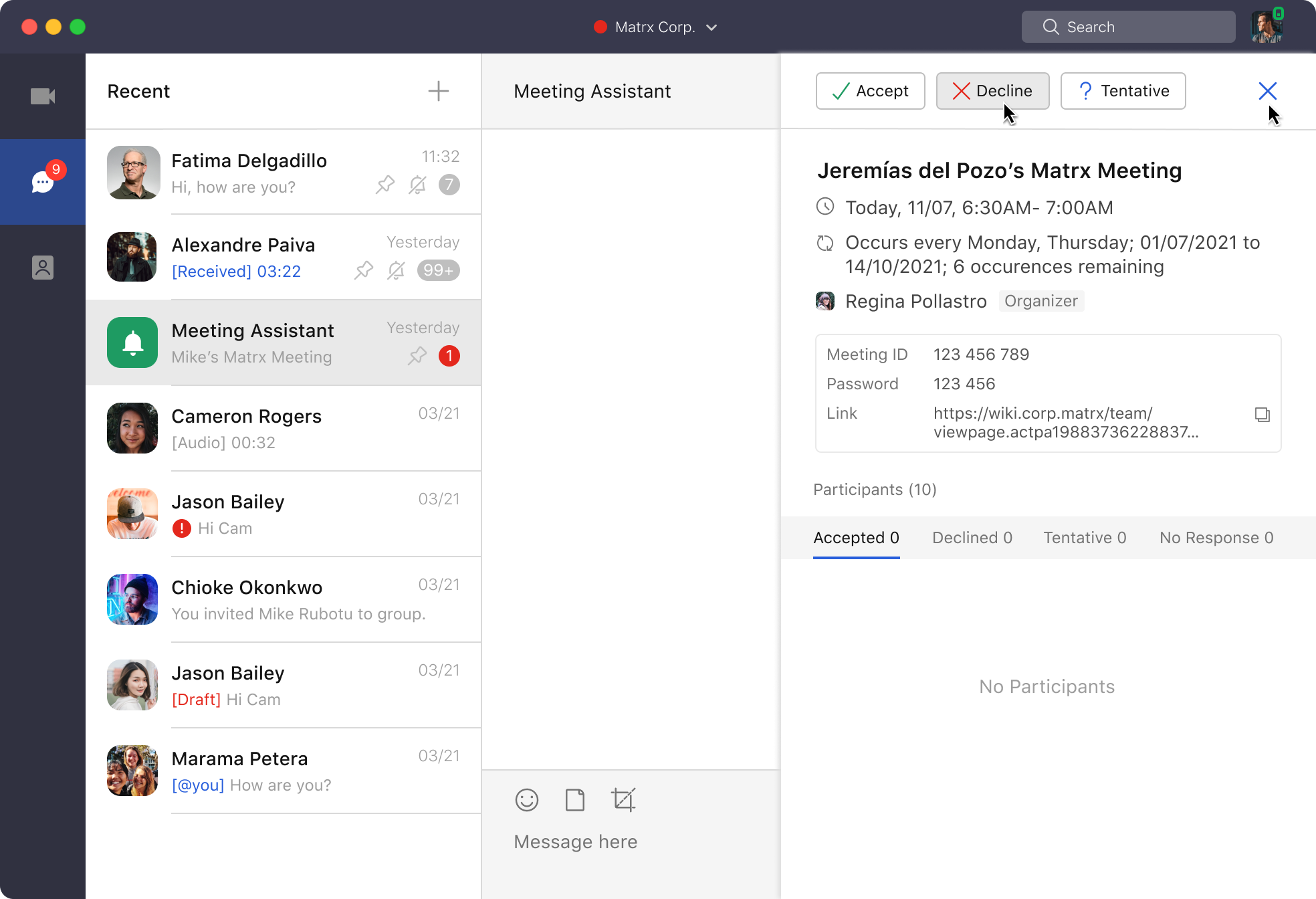
- Click on "Save" and the meeting will be scheduled and displayed on your scheduled meeting list. If you have added the required meeting participants, the invited participants will receive the meeting invitation over Matrx and email and choose to accept or decline the invitation.
Outlook add-in
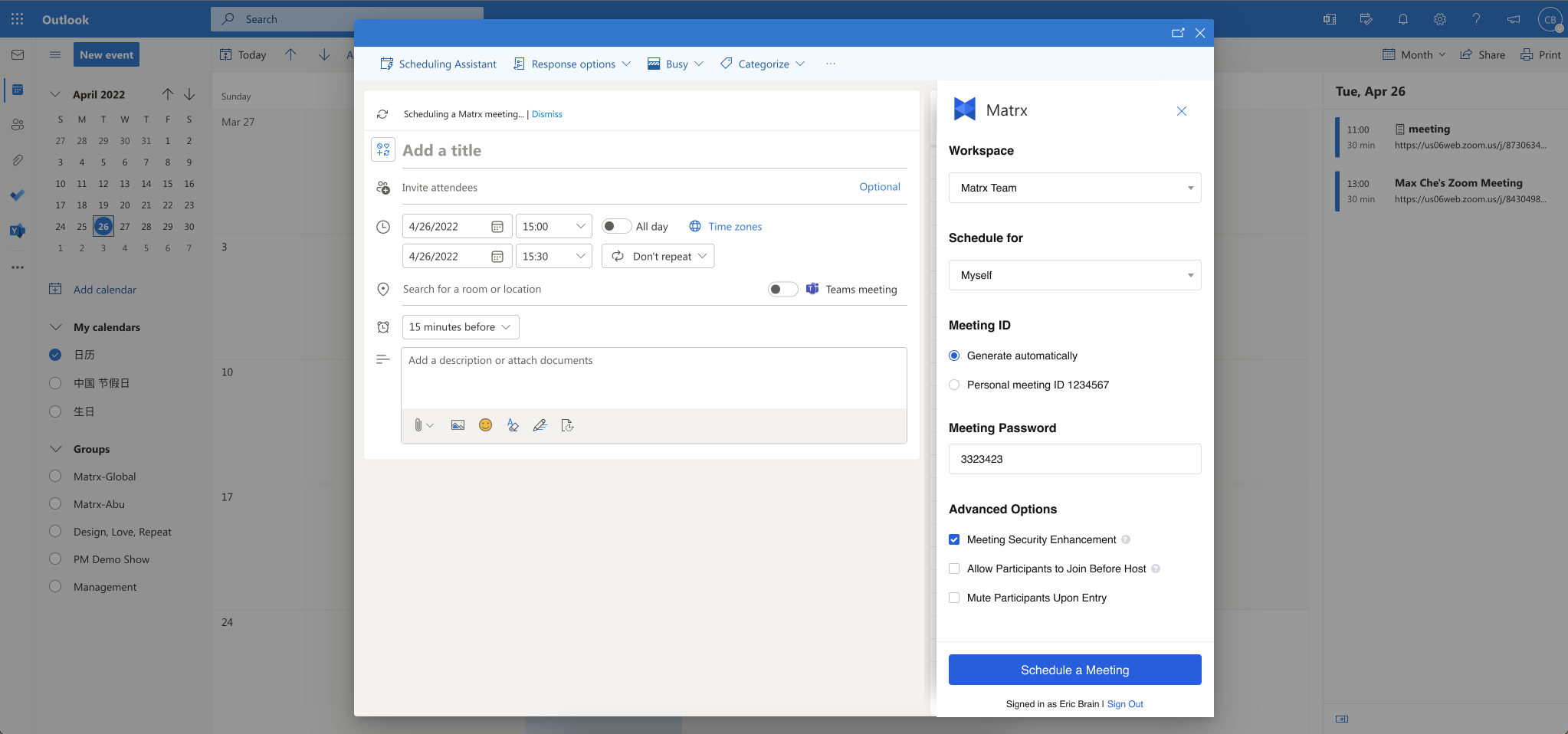
- Signed in, click "Schedule a Meeting" to create a Matrx meeting now.
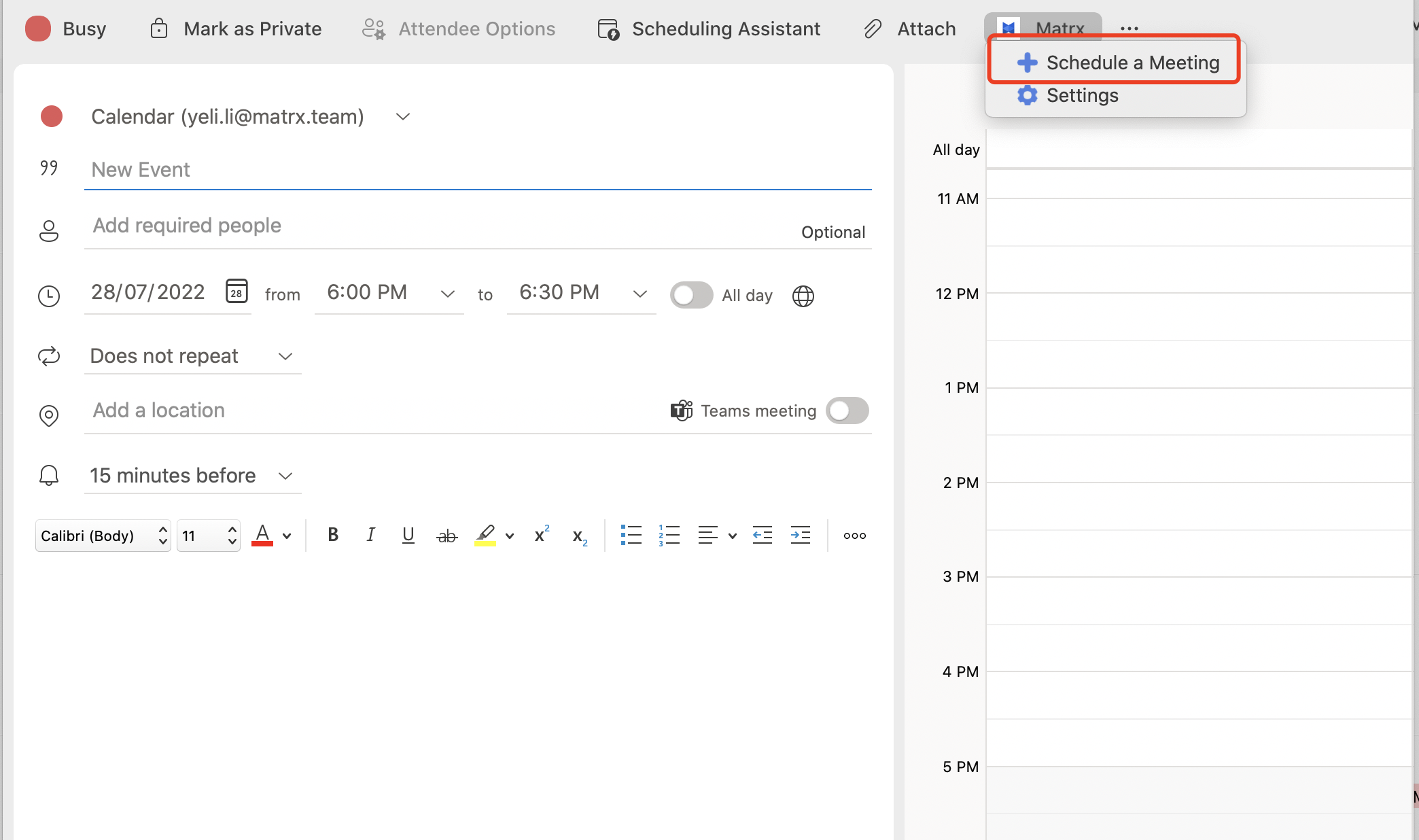
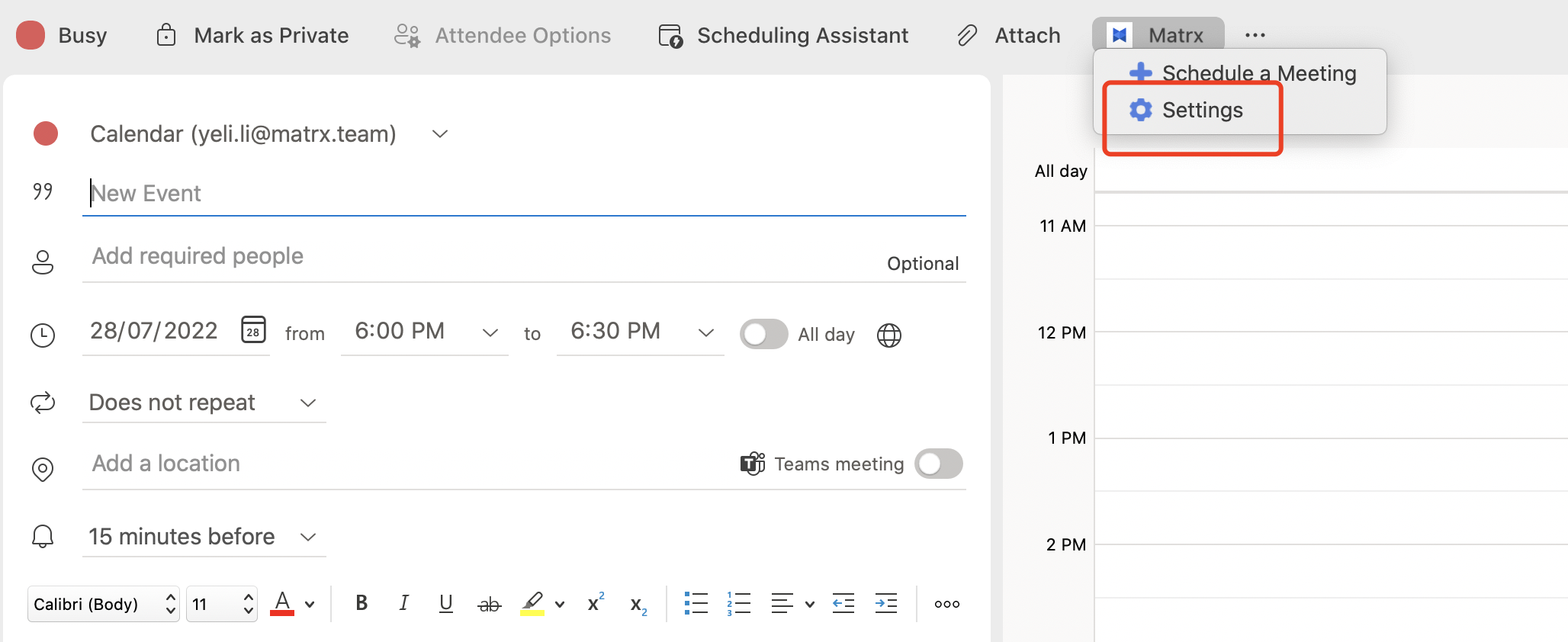
2. Click “Settings”, The page jumps to create a meeting page, click “Schedule a Meeting” to create a Matrx meeting.