Meeting control as a participant
The participants in a meeting have the basic meeting control functions, e.g. the controls of their own audio or video settings.
Prerequisites
- The local recording feature is only available on macOS and Windows.
Windows and macOS
The toolbar of the meeting shows what the participant in a meeting can control.

Mute / Unmute
The participant can mute himself/herself when not talking so that other participants won't hear him/her. When muted, the participant can unmute himself/herself to let all the participants in the meeting hear him/her.
Turn Video On / Off
When the video is off, the participant can turn the video on to let all the participants in the meeting see him/her. When the video is on and the participant is in an inappropriate environment, he/she can turn off the video to avoid his/her video being seen by other participants.
Participants List
Action on Other Participants In the Participants List, the participant can do the following actions on other participants.
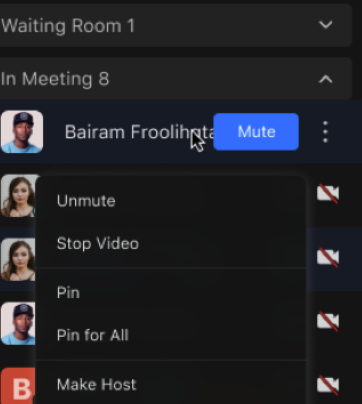
Focus/Cancel focus: set the relevant person's video shown in the central panel on your own computer.
Action on the Participant Himself/Herself In the Participants List, the participant can do the following actions on himself/herself.
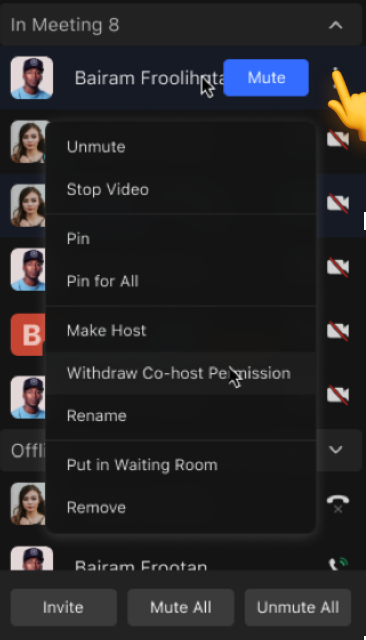
Mute/Unmute: mute/unmute himself/herself. Enable/Disable camera: start or stop his/her own video to other participants. Focus/Cancel focus: set his/her own video shown in the central panel on his/her own computer. Rename: the participants can rename themselves in the meeting. Raise hand: raise the hand to let the host see him/her, and ask if they need to unmute him/her.
Share
The participant can share the screen and other content by clicking the Share button on the toolbar. By default, the sharing permission is open to every participant, the host can cancel the permission for participants by unchecking the checkbox.
Chats
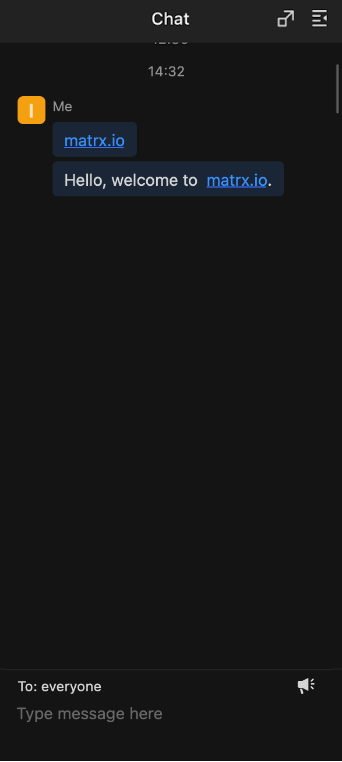
When the participant cannot see the chat window, he/she can click the Chat button on the toolbar to show the chat window. The chat window will show at the bottom of the participant list. For more details about Chat, please check Chat in a meeting.
Recording (Local Recording)
By default, the participant can't record. The host can change the permission to enable all participants to record or to enable specific participants to record. For more details about Local Recording, please check Local recording.
More
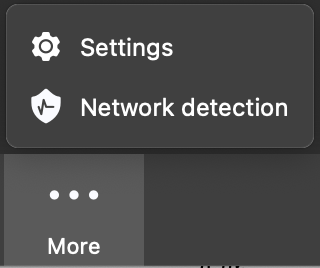
-
Meeting Settings In Meeting Settings, the participant can set video or audio devices, as well as message notifications preferences. For more details about Meeting Settings, please check Meeting settings.
-
Network detection
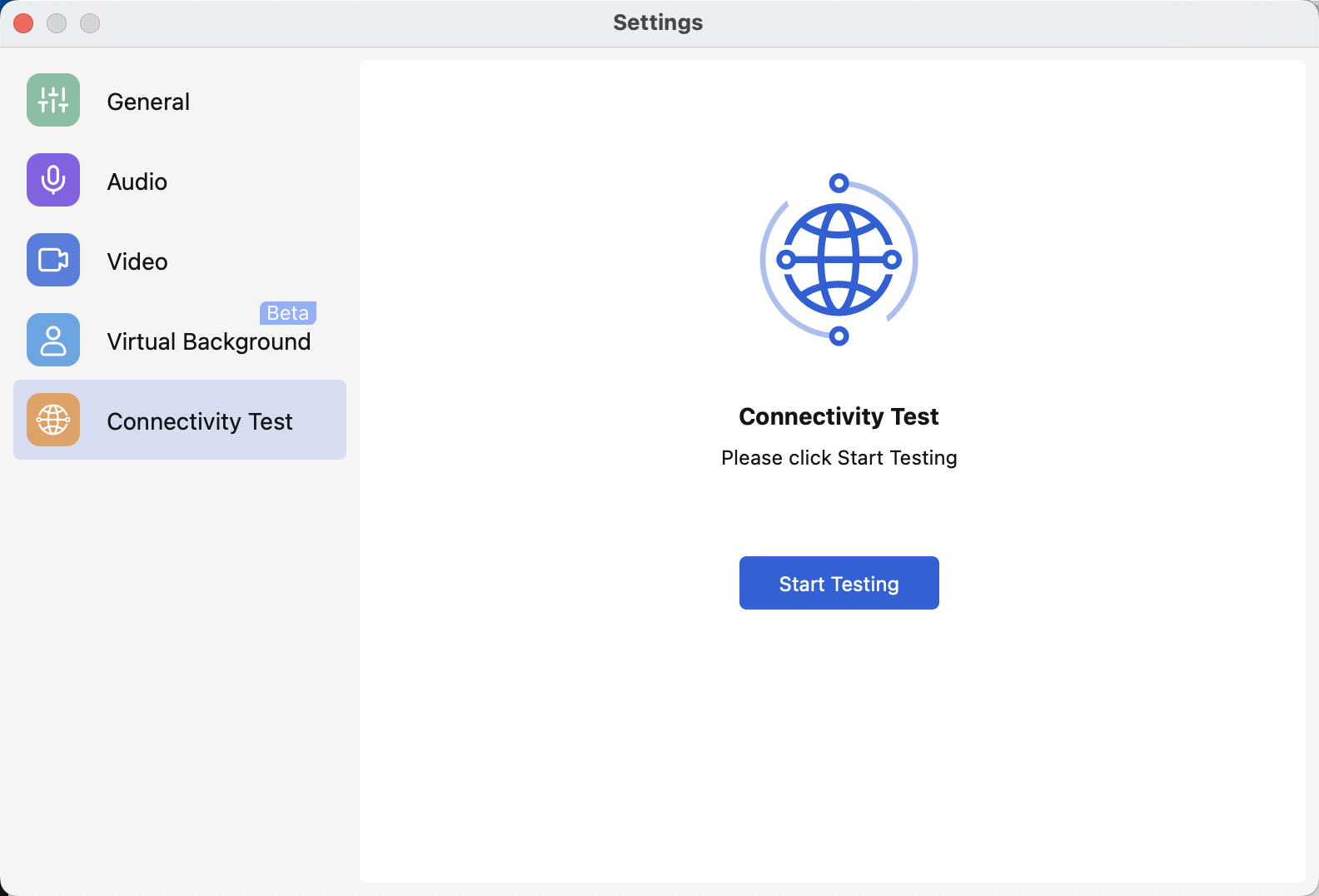
When the participant feels that the meeting quality is not as good as expected, they can check the network detection. They will be informed how the network connection, the internet connection, the server connection, the firewall port restriction is. Besides, the participant can be informed what the connection duration is. With these parameters, the participant can evaluate how his/her network status is.
Leave Meeting
Leave: by clicking the Leave button, the participant will leave the meeting and the meeting window will be closed.
Android and iOS
The toolbar of the meeting shows what the participants in a meeting can control.

Mute / Unmute
The participant can mute himself/herself when not talking so that other participants won't hear him/her. When muted, the participant can unmute himself/herself to let all the participants in the meeting hear him/her.
Turn Speaker On / Off
When the speaker is off, the participant can turn the speaker on to let himself/herself hear the voices of other participants in the meeting without holding the phone close to the ear. When the speaker is on and the participant is in an inappropriate environment, he/she can turn off the speaker to avoid voices of the meeting being heard by others.
Turn Video On / Off
When the video is off, the participant can turn the video on to let all the participants in the meeting see him/her. When the video is on and the participant is in an inappropriate environment, he/she can turn off the video to avoid his/her video being seen by other participants.
Share
With the permission of the host, the participant can share the screen and other content by clicking the Share buttonon the toolbar. By default, the sharing permission is open to every participant.
Participants List
Action on the Participant Himself/Herself* In the Participants List, the participant can only do the following actions on himself/herself.
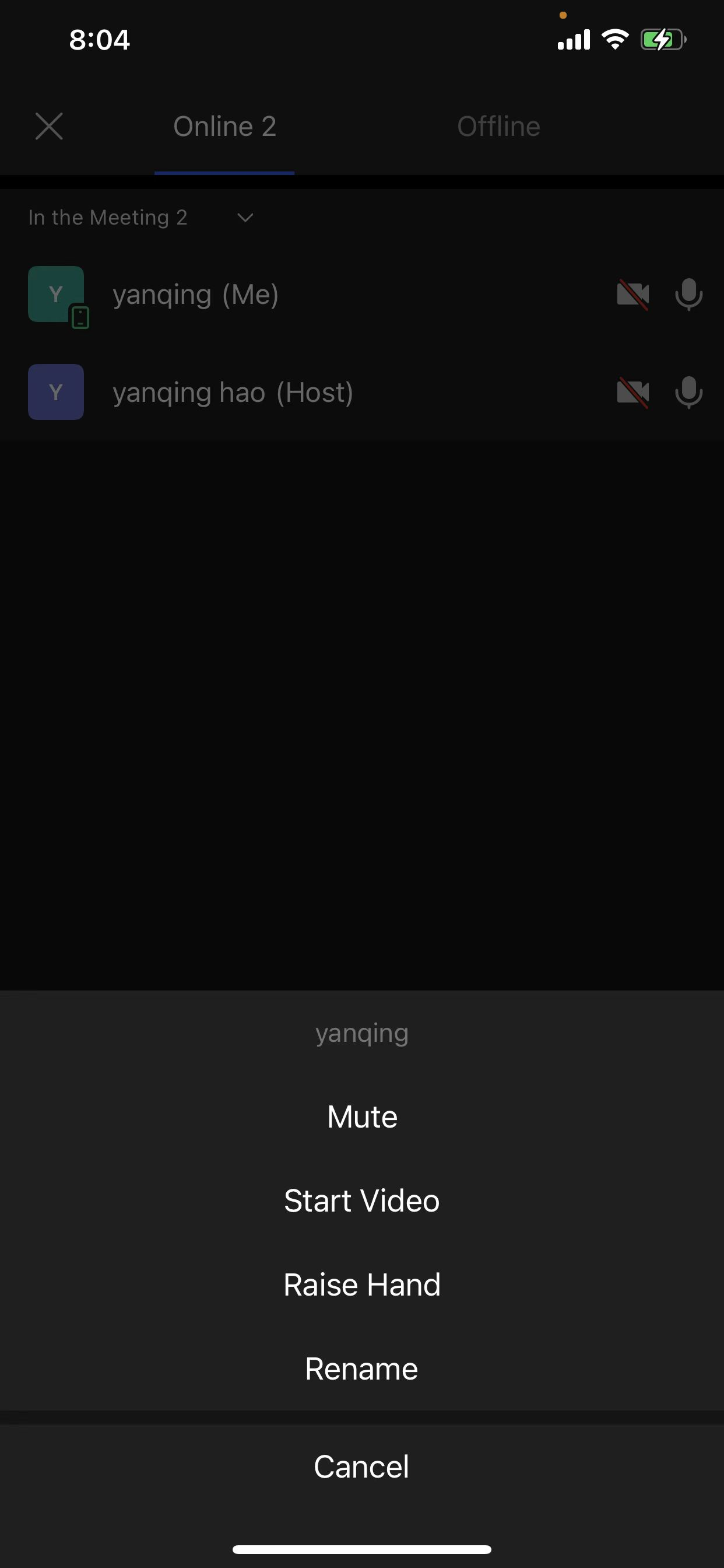
- Mute/Unmute: mute/unmute himself/herself.
- Pin/Pin for all: set his/her own video shown in the central panel on his/her own computer.
- Rename: the participants can rename themselves in the meeting.
- Raise hand: raise the hand to let the host see him/her, and ask if they need to unmute him/her.
More
- Meeting Settings
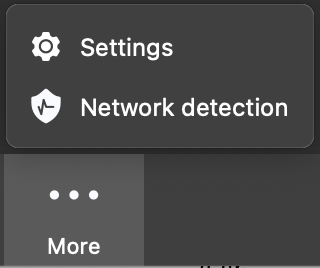
In Meeting Settings, the participants can manage his/her video and audio settings, and more For more details about Meeting Settings, please check Meeting settings.
- Chats
The participant can click the Chat button on the toolbar to show the chat window. The chat window will show at the bottom of the participant list. For more details about Chat, please check Chat in a meeting.
Leave Meeting
Leave: by clicking the Leave button, the participant will leave the meeting and the meeting window will be closed.