Invite others to join a meeting
You can invite people to join a meeting when you schedule the meeting, before the meeting starts, or during the meeting.
Prerequisites
- "Invite Participants" function when scheduling a meeting is only available for Pro, Business, and Enterprise plan accounts
Windows and macOS
Invite Participants When Scheduling a Meeting
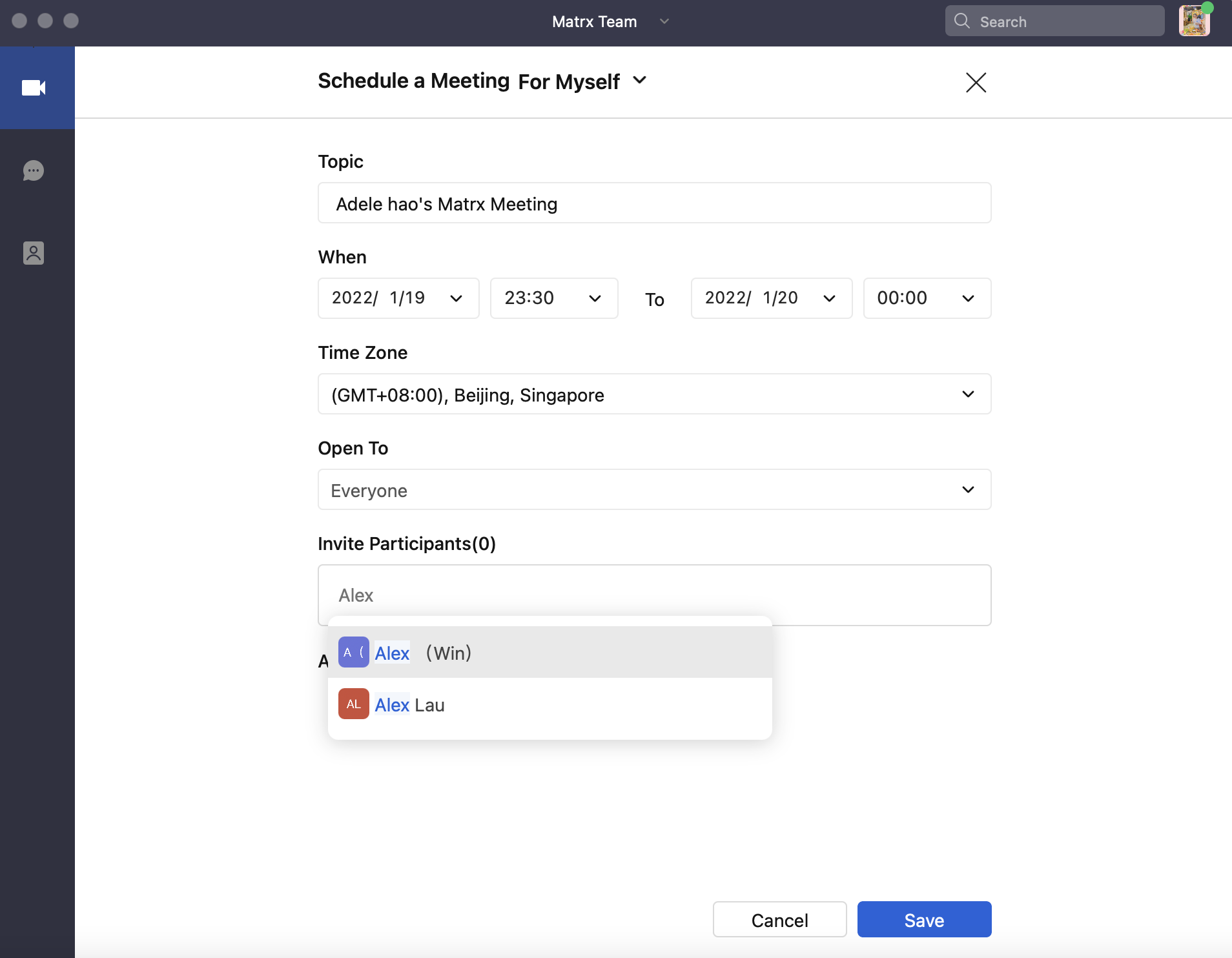
When scheduling a meeting, you can enter the required participants' names in the "Invite Participants" box. You can also enter a channel's name to invite all the members of a channel together or remove some selected members. After the meeting is scheduled, the invited participants will receive a meeting invitation message and email that contain the meeting information. The meeting will appear in the participants' Scheduled Meetings list unless they decline the meeting invitation.
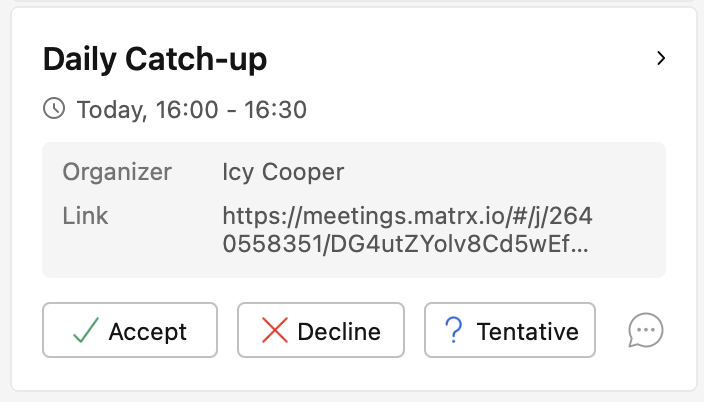
After receiving the meeting invitation, the person can deal with the invitation. Check the meeting invitation sent by the Meeting Assistant, and at the bottom of the invitation, they can choose between Accept, Decline, and Tentative. Besides, they can reply to the organizer directly to discuss the meeting.
Invite Participants by Sharing the Meeting Invitation
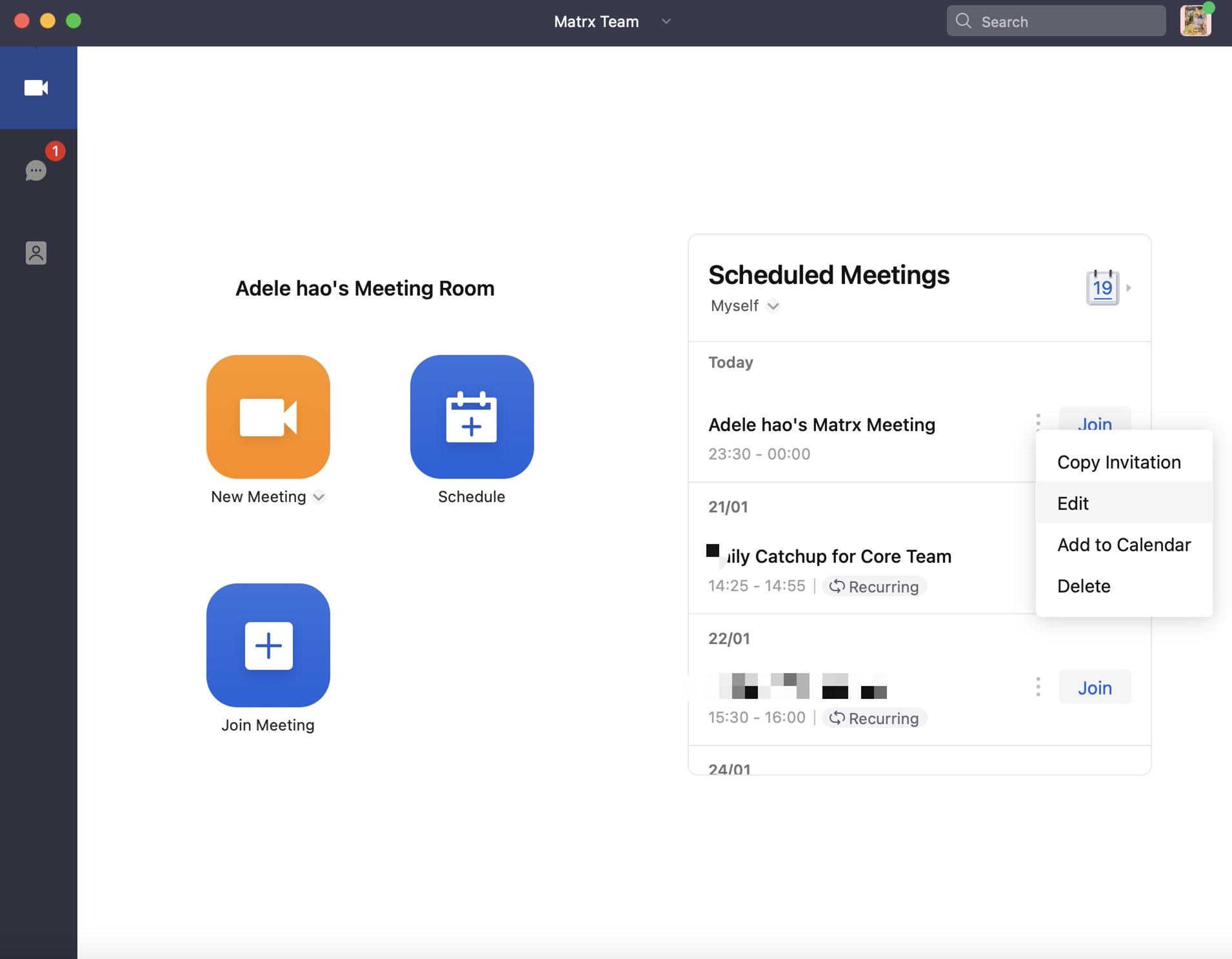
Click the More icon of the meeting in the Scheduled Meetings list, click Copy Invitation, and then send the copied meeting invitation to the participants.
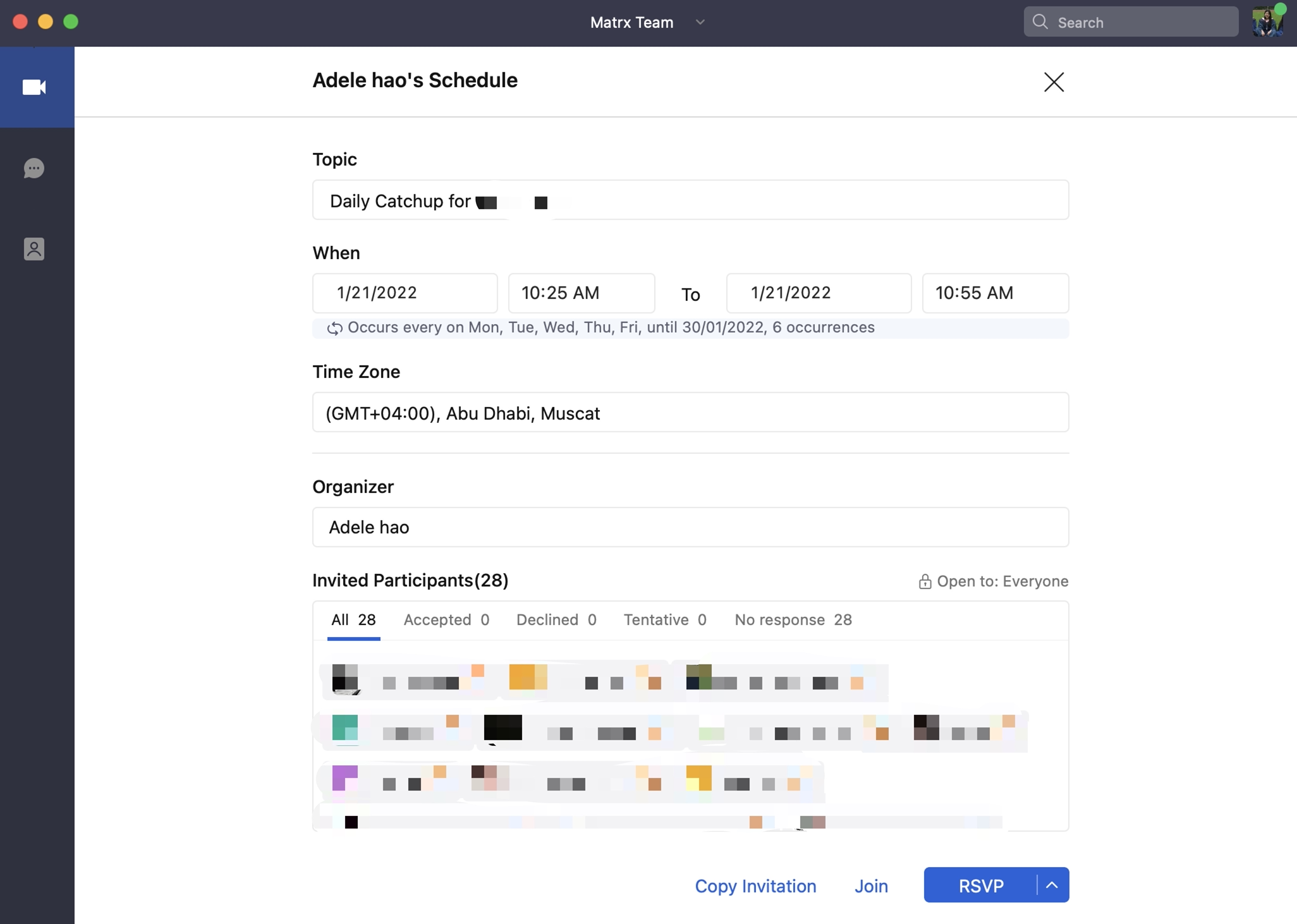
You can also click the meeting topic in the Scheduled Meetings list to enter the details page. Click Copy Invitation and then send the copied meeting invitation to the participants.
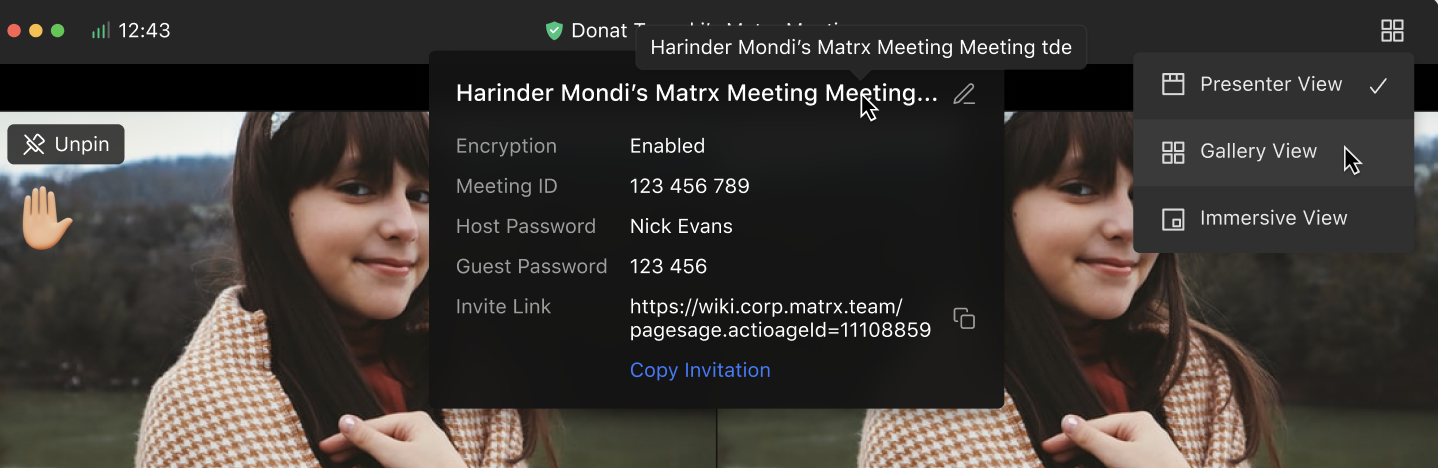
When you're in a meeting, you can also click the meeting topic at the upper left corner to view the meeting information and click the copy icon beside the meeting link to copy it or click Copy Invitation and send the copied info to the participants.
Invite Participants by Calling Them Directly in the Meeting (for Host Only)
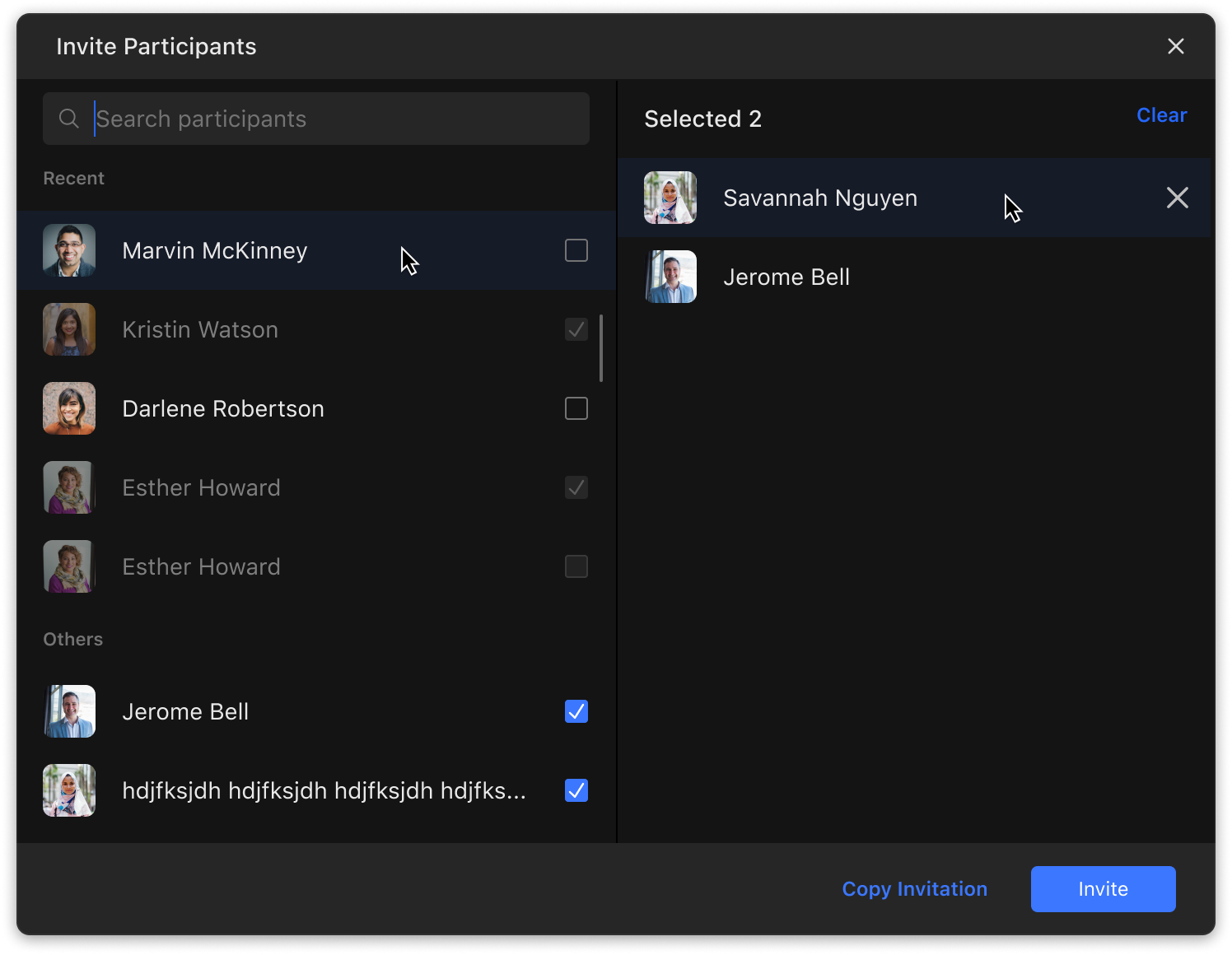
1. In the meeting, the meeting host can click the Invite button at the bottom toolbar or the Add icon at the top of the participant's list.


- The meeting host can then select the participants in the contacts window and then click Start call. The participants will receive a call and can join the meeting by clicking the Answer button.

Android/iOS
Invite Participants When Scheduling a Meeting
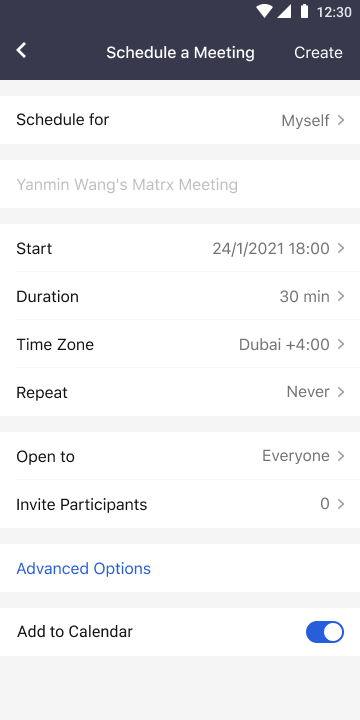
When scheduling a meeting, you can enter the required participants' names in the "Invite Participants" box. You can also enter a channel's name to invite all the members of a channel together or remove some selected members. After the meeting is scheduled, the invited participants will receive a meeting invitation message and email that contain the meeting information. The meeting will appear in the participants' Scheduled Meetings list unless they decline the meeting invitation.
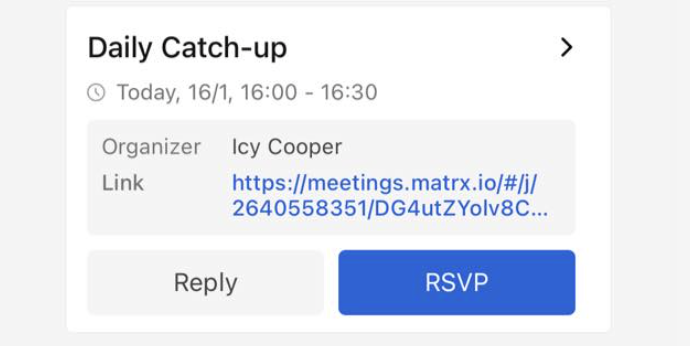
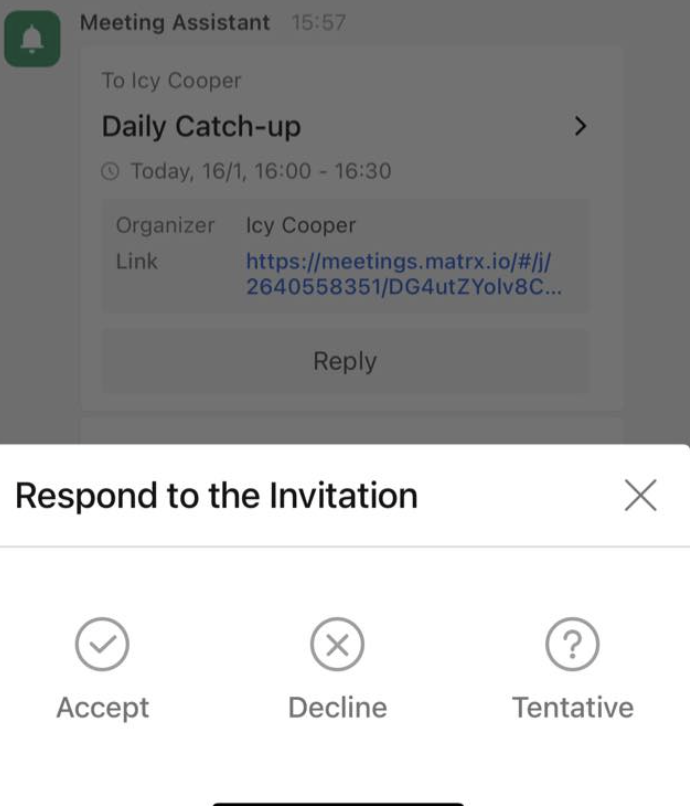
After receiving the meeting invitation, the person can deal with the invitation. Check the meeting invitation sent by the Meeting Assistant, and at the bottom of the invitation, they can choose between Accept, Decline, and Tentative. Besides, they can reply to the organizer directly to discuss the meeting.
Invite Participants by Sharing the Meeting Invitation
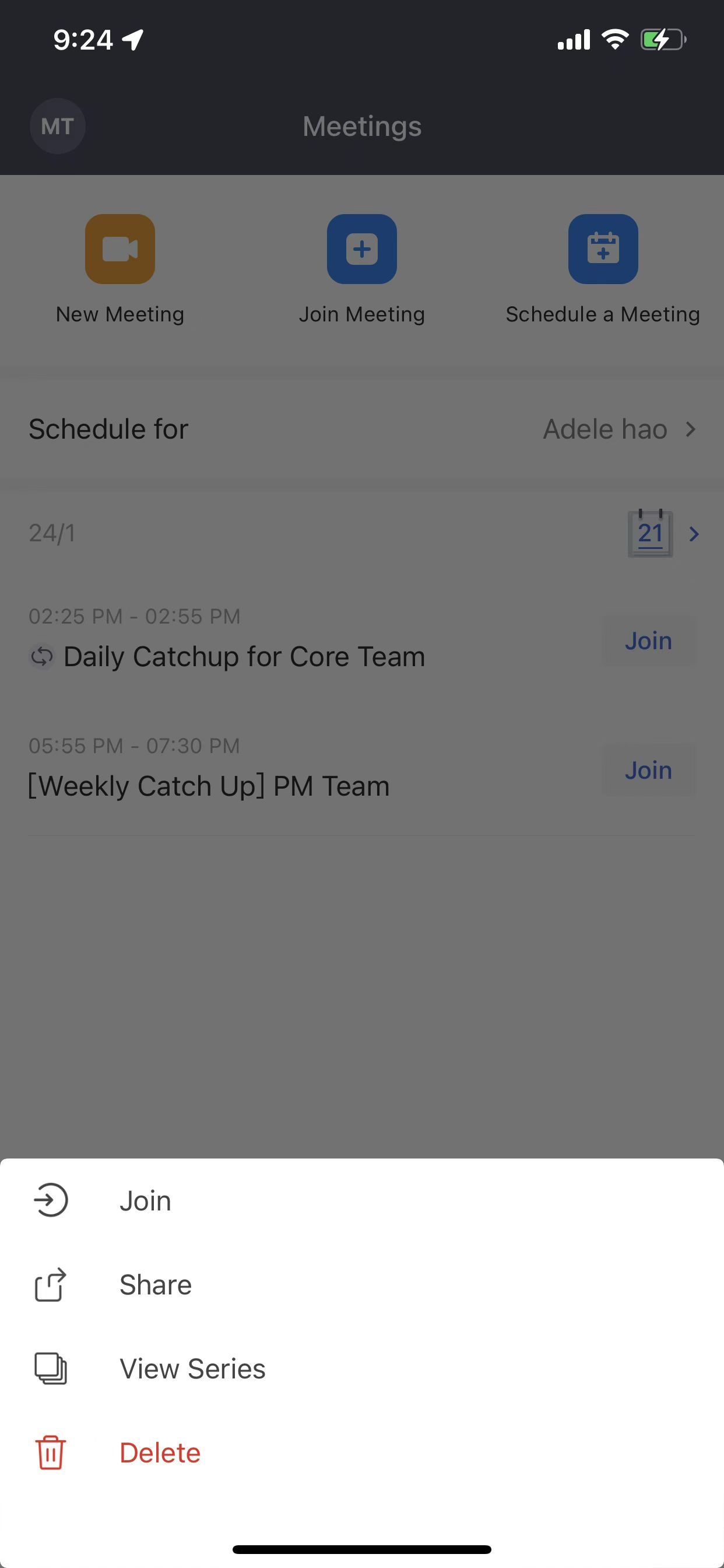
Long-press the meeting in the list of scheduled meetings, click Copy Invitation and send the copied meeting invitation to the participants.
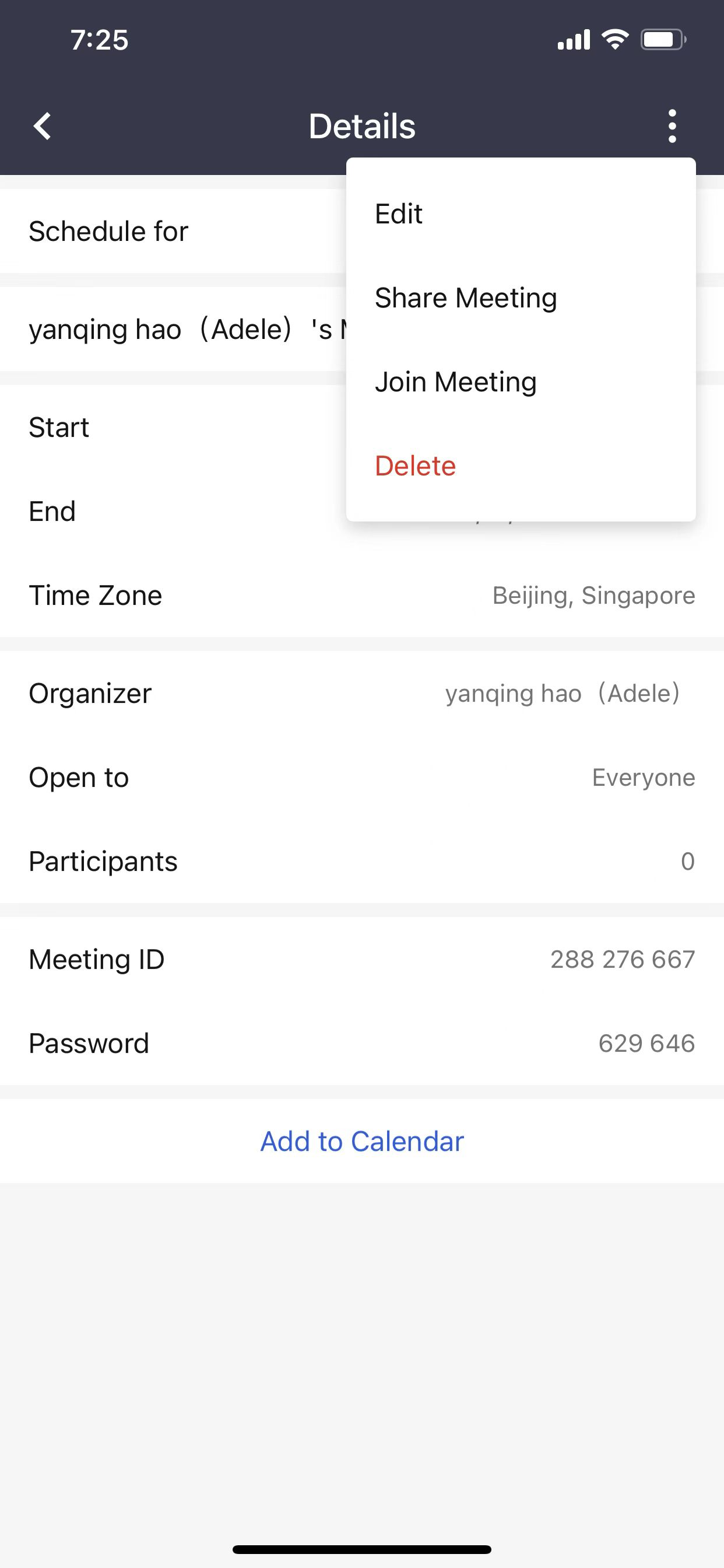
You can also click the meeting topic in the Scheduled Meetings list to enter the details page. Click Copy Invitation and then send the copied meeting invitation to the participants.
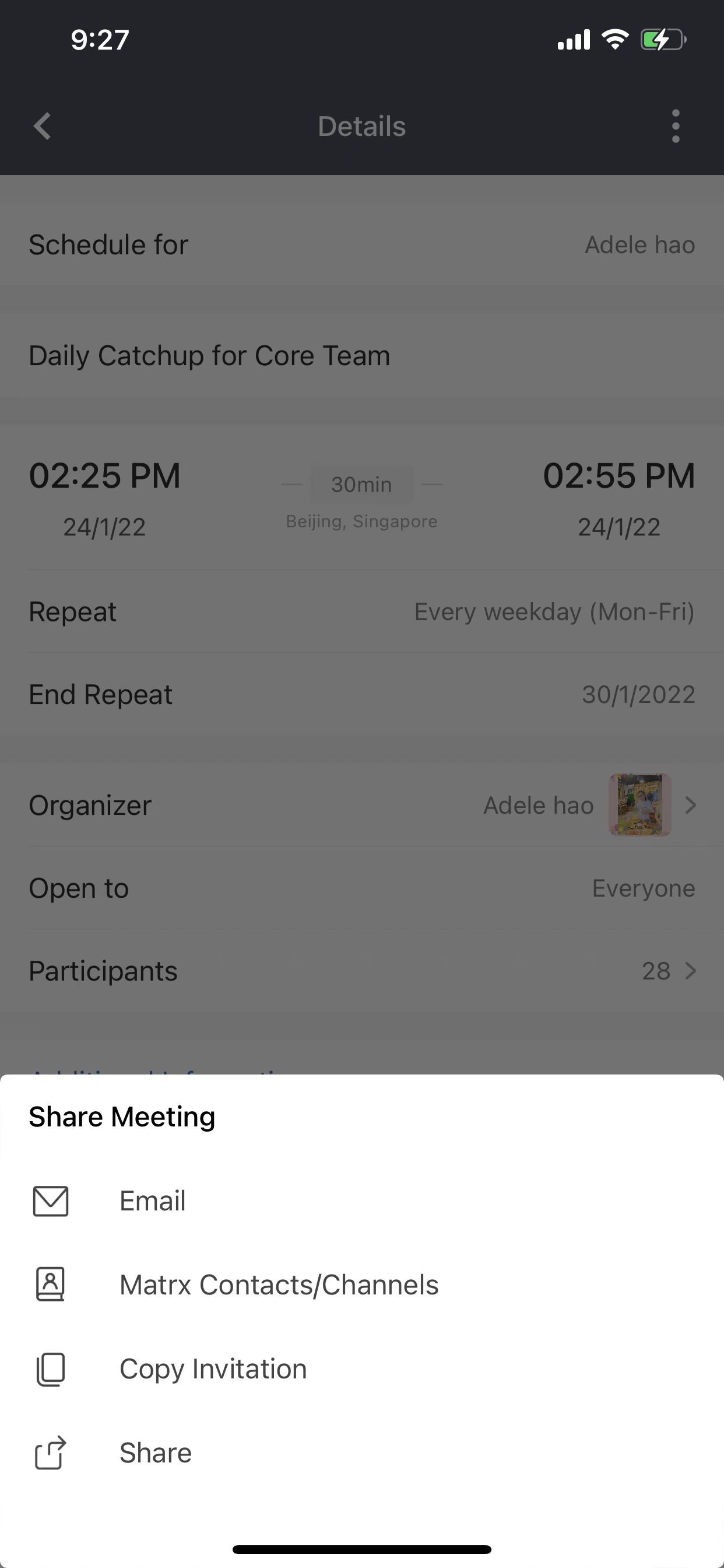
When you're in a meeting, you can also click the meeting topic at the upper left corner to view the meeting information and click the copy icon beside the meeting link to copy it or click Copy Invitation and send the copied info to the participants.
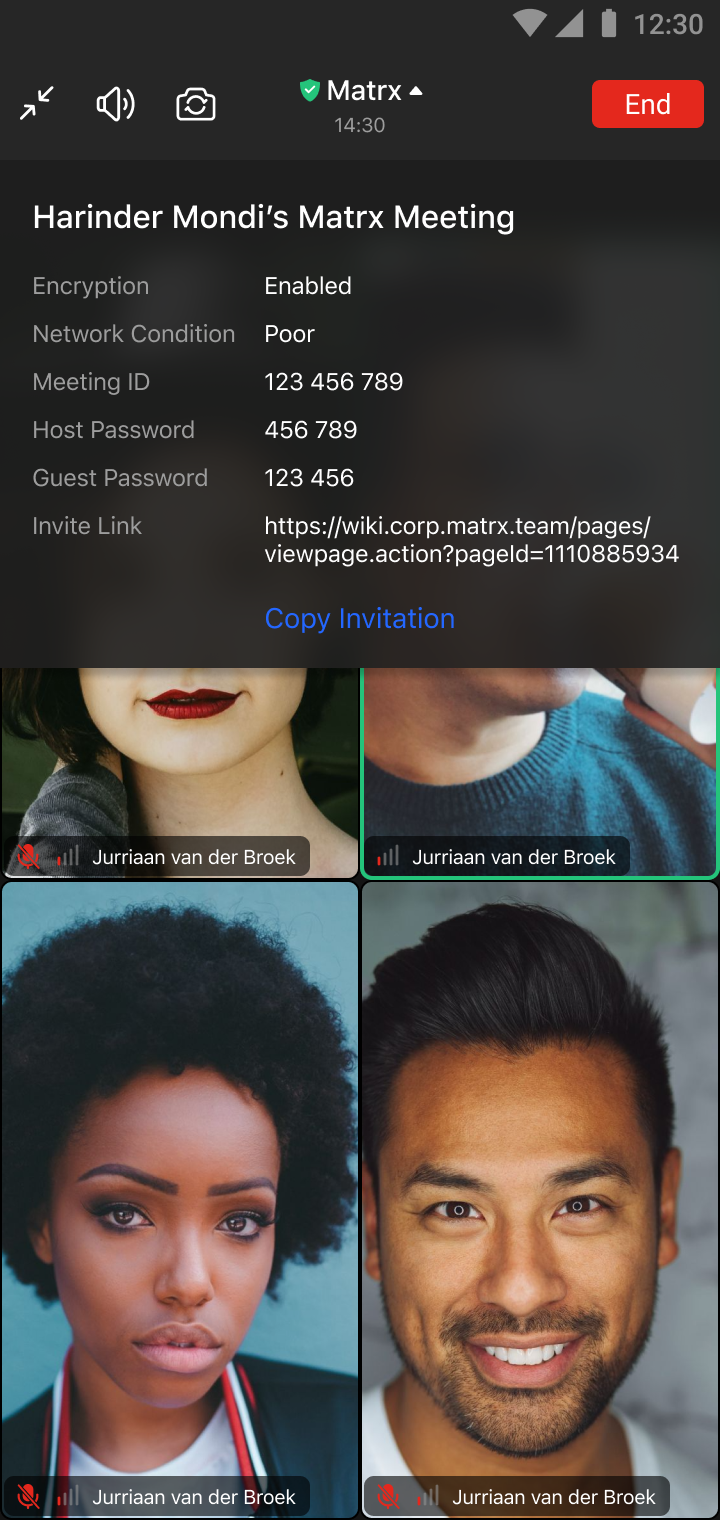
Invite Participants by Calling Them Directly in the Meeting (for Host Only)
- In the meeting, the meeting host can click the Invite button at the bottom of the participant's list.
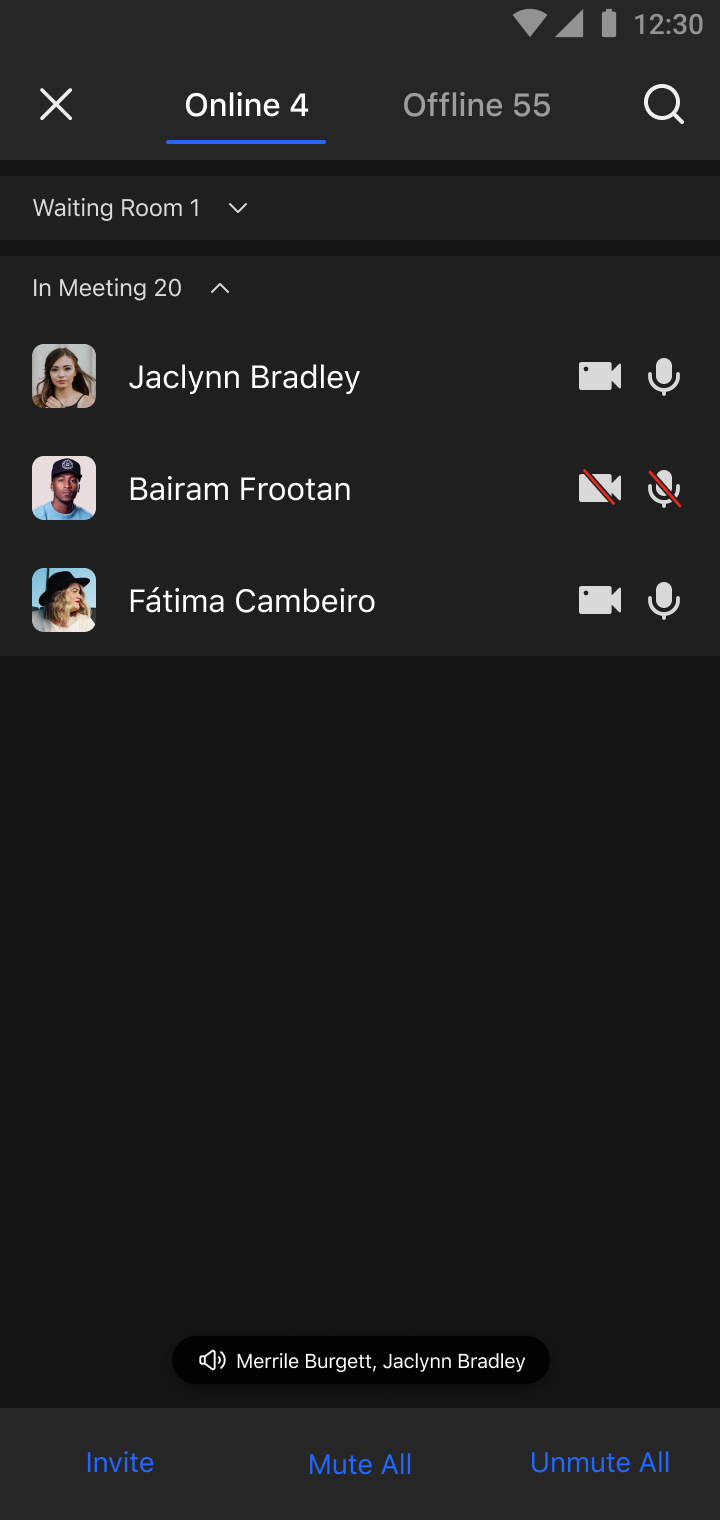
- The meeting host can then select the participants and then invite them. The participants will receive a call and can join the meeting by clicking the button.