Creating and Managing Matrx Calendar
1.Function Introduction
The current Matrx calendar is a collection of all meetings, and you can have a complete view of the meetings you've created through the calendar.
- Desktop
- Mobile
2.Operation process
2.1 Creating Schedule
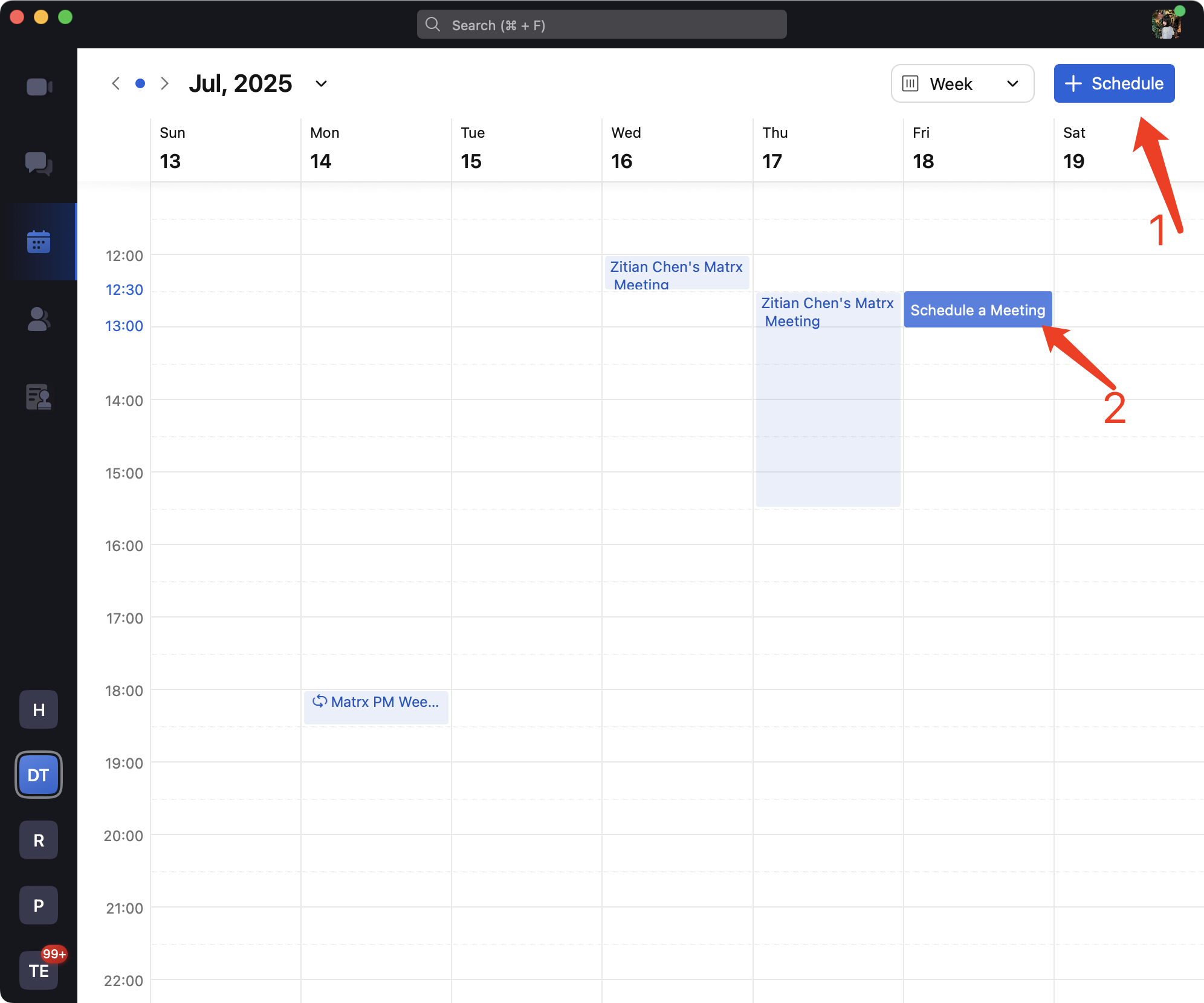
You can add a schedule by clicking Add Schedule in the upper right corner of the calendar, or you can create a schedule directly by double-clicking on an area of the calendar for a specific time period on that day.
2.1.1 Calendar Basic Information
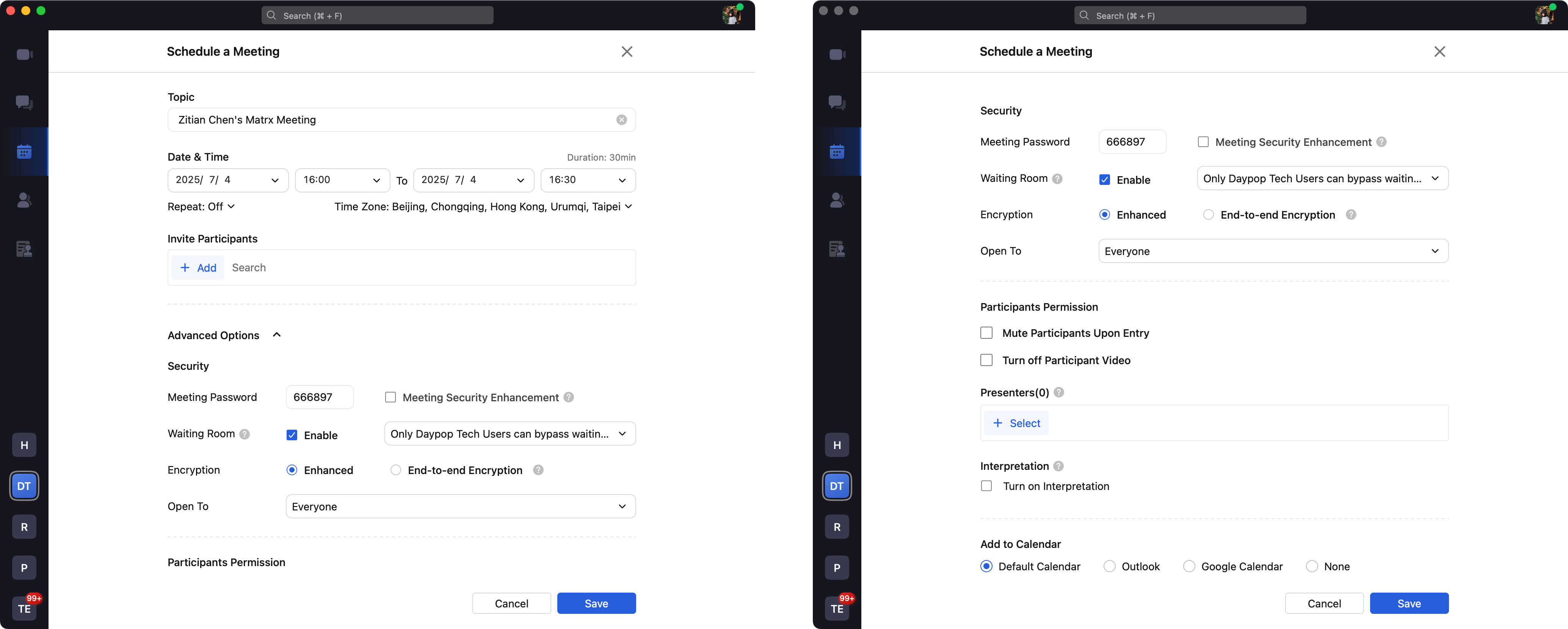
Currently created schedules are presented as meetings, and participants receive a meeting notification when they are created.
The default name of the meeting created is: creator name + Matrx Meeting.You may change the name of the meeting at any time.
Click the Add button to invite attendees to the meeting. Invited users will receive a notification to attend the meeting, and will also receive a Call Meeting notification prompt at the start of the scheduled time.
2.1.2 Advanced Options
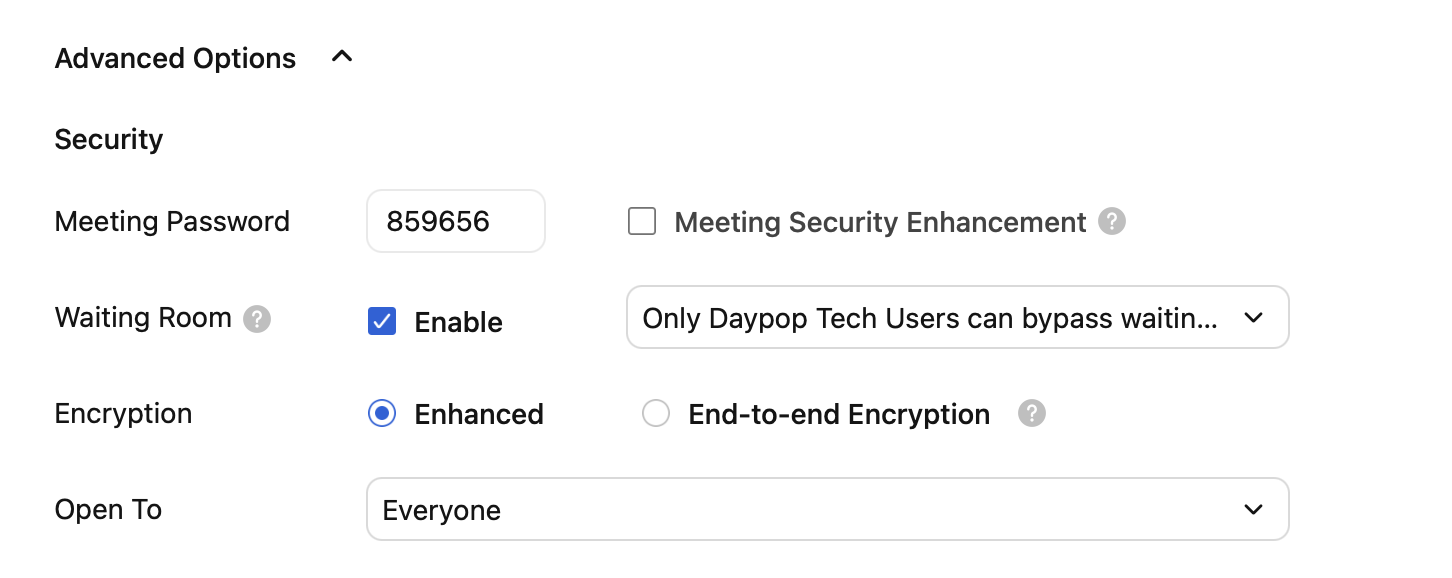
For meetings with a high level of security, you can set a meeting password, or set the waiting room, whether to turn on end-to-end encryption, and the meeting open range.
2.1.3 Other Calendar Reminders
Optionally, you can add Matrx meeting schedules to other applications.

2.2 Edit & Delete Calendar
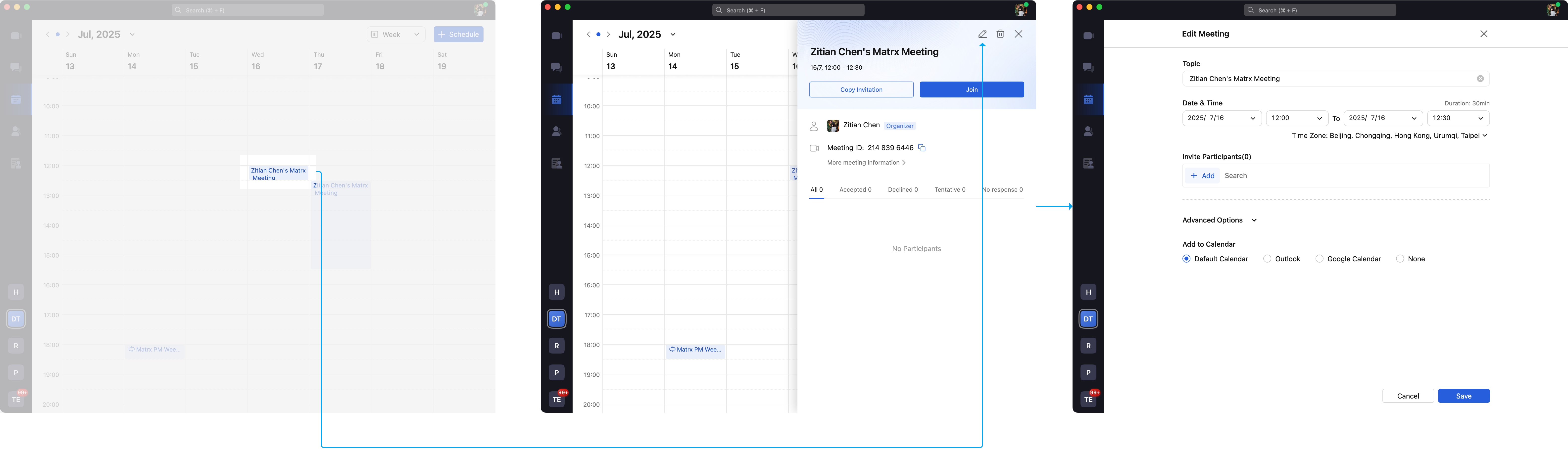
Click on the schedule you need to edit, find the Edit button in the sidebar and click on it to enter editing. If you want to delete the schedule, you can use the Delete button in the upper right corner.
However, past history schedules do not support editing or deleting.
2.Operation process
2.1 Creating Schedule
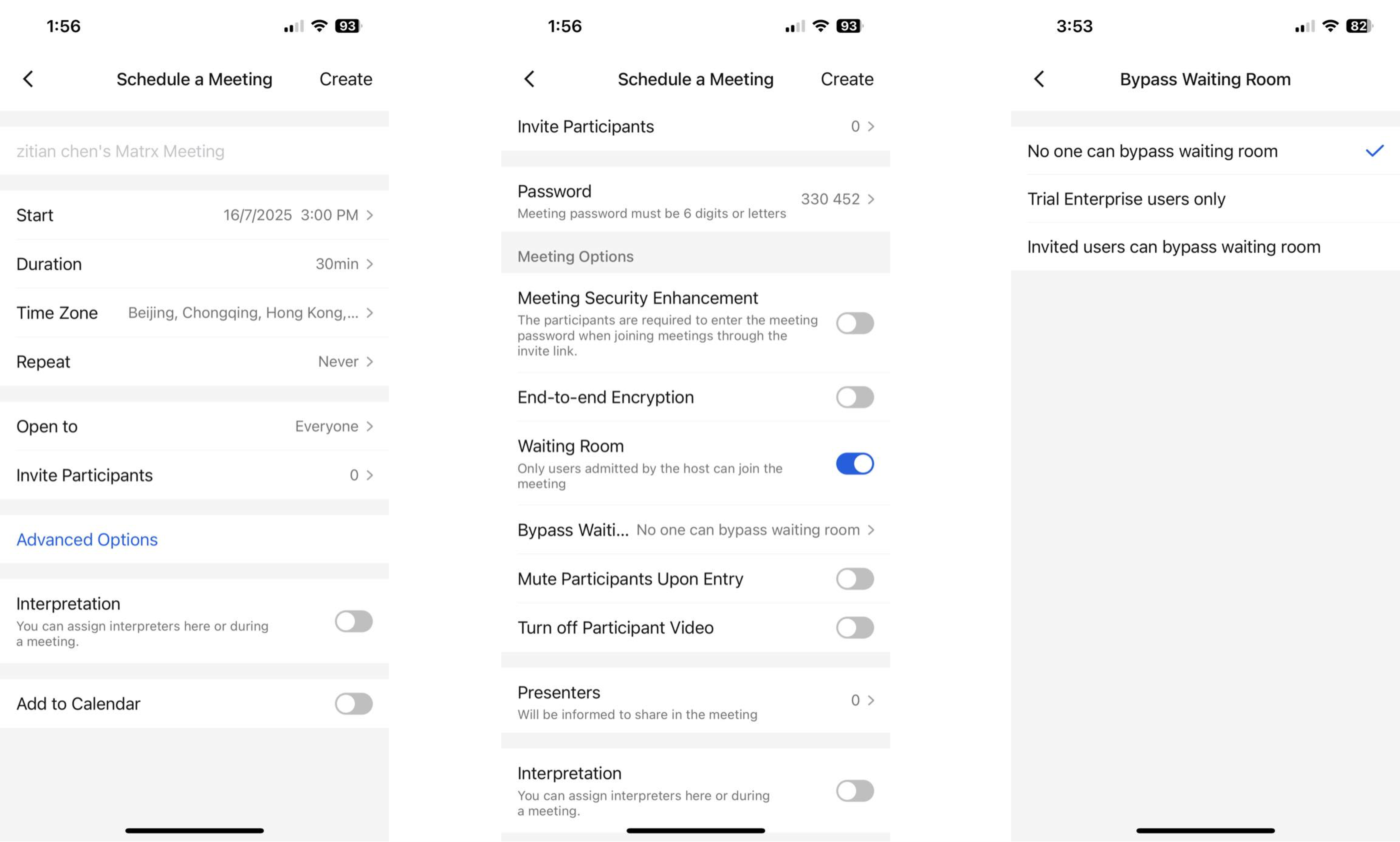
Find the Calendar module in the bottom toolbar, and you can switch between three-day/five-day/monthly views to view your schedule.
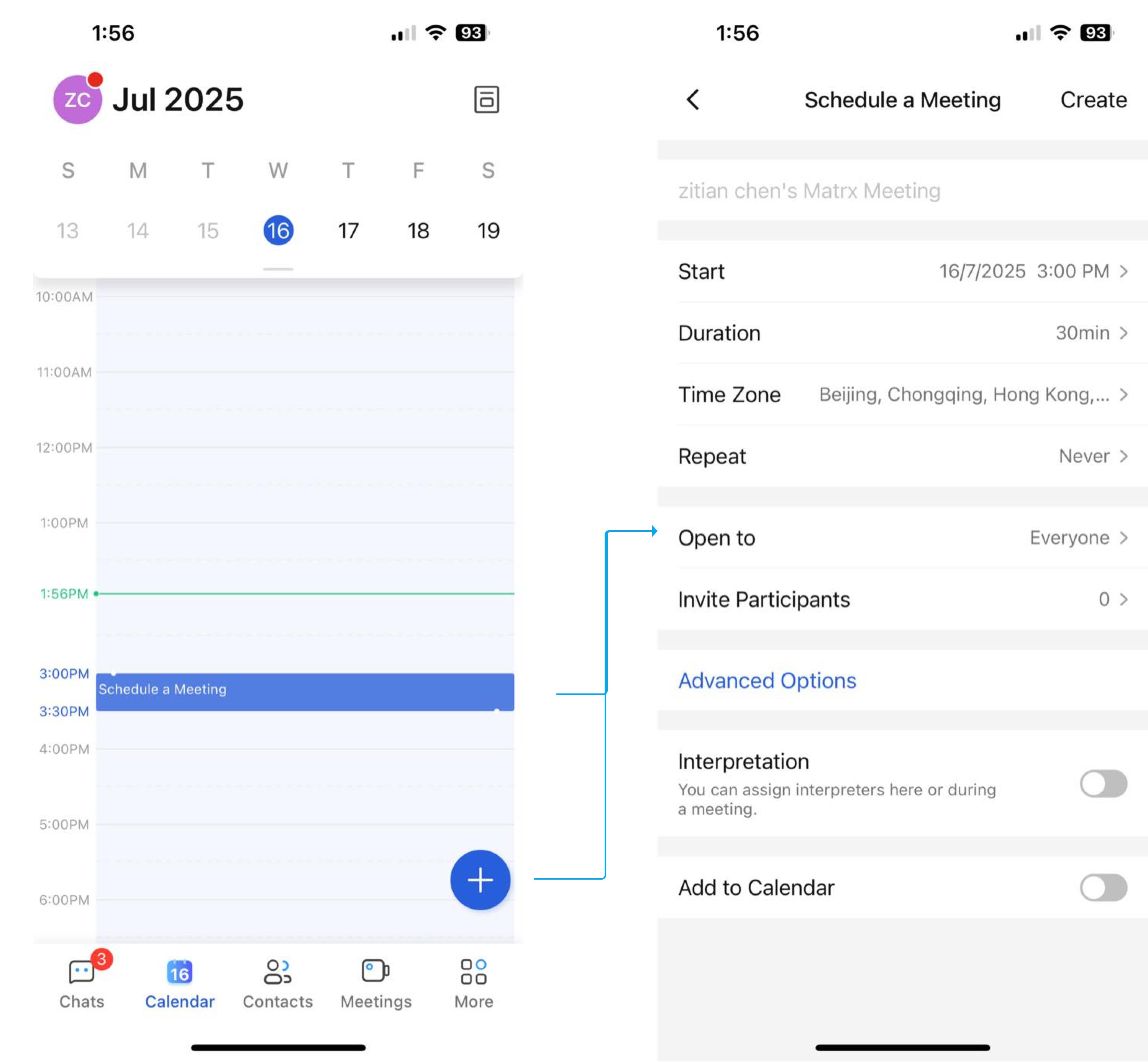
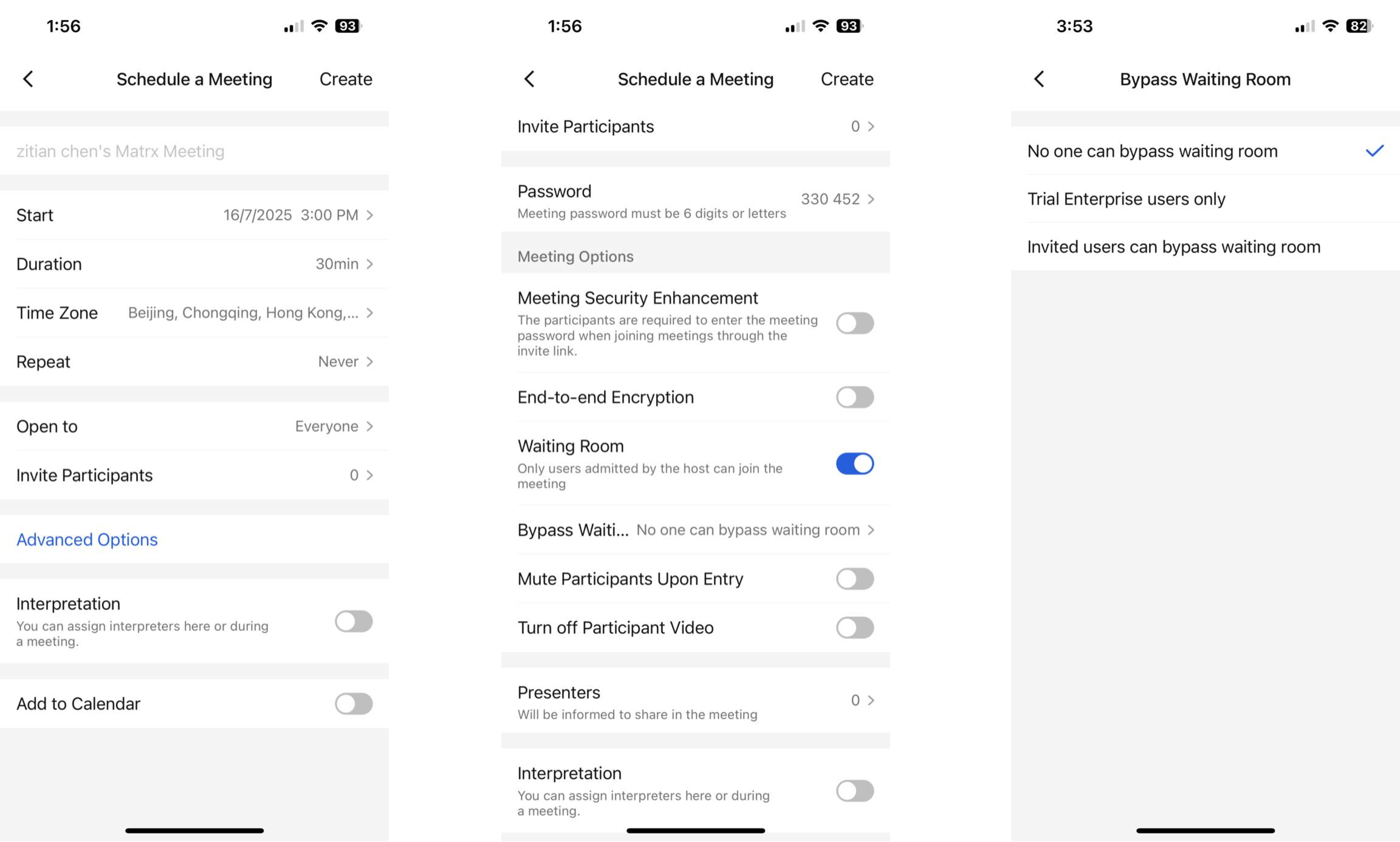
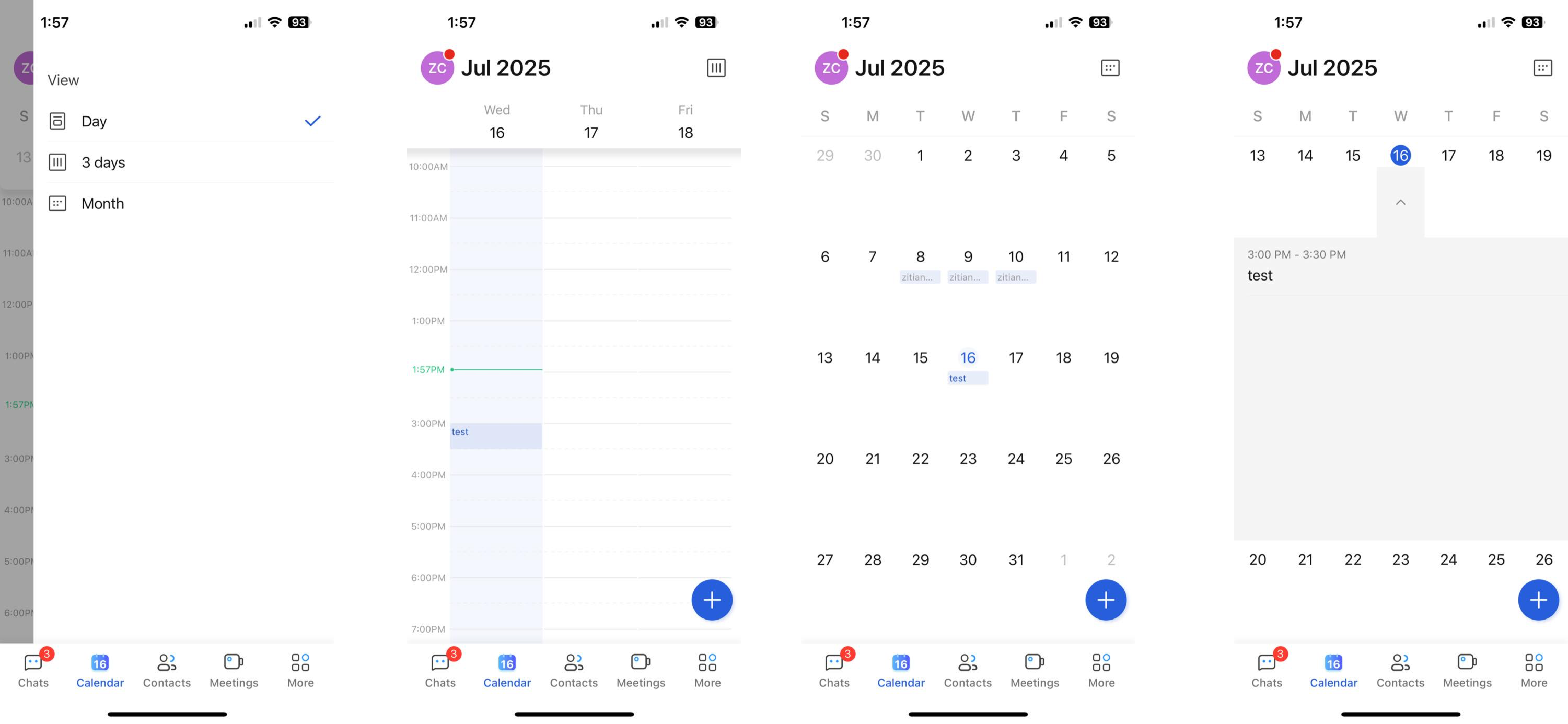 Tap a time period in a day to quickly create a schedule for that day, and the schedule duration will be automatically selected to half an hour for you. You can also quickly add a calendar by using the Add icon in the lower right corner.
2.1.1 Calendar Basic Information
Currently created schedules are presented as meetings, and participants receive a meeting notification when they are created.
The default name of the meeting created is: creator name + Matrx Meeting.You may change the name of the meeting at any time.
Click the Add button to invite attendees to the meeting. Invited users will receive a notification to attend the meeting, and will also receive a Call Meeting notification prompt at the start of the scheduled time.
2.1.2 Advanced Options
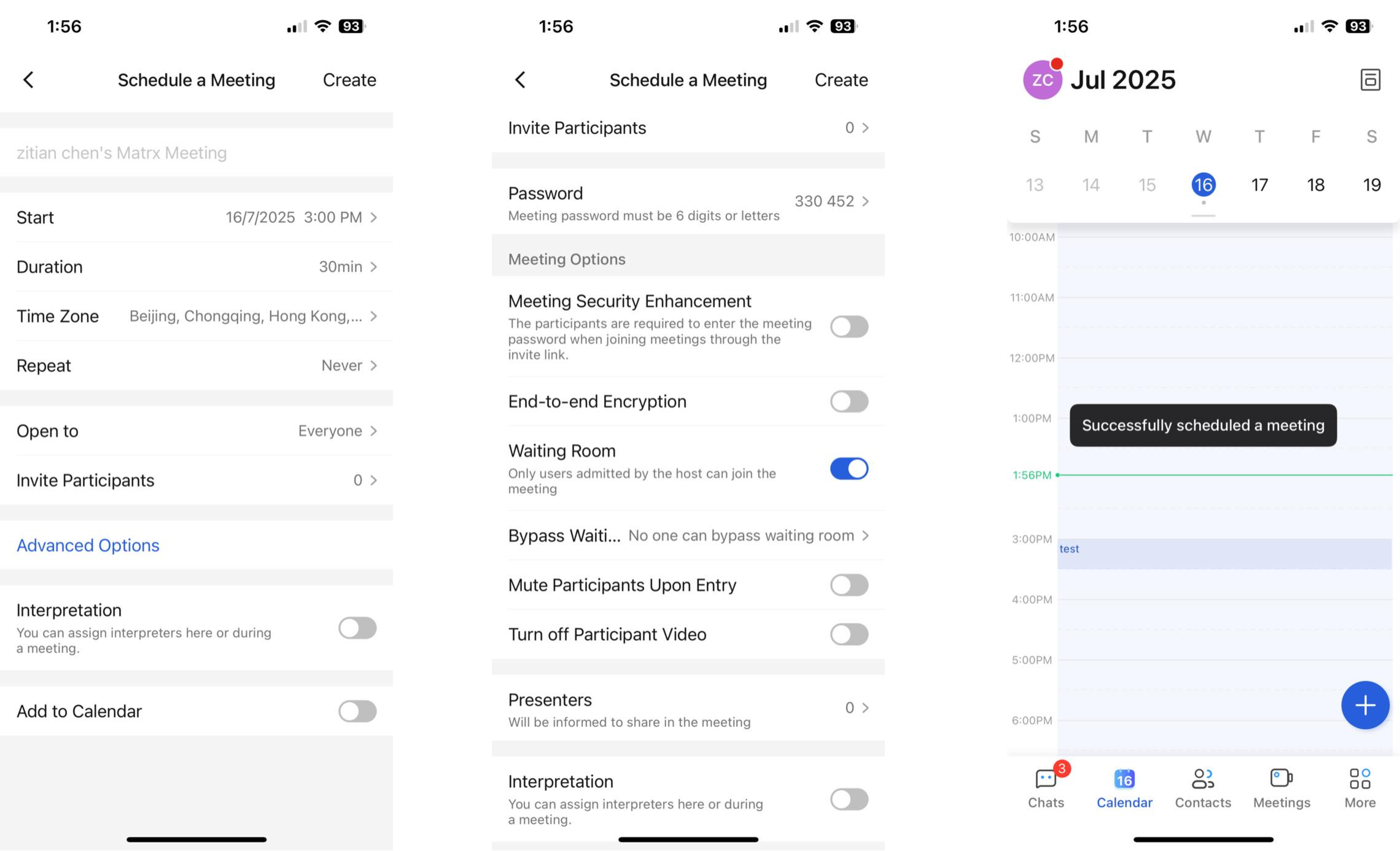
For meetings with a high level of security, you can set a meeting password, or set the waiting room, whether to turn on end-to-end encryption, and the meeting open range.
2.2 Edit & Delete Calendar
Click on the schedule you need to edit, find the Edit button in the sidebar and click on it to enter editing. If you want to delete the schedule, you can use the Delete button in the upper right corner.
However, past history schedules do not support editing or deleting.