Managing users using Matrx admin portal
The user management function provides administrators with a unified entry to manage user information. Administrators with relevant permissions can query, add, edit, and delete enterprise users.
This article covers:
Prerequisites
- Business or Enterprise plan
- Admin role access with user management permission
Getting Started
- Sign in to the Matrx admin portal.
- In the navigation menu, unfold Organization and click User Management.
Check the User List
The super admin or administrator of multiple enterprises can switch to different enterprises to view the users of that enterprise. In addition, users in the different departments can be quickly filtered out according to the department structure in the enterprise workspace. At the same time, if you want to search for a particular user, you can find the user by searching the name, account, and email in the corresponding search bar. The number behind the enterprise name means: How many members are online and how many members are in the enterprise.
The content of the user list includes:
- Account Online/Offline Status- The account's current status at the client
- Note: The statuses include online, offline, and in a meeting.
- Name - The name of the user
- Note: The name of users consists of first name and last name.
- Status - The activation status of users
- Note:
- Status includes Active and Unactivated.
- If the user status is "Unactivated," the admin can use the "remind" function to send the invitation email again.
- Note:
- Account - The account of the user
- Note: User accounts are unique on the whole Matrx platform.
- ENT/Dept. - Enterprise or Departments that the user belongs to
- Note: Users can be affiliated with departments or directly with the enterprise.
- Duplicate User to Other Enterprise - Select users and transferring users from Entity to entity
- Note: Users can be invited to enter another enterprise in bulk
- Email - The email address of the user
- Create Time -The time of adding this account to the enterprise
- Note: Show the time when the account is invited to enter the enterprise for the first time. The time won't update even if there are repeated invitations.
- Action
- Edit - Edit the profile information of the user
- Note: The users' email addresses are used as the account when it is created. Once the email address is created, it cannot be modified.
- Remove - Remove the user from the enterprise workspace
- Note: Users removed from the enterprise workspace by the admin can no longer access the enterprise workspace but can continue to use the personal space.
- Edit - Edit the profile information of the user
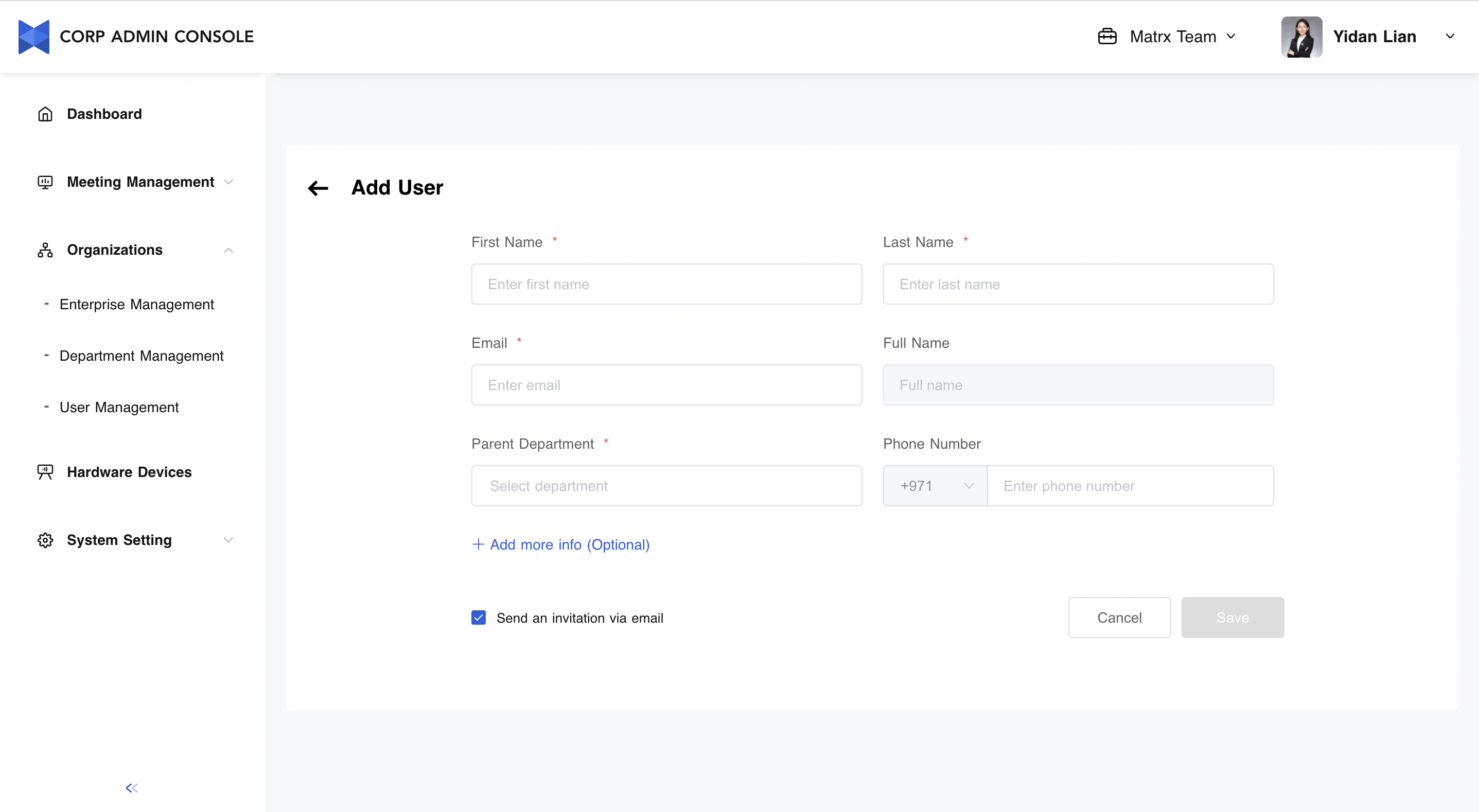
Add a User
- Switch to the right enterprise workspace where you want to add users.
- Click Add User.
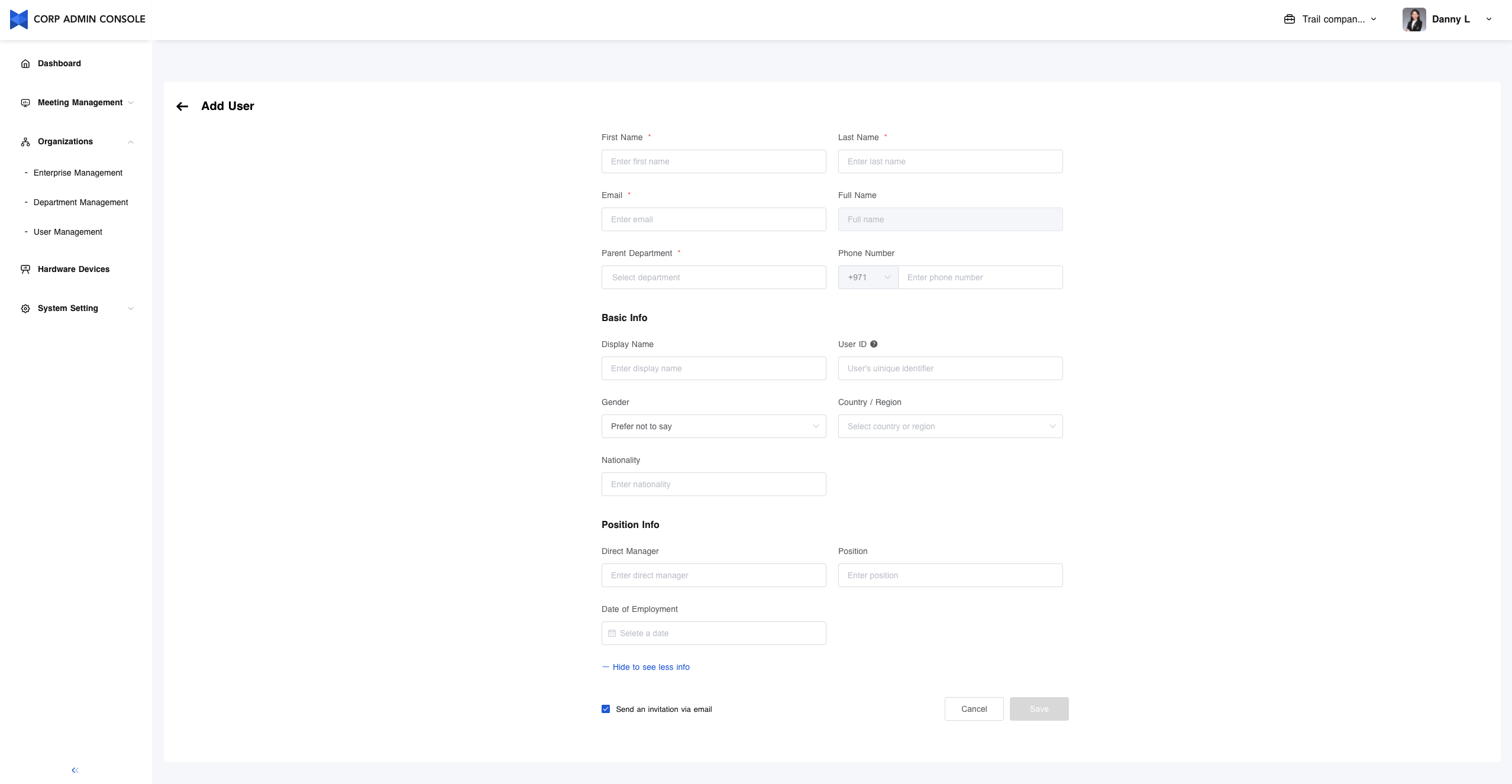
- Fill in the information of the user.
- Note: First Name, Last Name, Email, and Parent Department are required.
- Click Save to create a new user and return to the User Management page.
Batch Import Users
-
Switch to the right enterprise workspace where you want to add users.
-
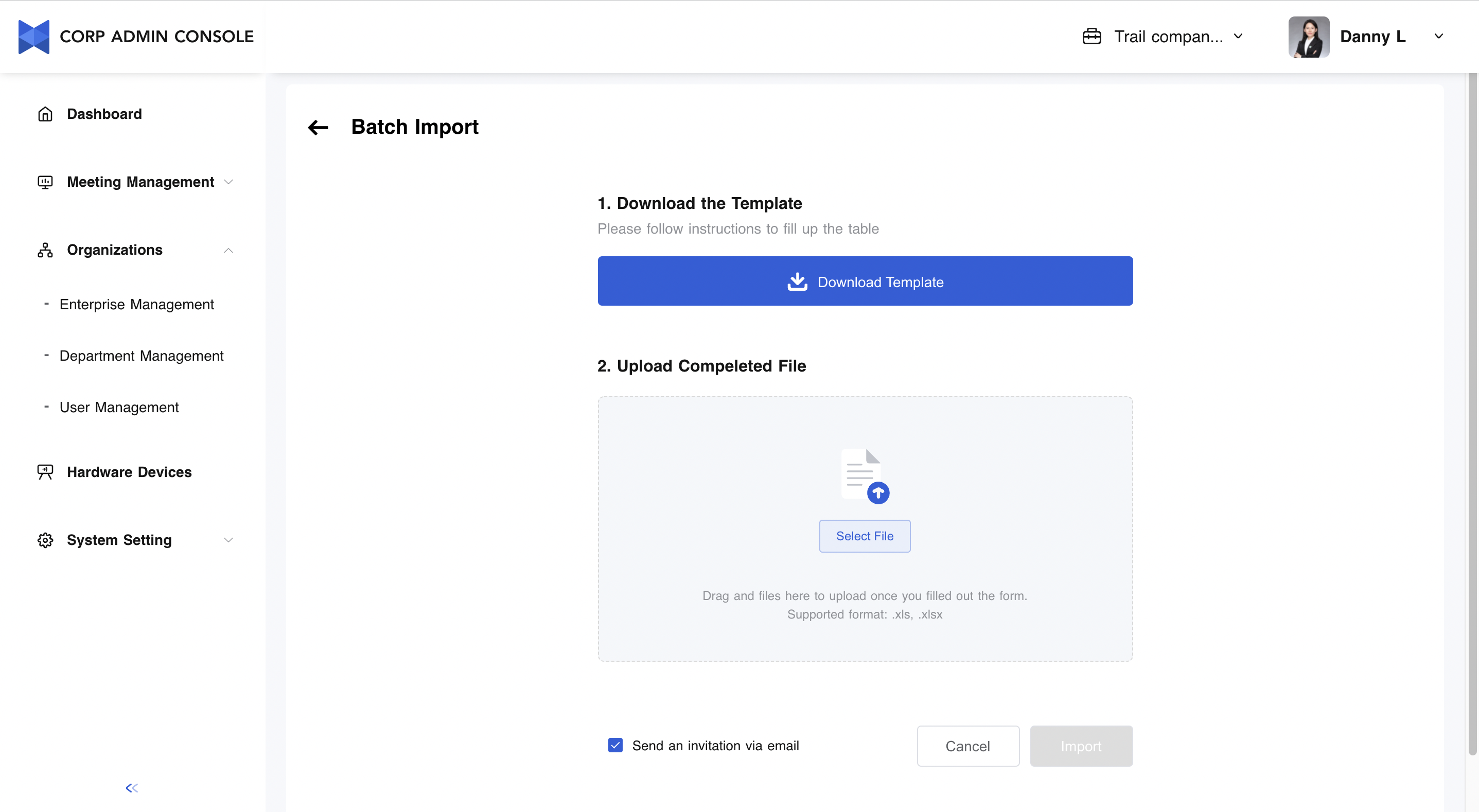
Click Batch Import.
-
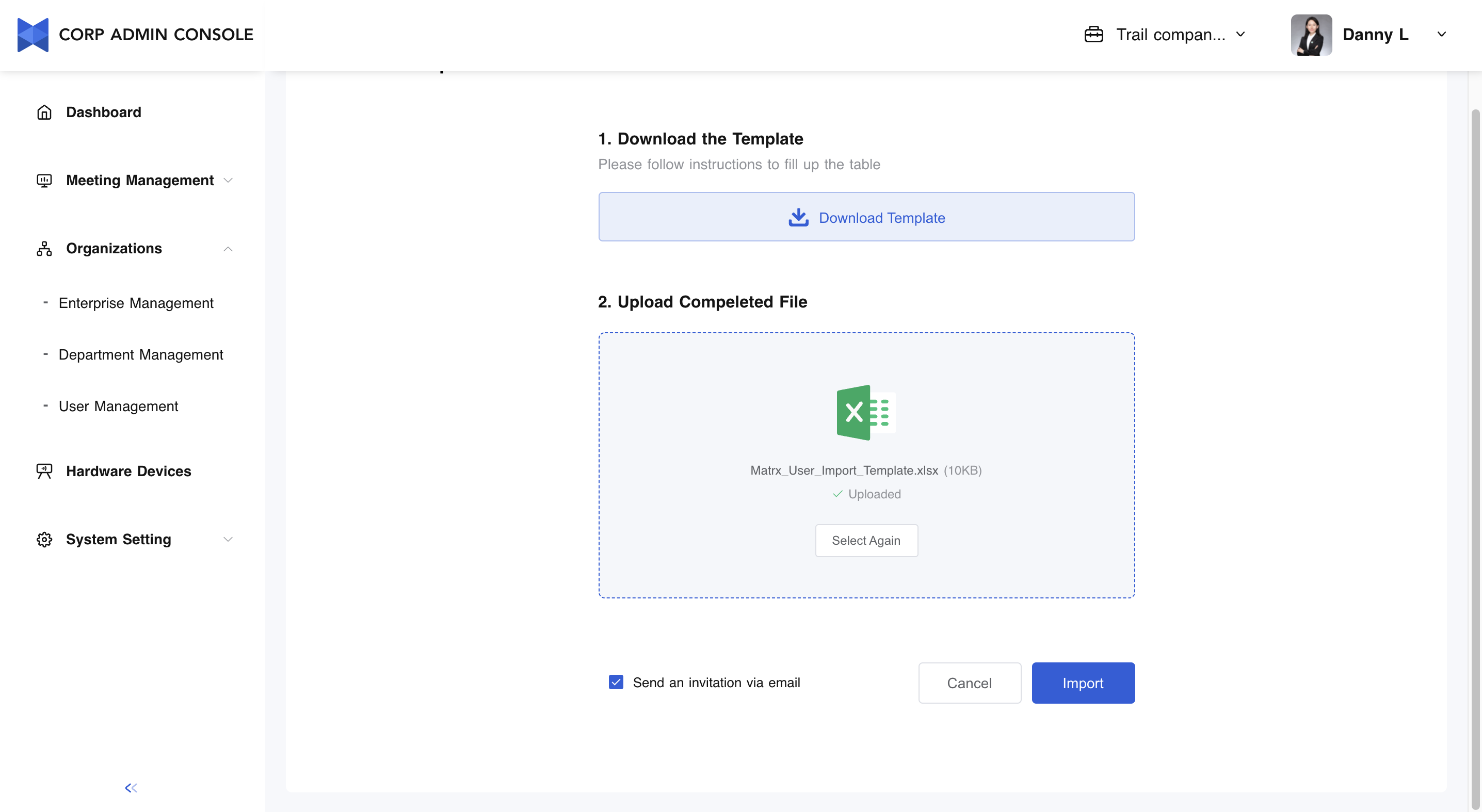
Download the template and follow the instruction to fill in the information of users, such as First Name, Last Name, Email, etc.
-
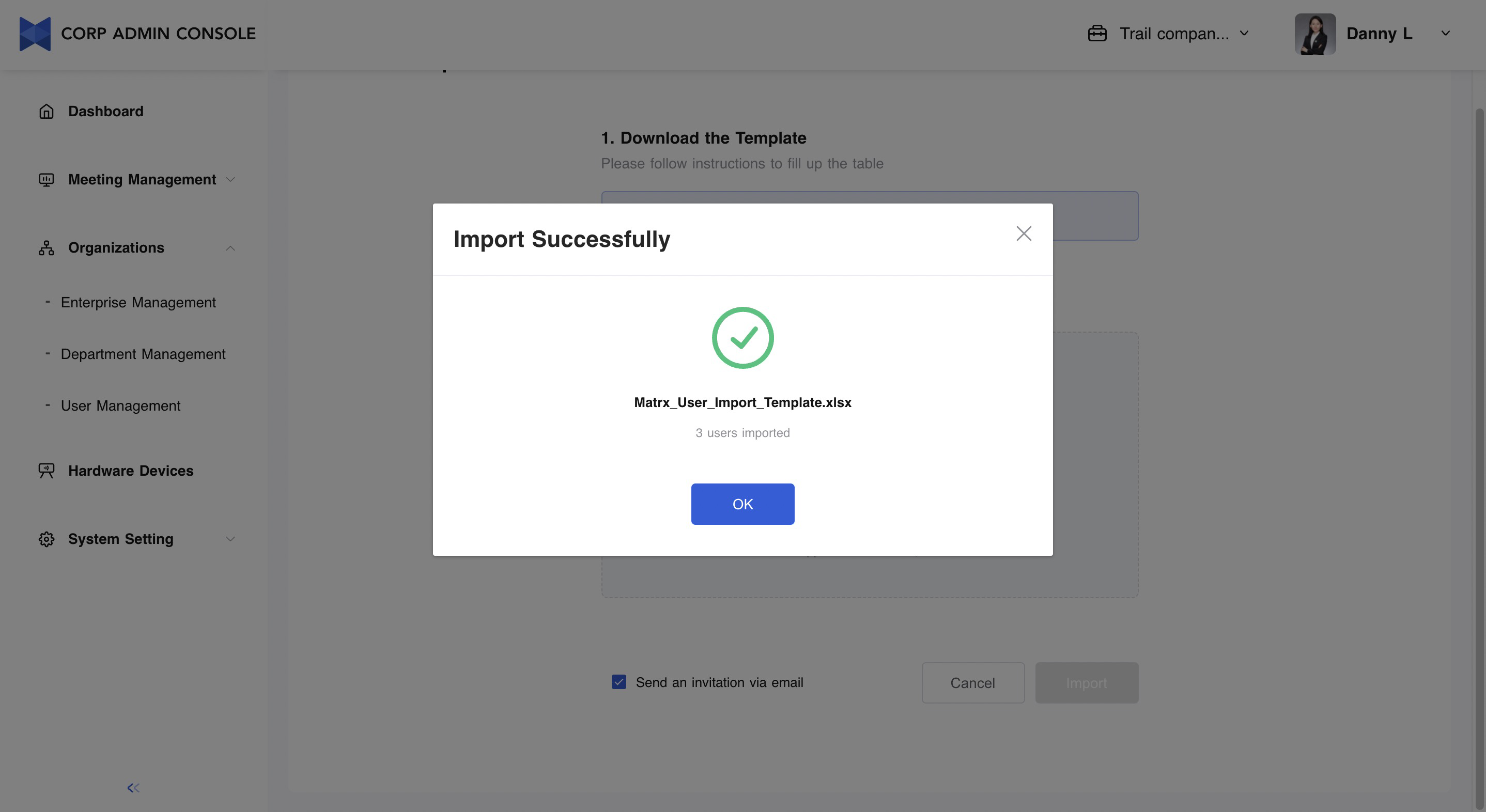
After uploading the completed table, click Import. The system begins to identify user information based on the table content and create users in a batch. Then, the web page will display the creation results.
-
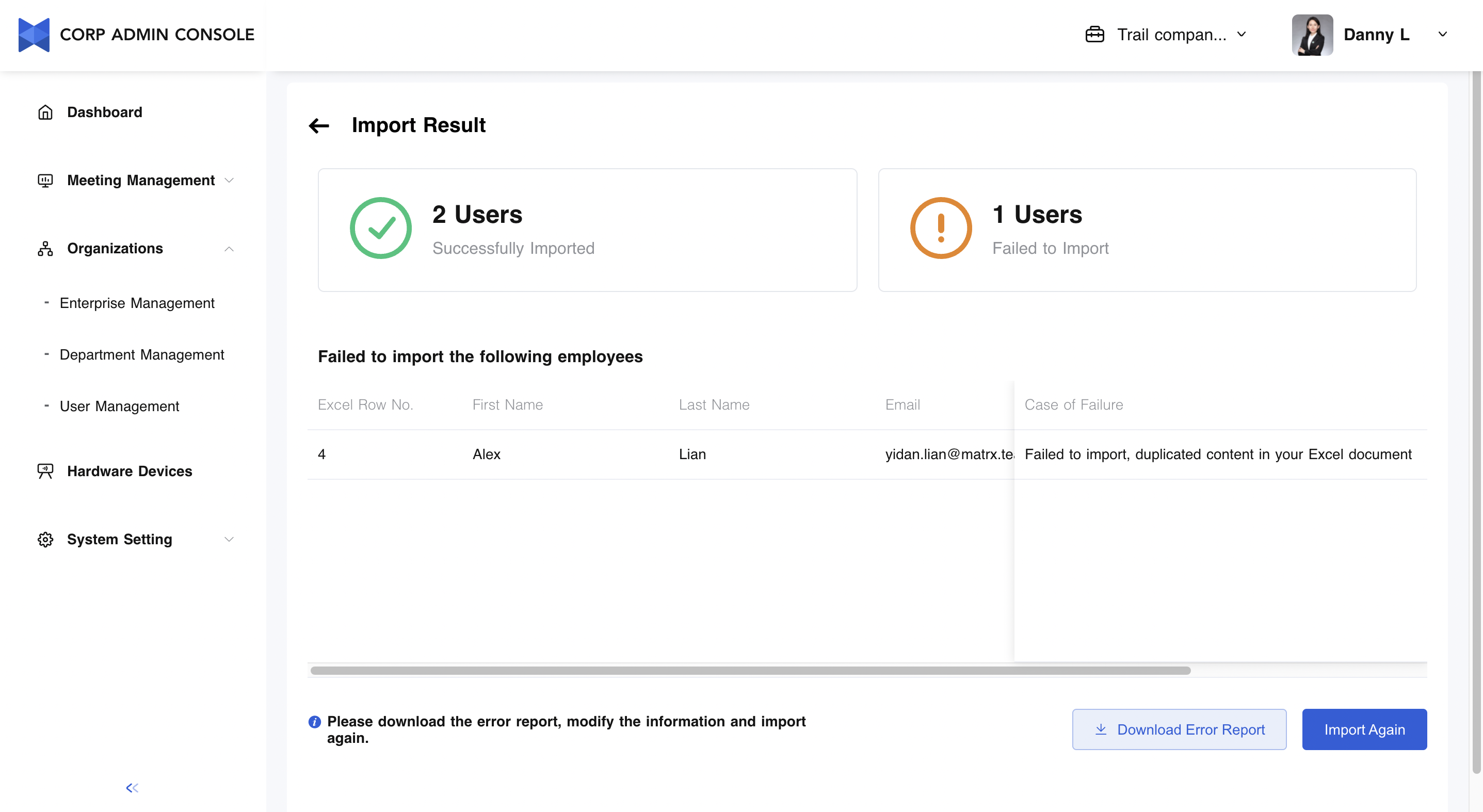
If there is a problem with user import, for example, the user already exists, or the email address is duplicated, the system will notify you about the error. You can download the error report and modify the information accordingly and import again.
Edit User Information
- Click Edit.
- Complete the modification of user information
- Note:
- The name of users consists of first name and last name.
- The users' email addresses are used as the account when it is created. Once the email address is created, it cannot be modified.
- Note:
- Click Save to save the information modification.
Modify the Department for Users in Batches
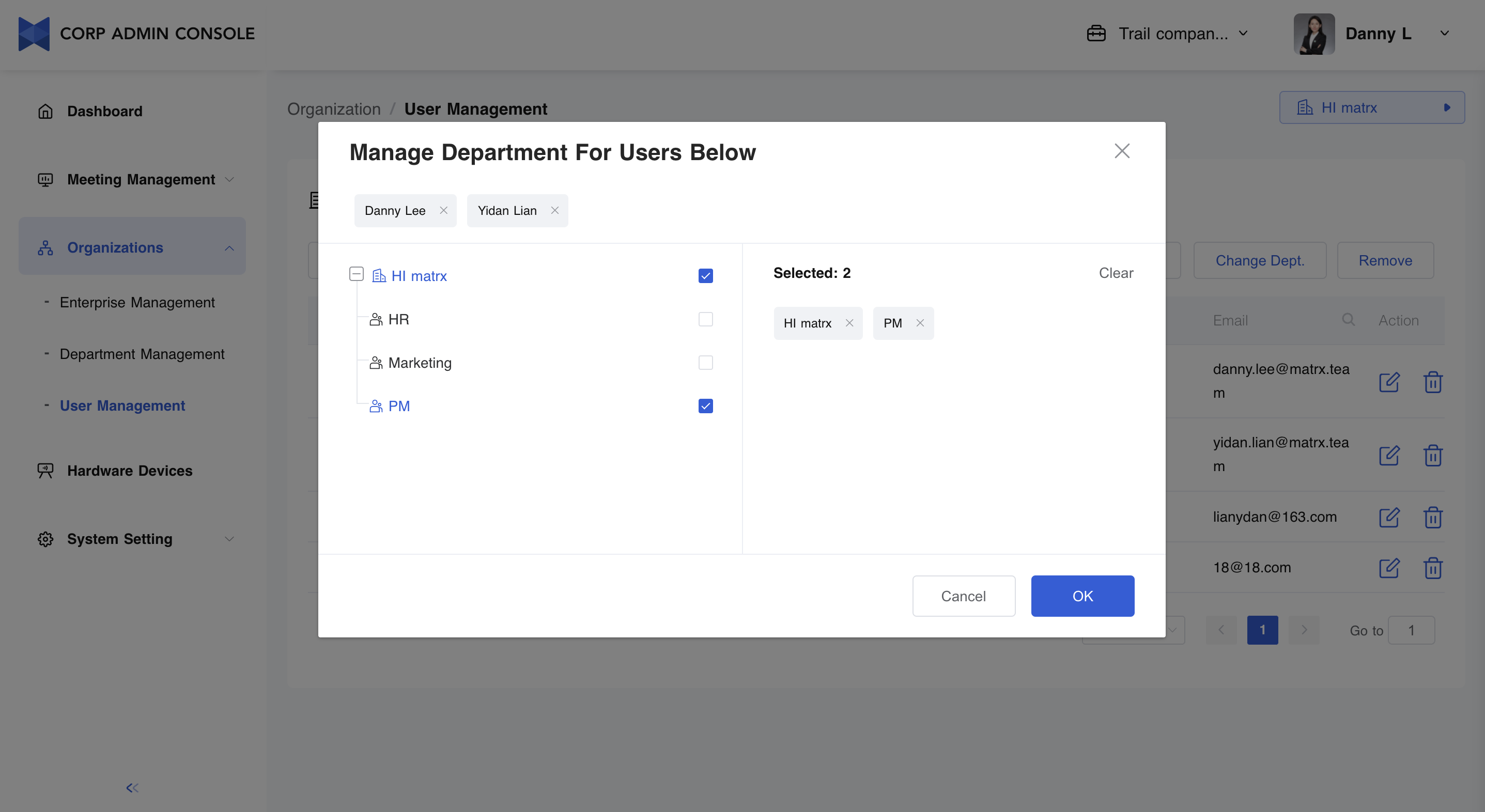
The function of modifying user departments enables the admin to modify a single user at once, or perform batch modification for users who have the same initial departments.
- Select the user who needs to modify the department.
- Click Change Dept.
- Complete department adjustment.
- Click OK to save the modification and go back to the User Management page.
Remove User from Enterprise Workspace
- Click Remove
- Reconfirm the removal action.
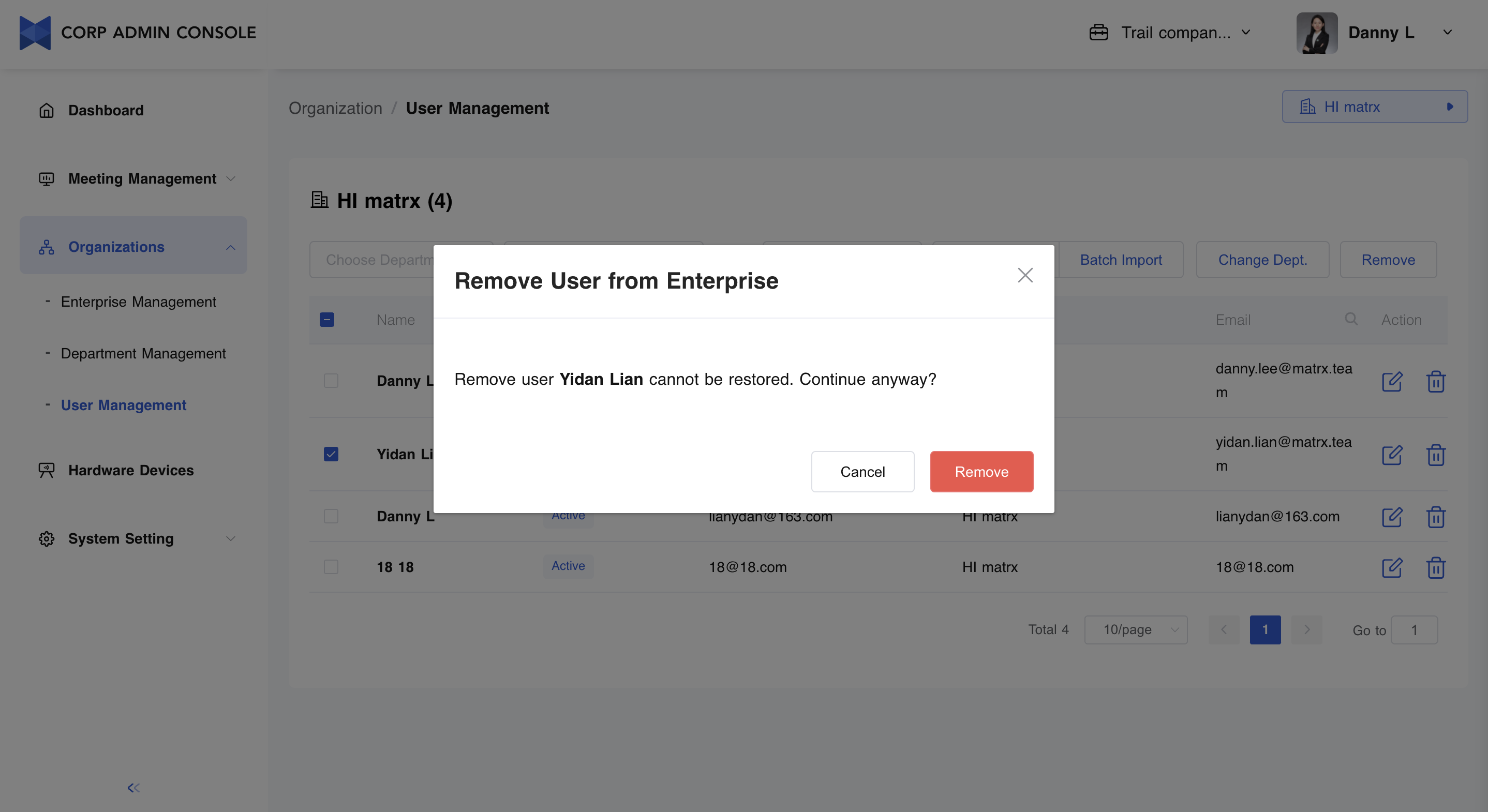
- After the Administrator removes the user, the user will be removed from the enterprise workspace and all the channels in the workspace, but the user can still use the personal space.