Managing departments
Administrators with relevant permissions can query, add, edit, and delete departments of the enterprise.
This article covers:
Prerequisites
- Business or Enterprise plan
- Admin role access with Department management permission
Getting Started
- Sign in to the Matrx admin portal.
- In the navigation menu, unfold Organization, and click Department Management.
Check the Department List
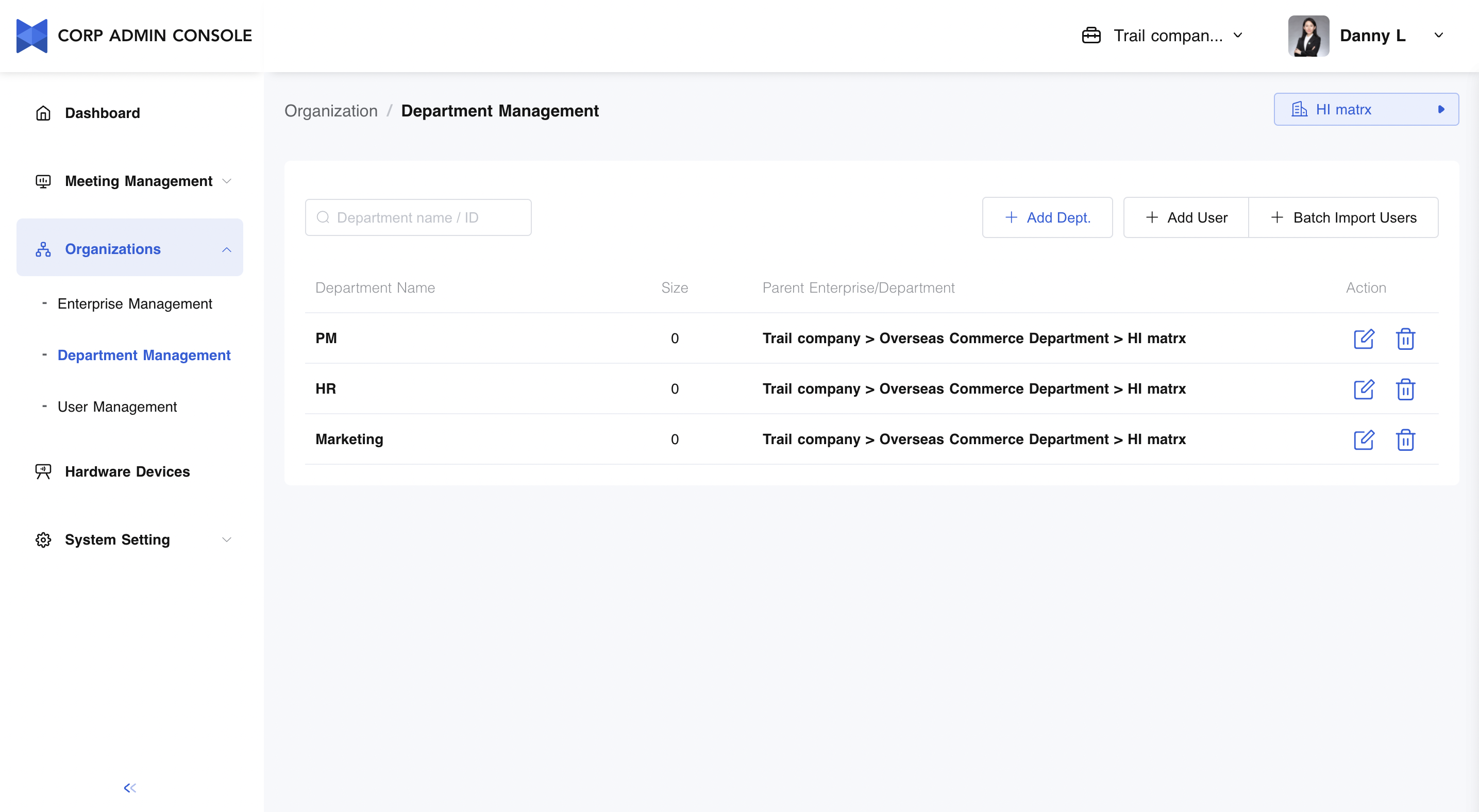
The content of the enterprise list includes:
- Department Name - The name of the department
- Size - Total number of users in the department
- Parent Enterprise/ Department - The parent enterprise or department of the current department
- Action
- Edit enterprise - Edit department information
- Delete enterprise - Delete the current department
- Note: The department can be deleted successfully only if all the sub-departments and users are cleared.
- Note: The department can be deleted successfully only if all the sub-departments and users are cleared.
Add a Department
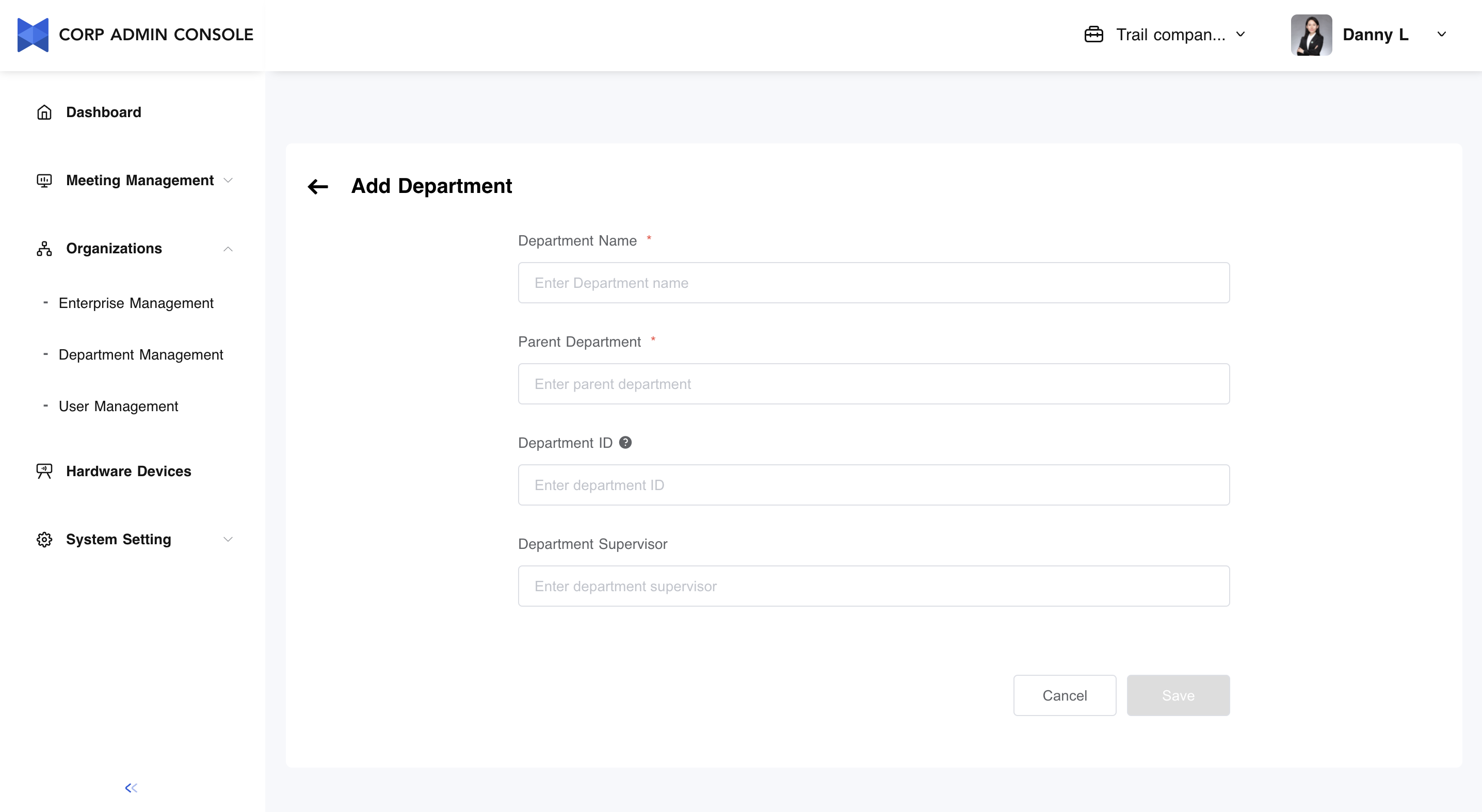
- Click Add Dept.
- Fill in the information about the department.
- Note:
- Department Name and**Parent Department are required.
- About d**epartment ID
- If there is an existing ID for your organization, enter it here. This ID is unique to your organization. If left blank, the system will be generated for you. Department ID cannot be changed.
- Note:
- Click Save to create a new department and return to the Department****Management page.
Edit Information of Departments
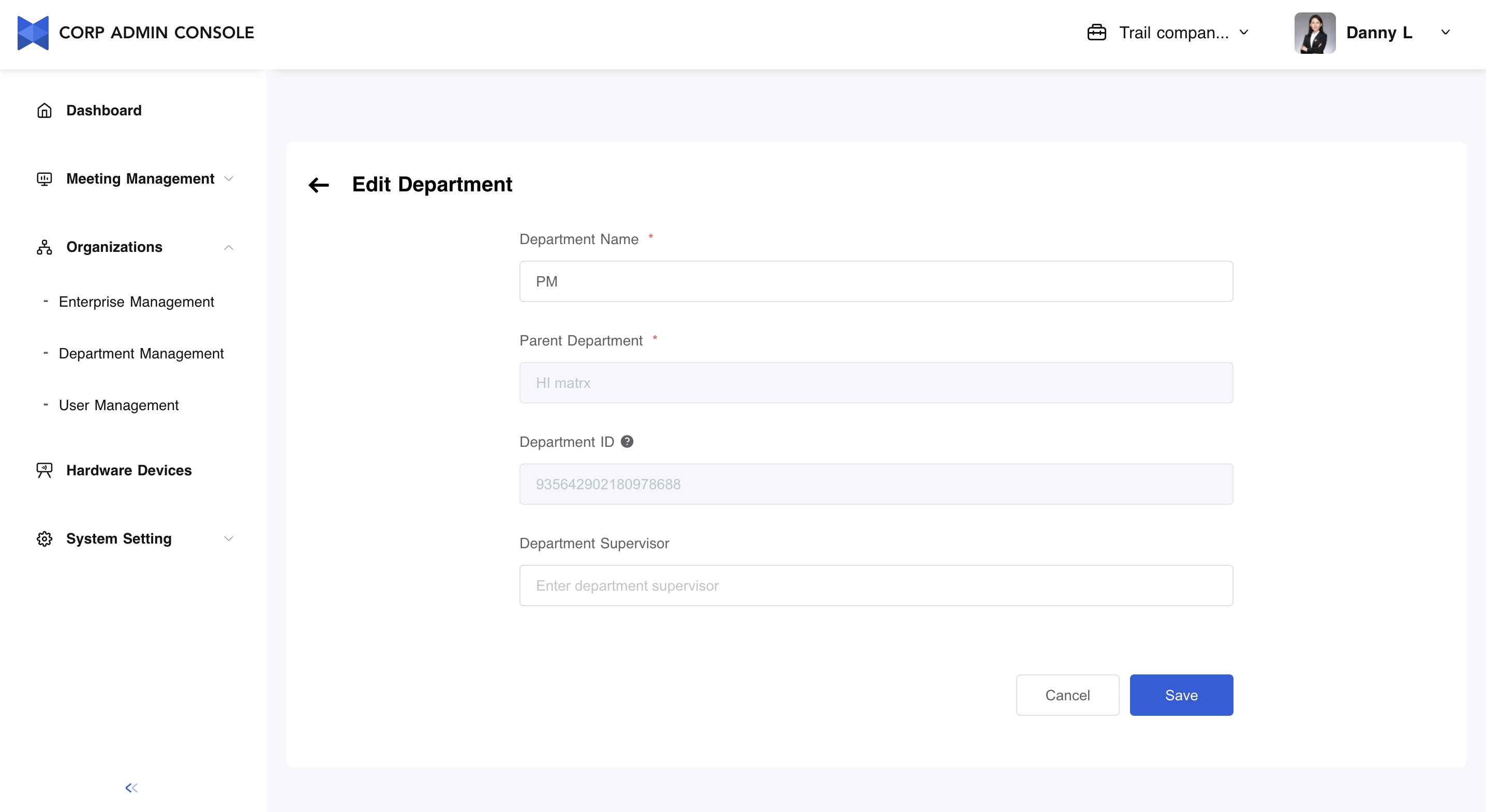
- Click Edit.
- Complete the modification of department information.
- Note:
- The parent enterprise or department of the current department is determined when it is created, and modification is not supported.
- Note:
- Click Save to save the information modification.
Delete Department
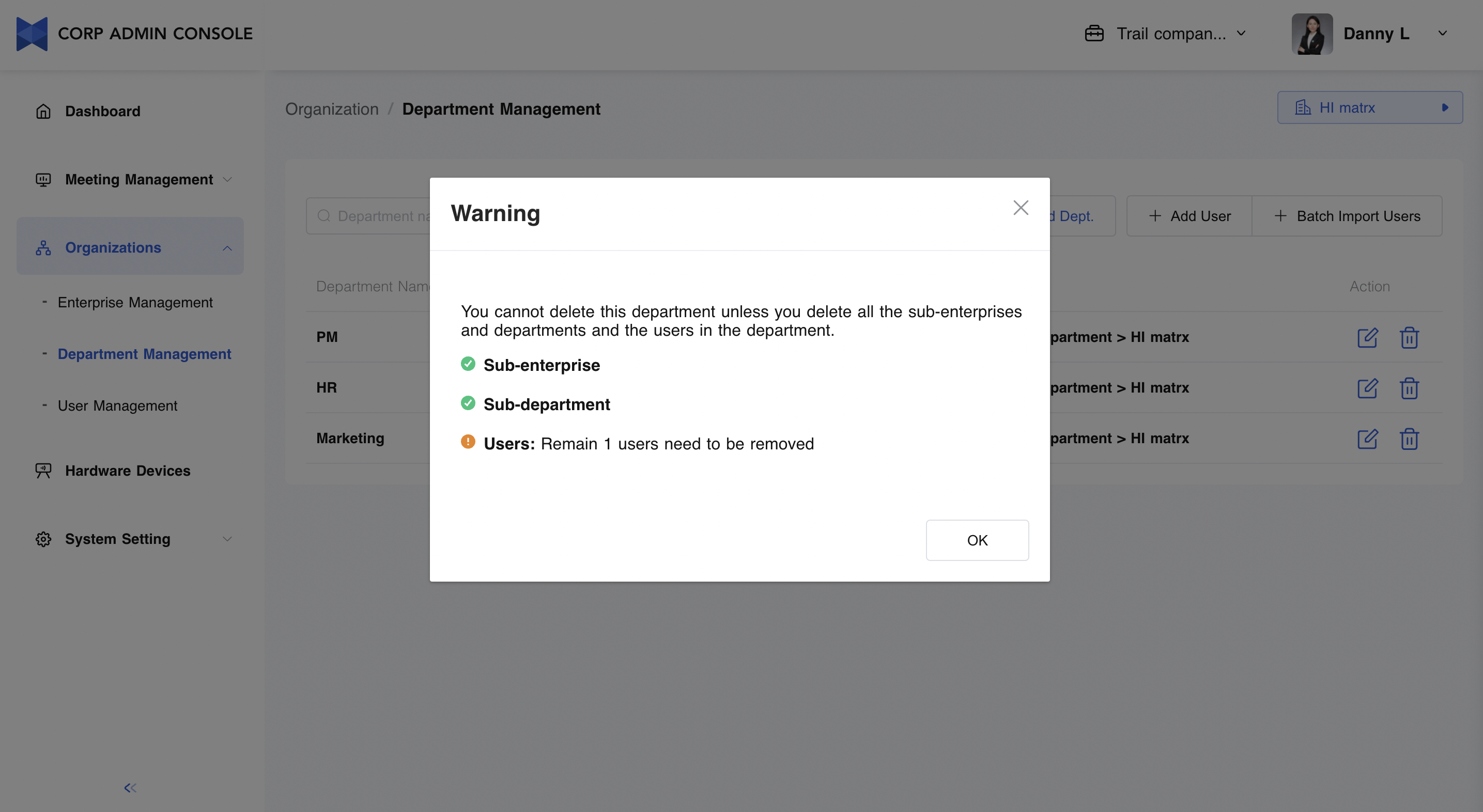
- Click Delete.
- Reconfirm the department and click Delete.
- Note: The department can be deleted successfully only if all the sub-departments and users are cleared.
- Note: The department can be deleted successfully only if all the sub-departments and users are cleared.