Meeting Controls
From Matrx admin portal, you have the full ability to control a meeting on the web as an assistant instead of joining in a meeting. The Web Meeting Control provides you the ability exactly as a host. You can mute or unmute a participant, turn on or turn off the video of a participant, change the sharing permission, and so on.
Prerequisites
- Business or Enterprise plan.
- Admin access with relevant permission
Getting Started
- Sign in to the Matrx admin portal.
- In the navigation menu, unfold Meeting Management, and click Ongoing.
- Click the
 button behind an ongoing meeting.
Meeting Details
In the Meeting Details part, you can see the meeting topic, meeting ID, number of current participants, and the meeting duration. This information helps you confirm this is the meeting you want to step in to control it. Behind the meeting topic, there is a lock button. Click the button, you can Lock the Meeting or unlock it. If the meeting is locked, no one can join the meeting.
At the top-right, there is an End Meeting button. Click the button, the meeting will be ended, and all the participants in the meeting will leave the meeting.

Meeting Control over General Participants
In the Meeting Control for General part, you are able to do the following controls.
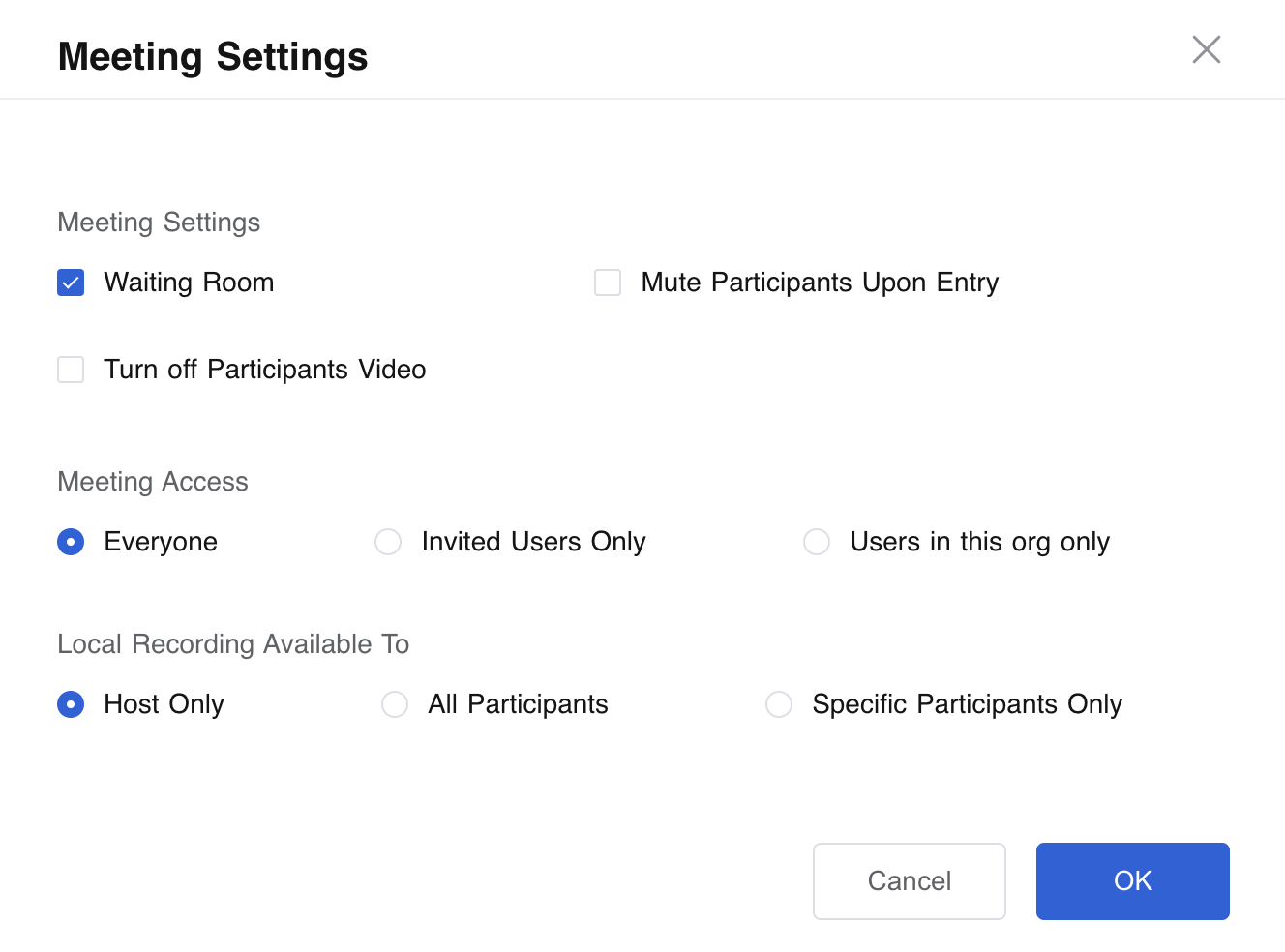
 Click the Meeting Settings button, you can manage the join settings and local recording permissions.
 Add Participant allows you to search and call the users in your enterprise. You can call multiple participants at the same time. Once added, the users will be shown in the participant list.
Call Participant allows you to recall all the participants that are on the participant list but not in the meeting yet.
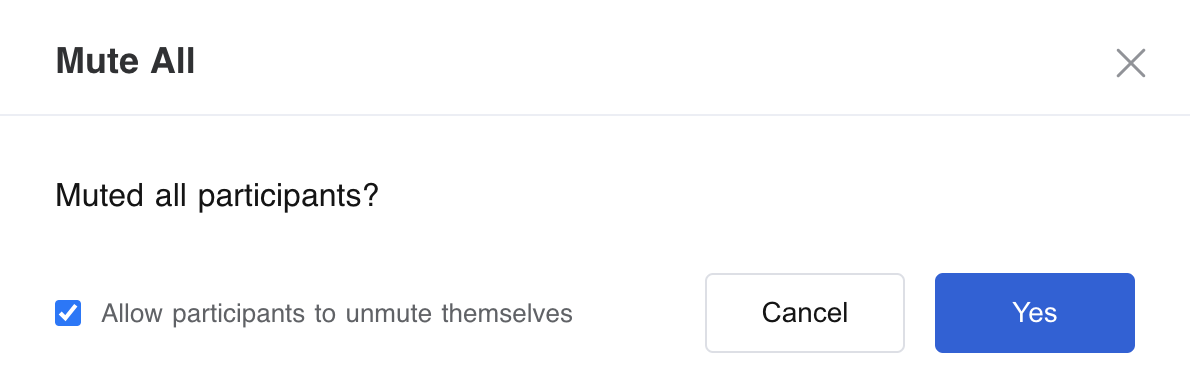
Mute All allows you to mute all the participants in the meeting. Before muting all, you have to choose if you allow the participants to unmute themselves.
Add Participant allows you to search and call the users in your enterprise. You can call multiple participants at the same time. Once added, the users will be shown in the participant list.
Call Participant allows you to recall all the participants that are on the participant list but not in the meeting yet.
Mute All allows you to mute all the participants in the meeting. Before muting all, you have to choose if you allow the participants to unmute themselves.
 Unmute All allows you to send a request to all the participants in the meeting to ask them to unmute themselves. Only if they agree to unmute themselves can the unmute actually works.
Host Share Screen Only: only the host can share the screen and no other participants can share. After it's clicked, the button will turn to Allow All Screen Share.
Allow All Screen Share: by clicking this, you give sharing permission to all the participants in the meeting.
Unmute All allows you to send a request to all the participants in the meeting to ask them to unmute themselves. Only if they agree to unmute themselves can the unmute actually works.
Host Share Screen Only: only the host can share the screen and no other participants can share. After it's clicked, the button will turn to Allow All Screen Share.
Allow All Screen Share: by clicking this, you give sharing permission to all the participants in the meeting.
Video Layout
You can set custom video layouts for a meeting. There are basically two steps to go.
- Set custom video layout
- Select participants to apply the custom video layout
Set Custom Video Layout
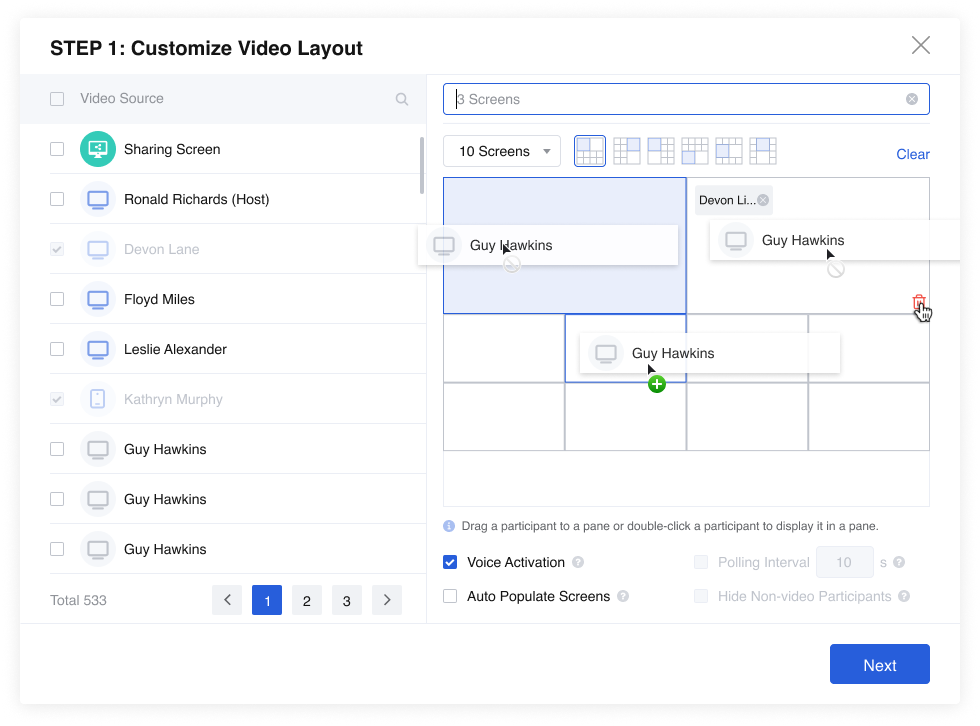 1. Choose how many screens you want on one page. You can choose among 1 ~ 25 screens. Different numbers of screens also have different layouts for you to choose from.

- You can drag a participant from the participant list at the left to a pane or double-click a participant to display it in a pane.
- Voice Activation: if enabled, the blue window in the layout will automatically display the current speaker.

- Auto Populate Screens: if enabled, it will auto-populate empty panes and you can choose whether to enable Hide Non-video Participants.

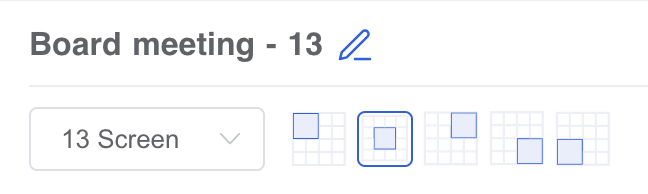
- You can choose to name the custom layout and save it later for future use.
 Select Participants to Apply the Layout
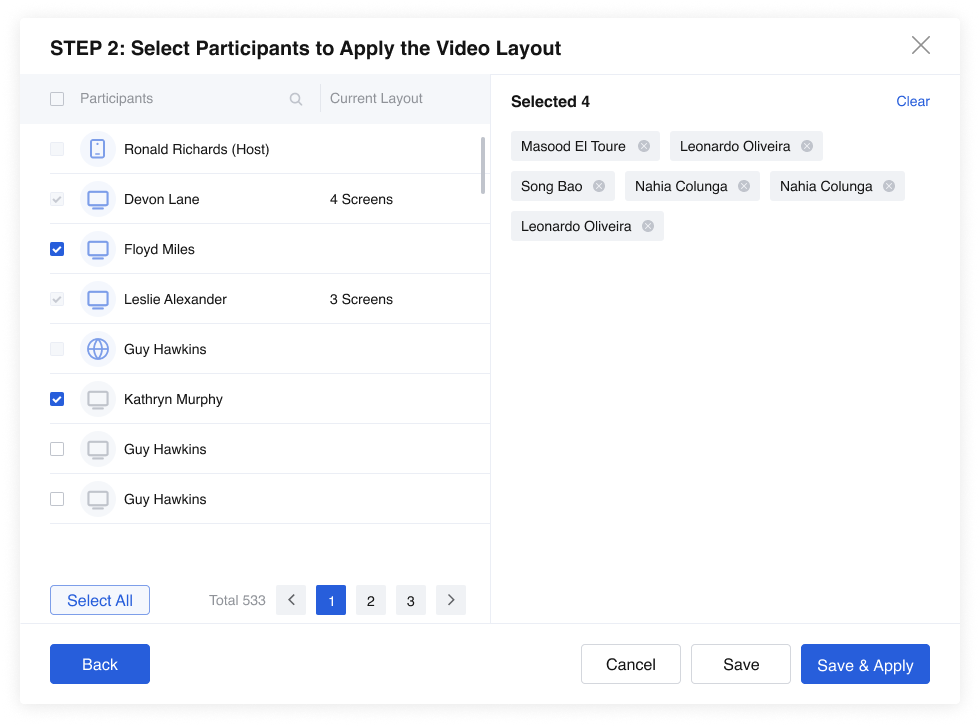
- You can set different layouts for different groups of participants in one meeting. Therefore, you can apply the custom layout to selected participants and then set a different layout for another group of selected participants. You can apply the layout to all participants of a meeting as well.
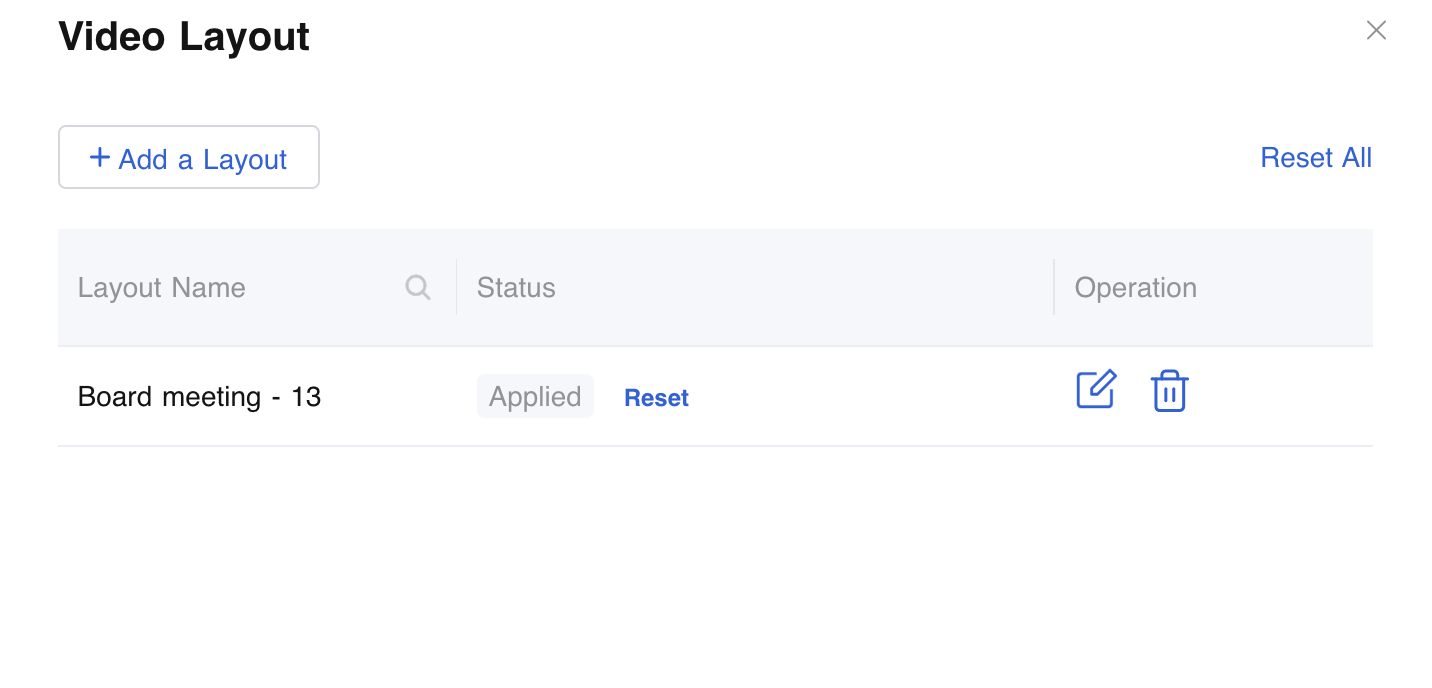
- You can save the layout and apply it later, or save and apply it right away. After it's saved, you can edit it, apply it, or delete it in the layout list.
 Meeting Control over Individual Participant
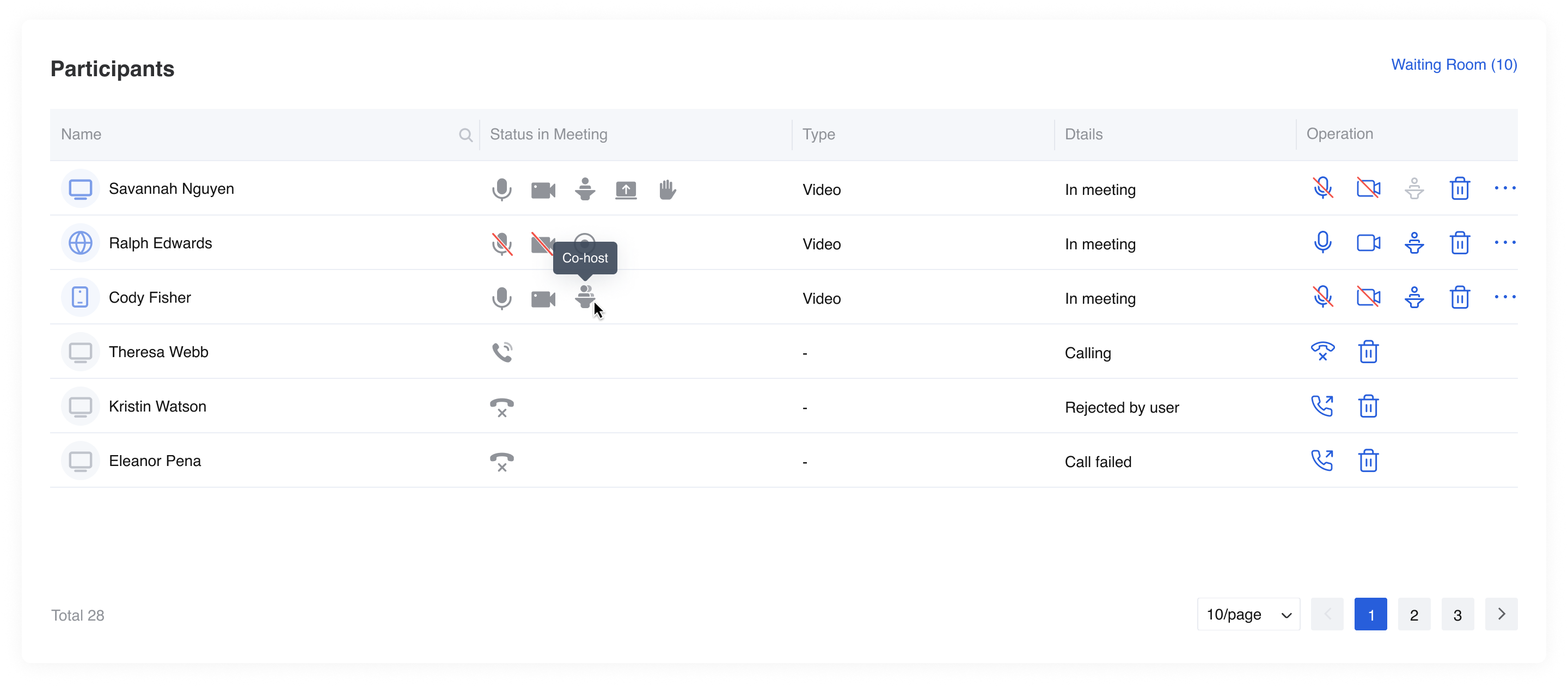
In the participant list, you can see the status of every participant, whether they are the host, co-host, or not, and whether their microphones and cameras are on or off. Besides, you can manage if you want any participant to be muted or removed. You can manage the host in the meeting as well. The following are all the actions you can take from web meeting control.
Meeting Control over Individual Participant
In the participant list, you can see the status of every participant, whether they are the host, co-host, or not, and whether their microphones and cameras are on or off. Besides, you can manage if you want any participant to be muted or removed. You can manage the host in the meeting as well. The following are all the actions you can take from web meeting control.
 Mute / Unmute All
If a participant is unmuted, you can mute the person. While if a participant is muted, you can click the unmute button to directly unmute the person.
Turn on / off Video
If a participant has turned on his video, while he shows the content you don't want the rest of the participants in the meeting to see, you can turn off his video.
While, if you want a participant who has not turned on his video to turn on, you can click the button. And the participant will receive a message to ask him/her to enable the camera. And the participant can choose to turn on the camera or keep the camera off.
Set as Host
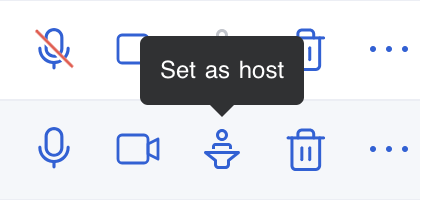
You are able to release the current host and set any other participant as the host.
Mute / Unmute All
If a participant is unmuted, you can mute the person. While if a participant is muted, you can click the unmute button to directly unmute the person.
Turn on / off Video
If a participant has turned on his video, while he shows the content you don't want the rest of the participants in the meeting to see, you can turn off his video.
While, if you want a participant who has not turned on his video to turn on, you can click the button. And the participant will receive a message to ask him/her to enable the camera. And the participant can choose to turn on the camera or keep the camera off.
Set as Host
You are able to release the current host and set any other participant as the host.
 Remove
If there are any participants in your meeting that you don't think he/she should be here, you can remove him/her and give the person removal reason.
More Operations
Remove
If there are any participants in your meeting that you don't think he/she should be here, you can remove him/her and give the person removal reason.
More Operations
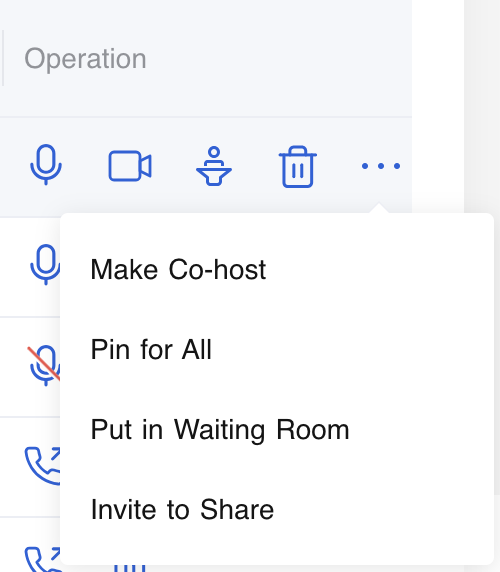 If the host needs co-hosts to assist him/her, you can set any other participant as the co-host.
If you want to let all participants see one participant's video fixed on the big screen, you can find the person and click Pin for All. To undo it, click Unpin for All.
If you want one participant to leave the meeting temporarily and then let him in later, you can find the participant and click Put in Waiting Room, and then go to Waiting Room to admit the participant to the meeting later.
You can ask any participant to share by clicking Invite to Share, whether he/she is a host or a normal participant. If a participant is sharing, you can stop his/her sharing directly by clicking Stop Sharing.
If the host needs co-hosts to assist him/her, you can set any other participant as the co-host.
If you want to let all participants see one participant's video fixed on the big screen, you can find the person and click Pin for All. To undo it, click Unpin for All.
If you want one participant to leave the meeting temporarily and then let him in later, you can find the participant and click Put in Waiting Room, and then go to Waiting Room to admit the participant to the meeting later.
You can ask any participant to share by clicking Invite to Share, whether he/she is a host or a normal participant. If a participant is sharing, you can stop his/her sharing directly by clicking Stop Sharing.