Enable two-factor authentication
Two-Factor Authentication is a two-step sign-in process that provides an extra layer of protection and ensures the security of your account beyond just a username and password.
Windows and macOS
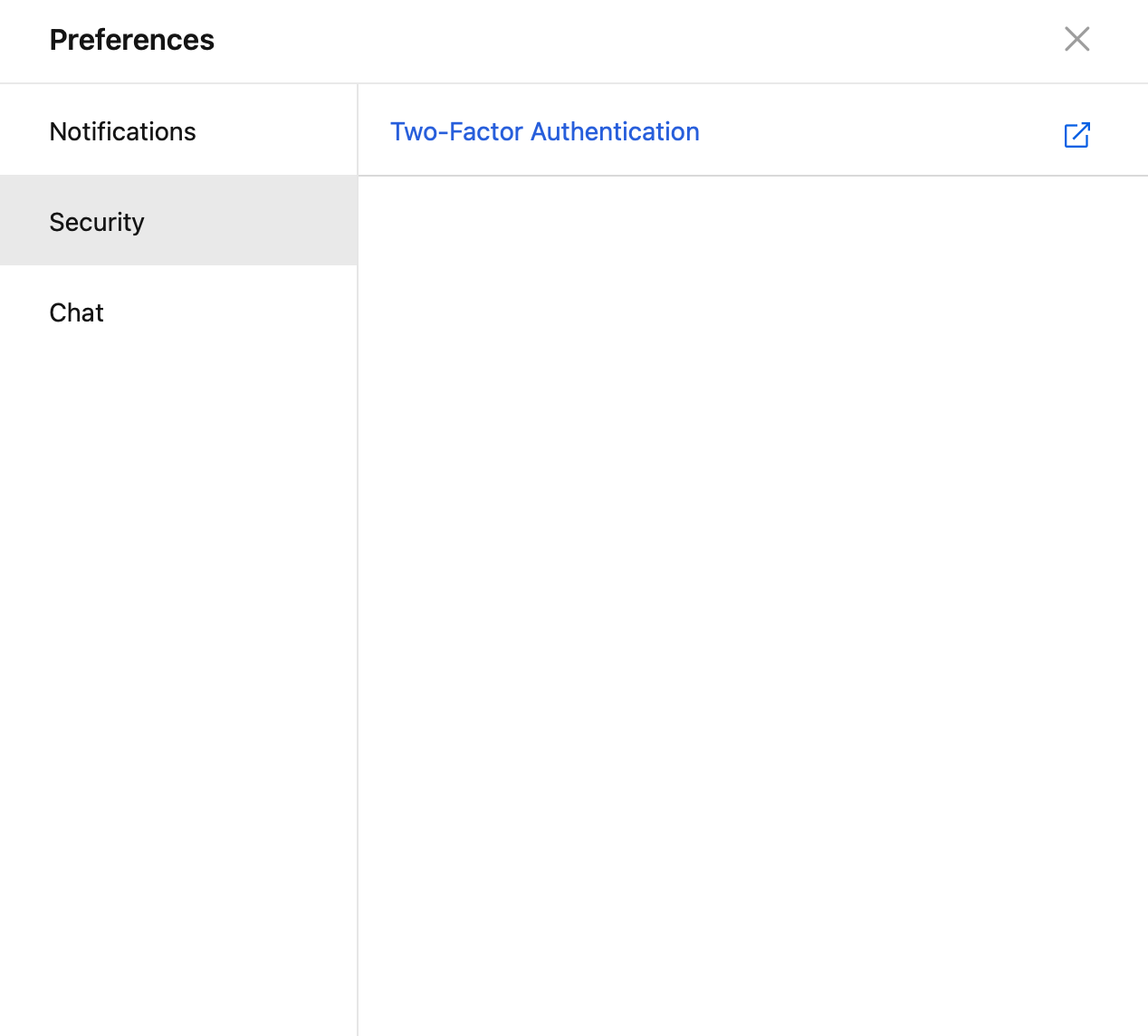
Click on your profile photo, go to Preferences > Security, and then click on Two-Factor Authentication. You'll be led to Matrx official website to set it up.
Android and iOS
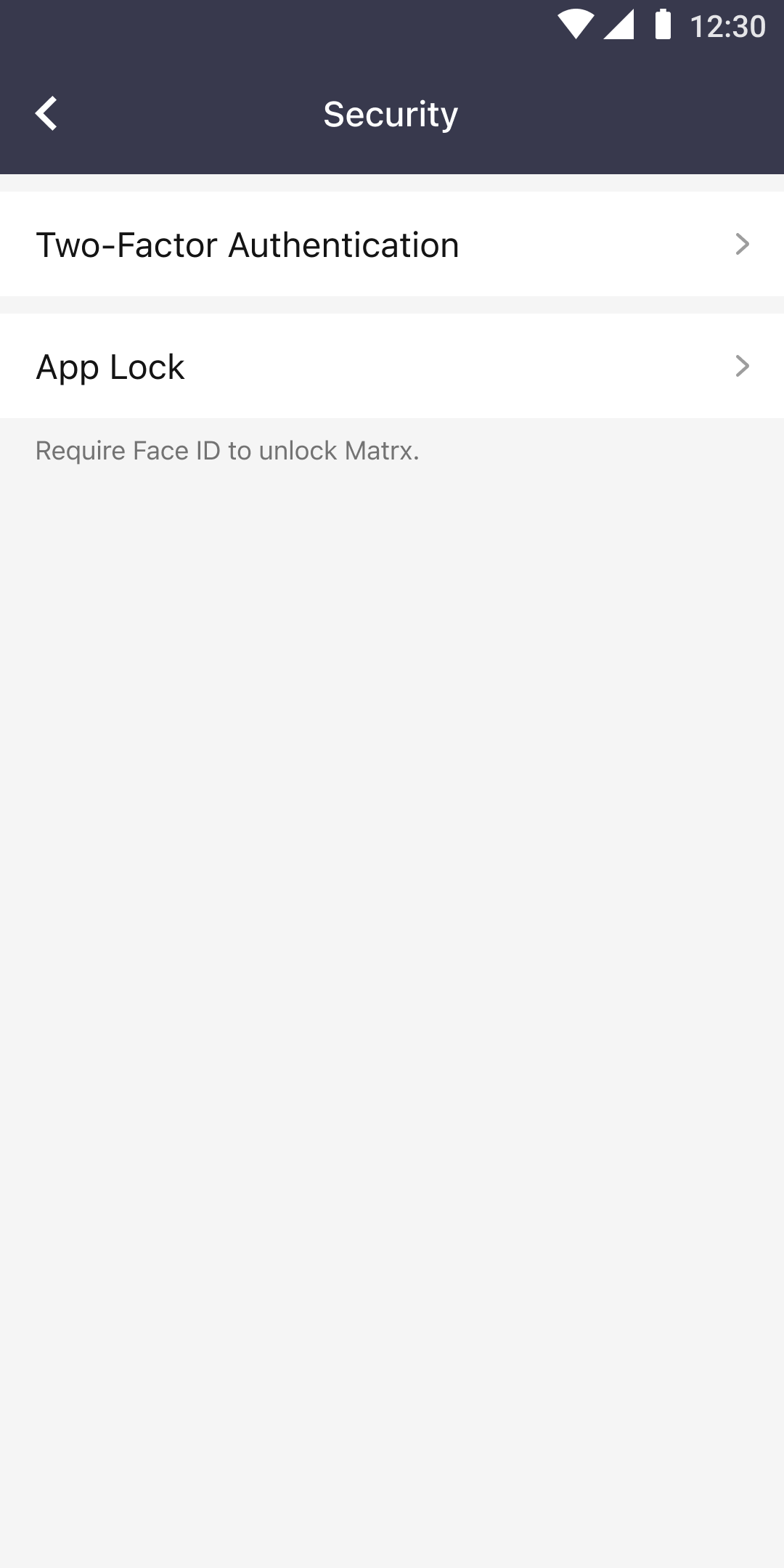
Go to Settings > Preferences > Security and then tap Two-Factor Authentication. You'll be led to Matrx official website to set it up.
Enable Two-Factor Authentication
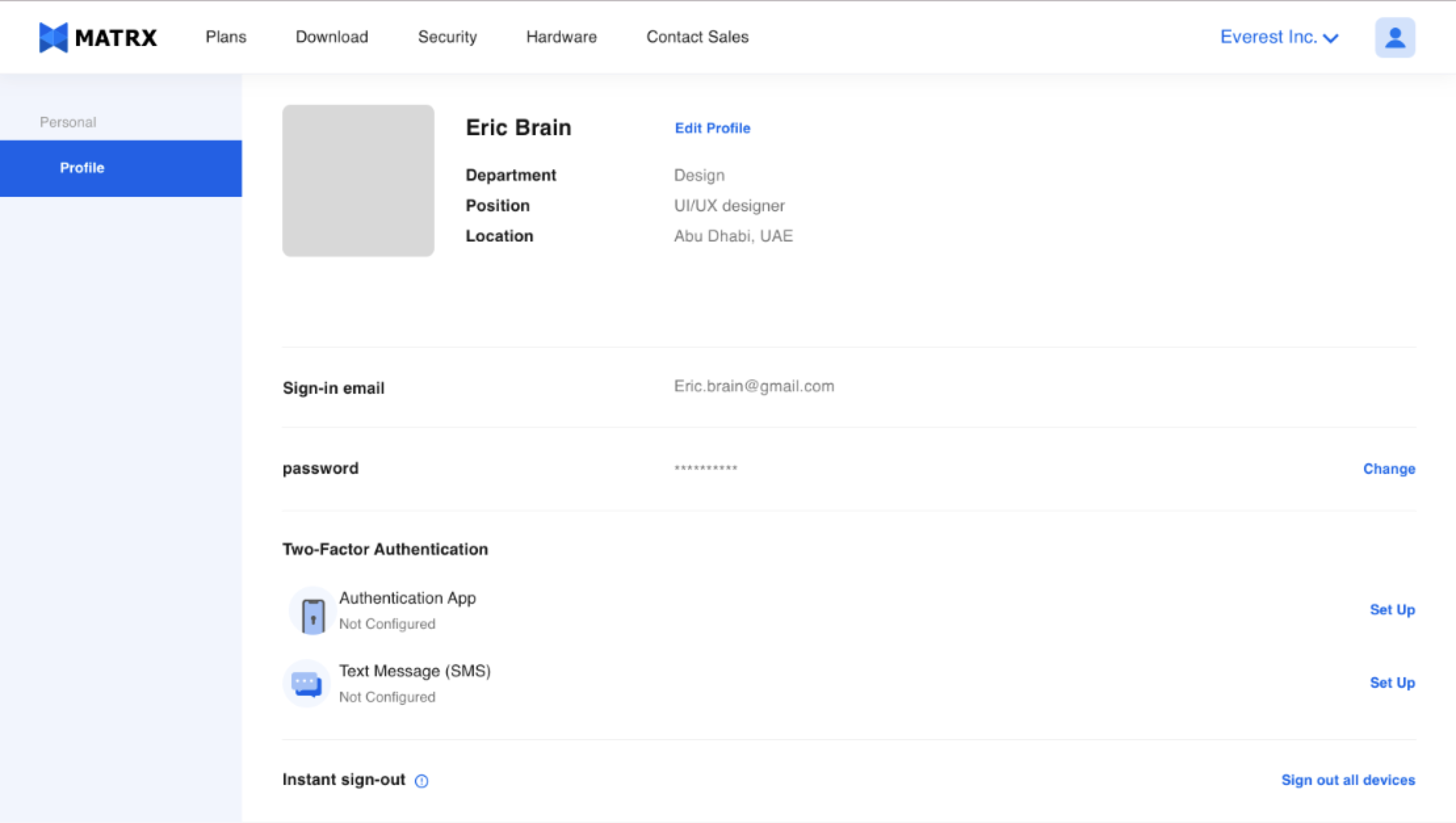
After signing in to Matrx official website, you'll be at this profile page to set up Two-Factor Authentication for your account. There are 2 authentication methods provided. You can choose either one of them to secure your account.
Set up Two-Factor Authentication Using Authentication App
-
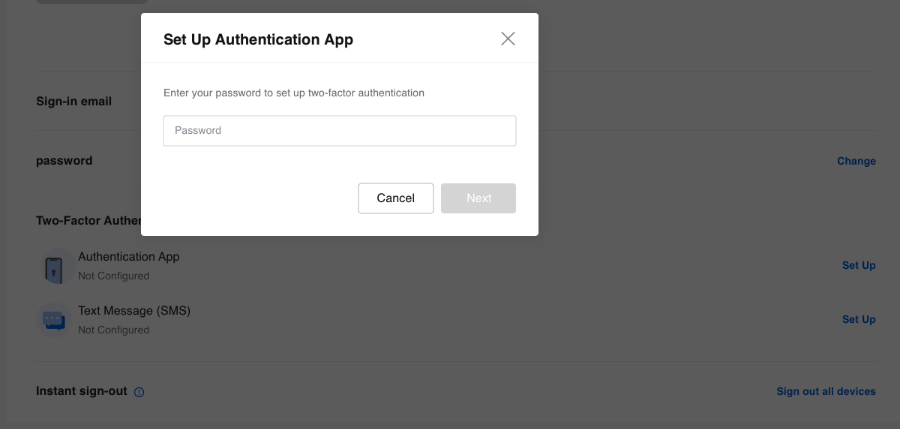
Click the Set Up button and enter your account password first to verify that you're the account owner. And then click Next.
-
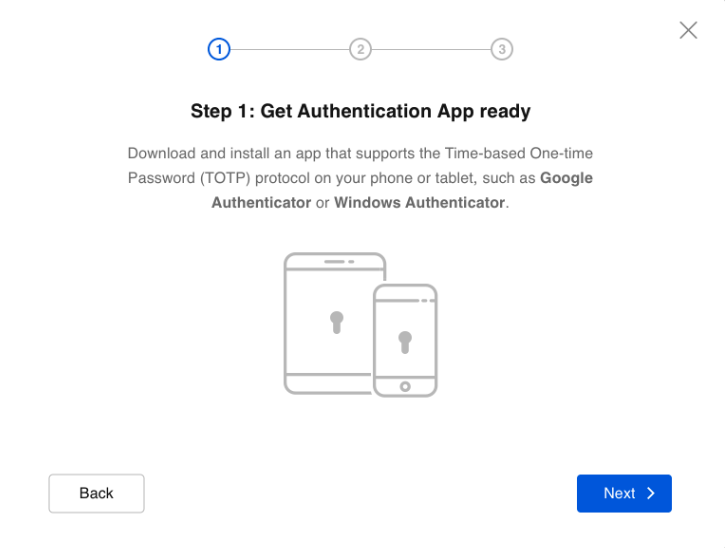
Follow the instruction to download and install an authentication app and click Next.
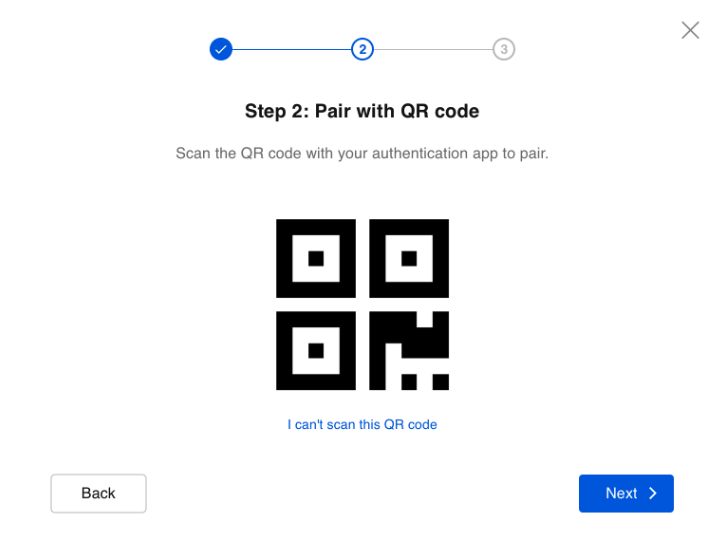
- Scan the QR code with your authentication app to pair it with your account and then click Next.
-
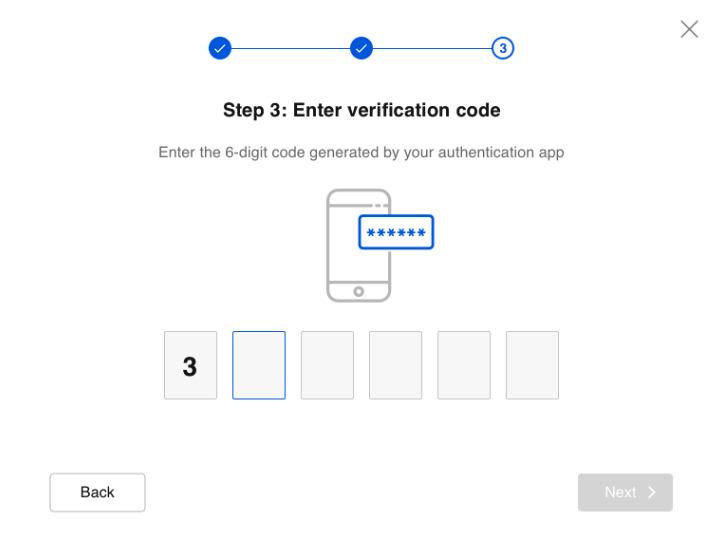
Check your authentication app and enter the 6-digit code generated by your authentication app to ensure the pairing is successful. And then click Next.
-
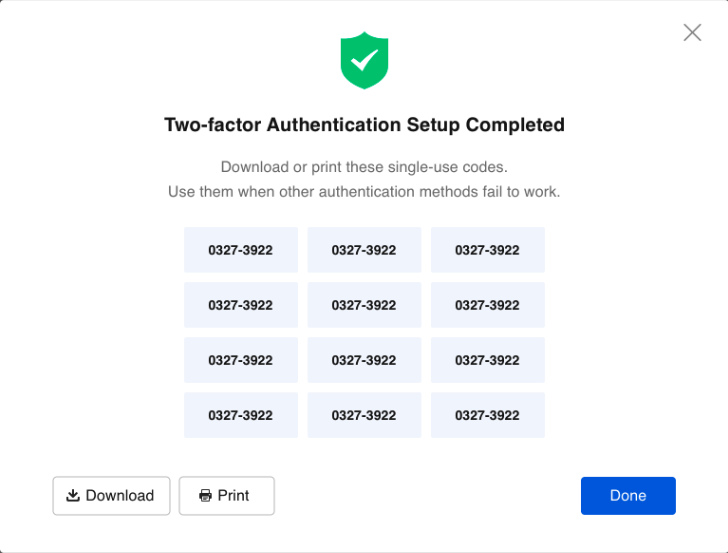
You've finished the setup. You can download or print the recovery codes provided to you and use them when other authentication methods fail to work.
Set up Two-Factor Authentication Using Text Message (SMS)
-
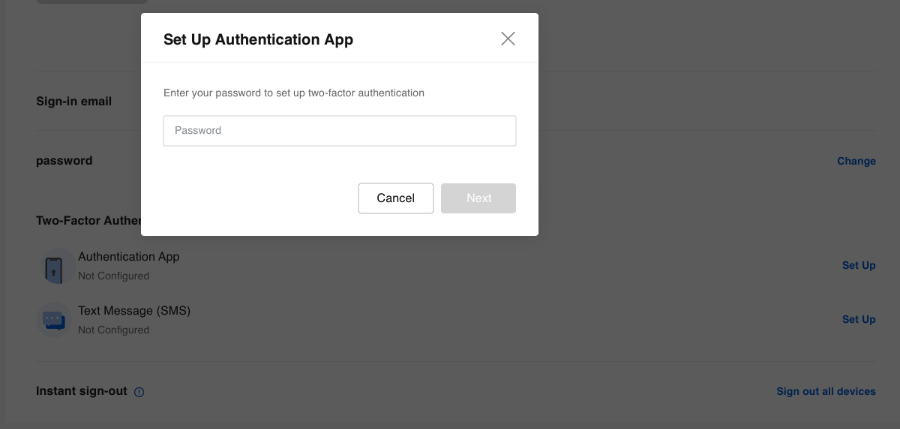
Click the Set Up button and enter your account password first to verify that you're the account owner. And then click Next.
-
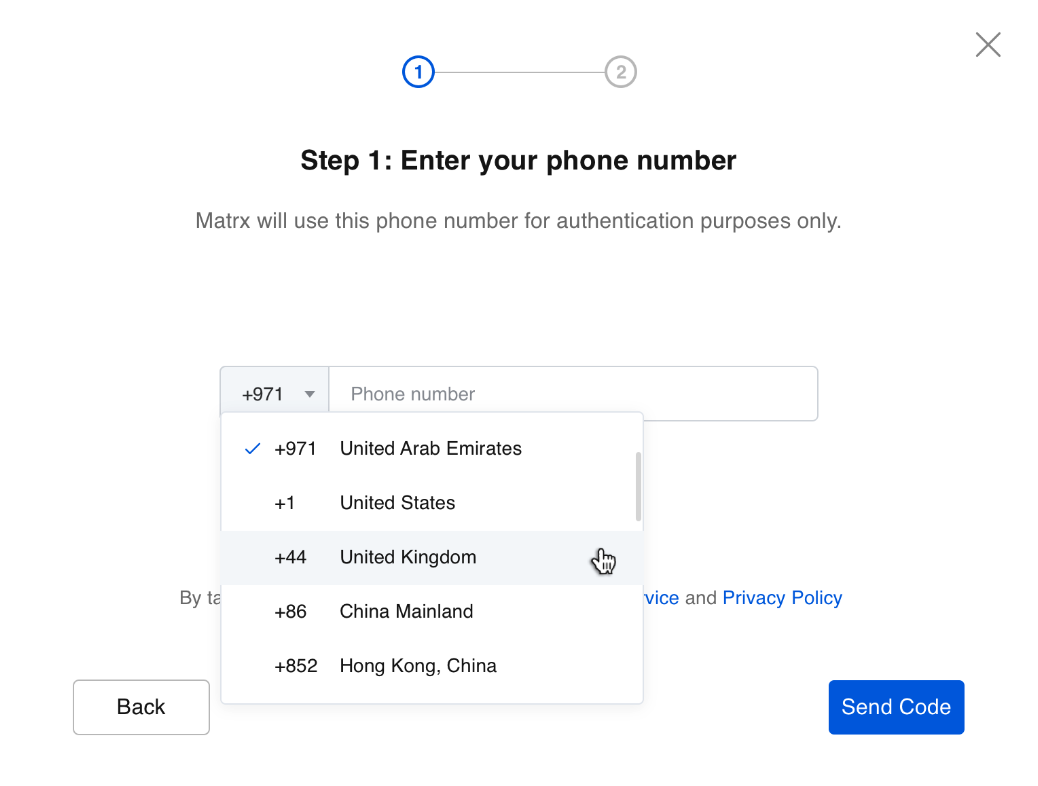
Enter your phone number and then click Send Code.
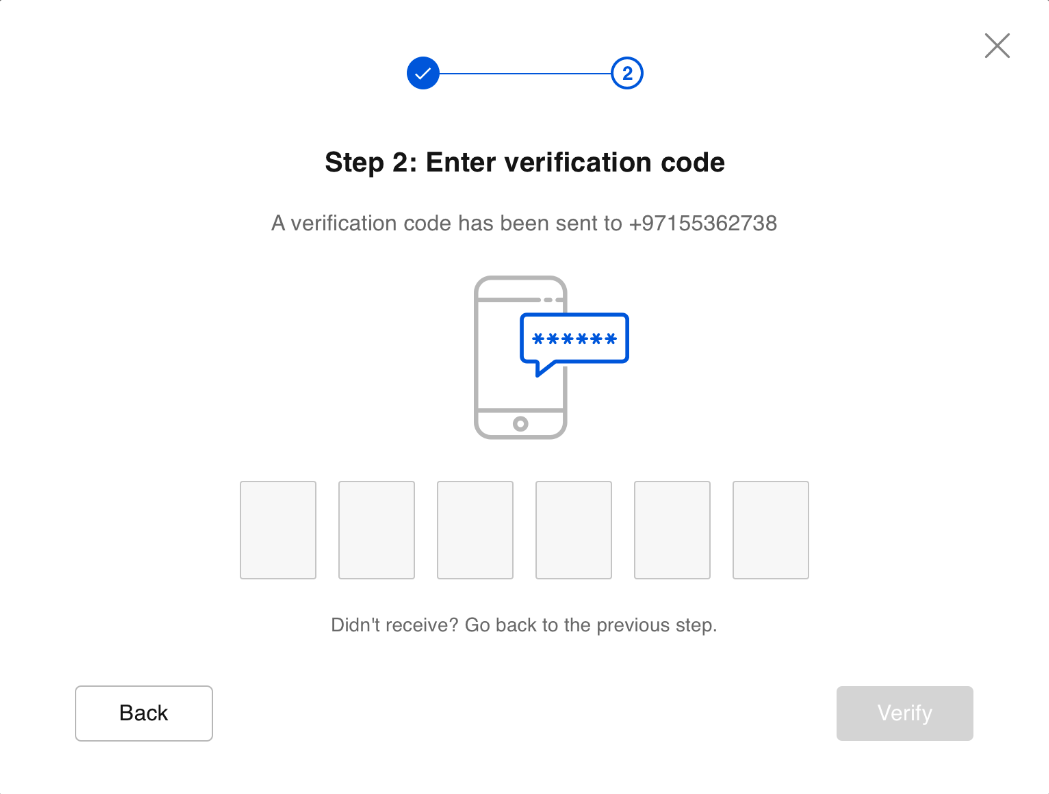
- Enter the verification code that you received on your phone and then click Verify.
4. You've finished the setup. Recovery codes and you can use them when other authentication methods fail to work.

Sign in Using Two-Factor Authentication
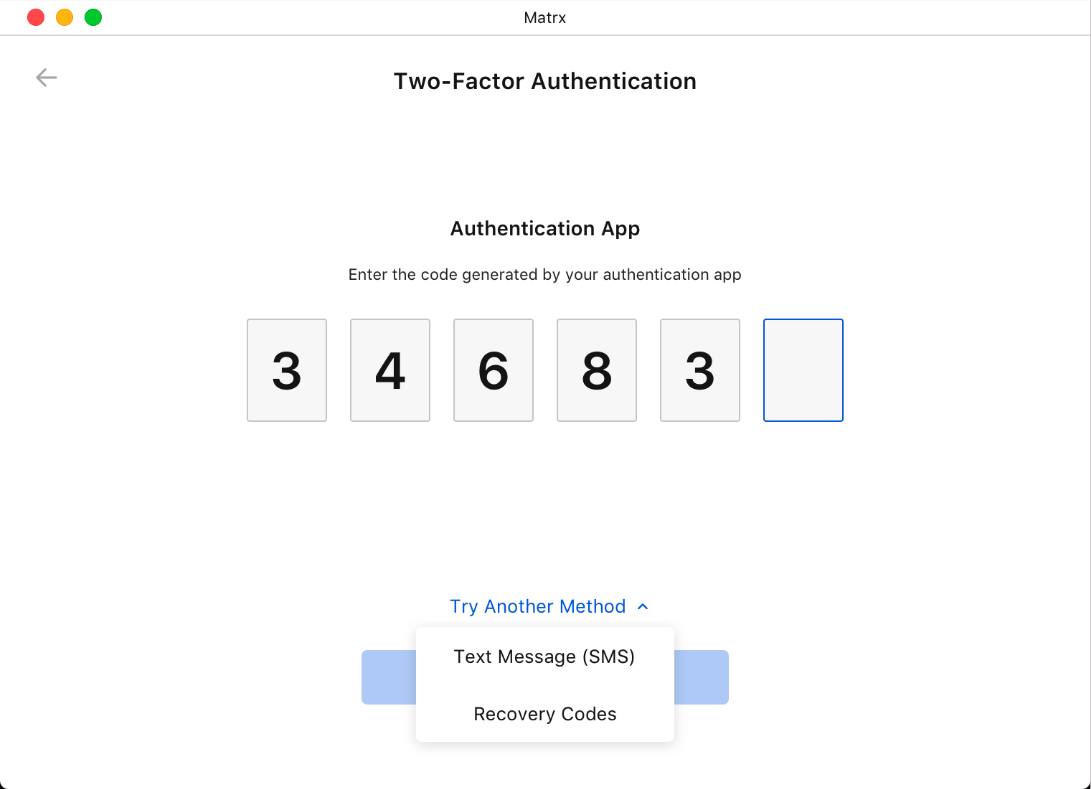
If Two-Factor Authentication is enabled for your account, then after your account and password are entered, you'll be required to enter the code generated by your authentication app or SMS received on your phone in order to sign in to your account.
Disable Two-Factor Authentication
To disable Two-Factor Authentication, click the Remove button, enter your account password, and Two-Factor Authentication is disabled.
