Change account
If the email address bound to your old account is no longer in use, or you need to change to another email address, please use the Change account function to help you complete it. Flow the steps bellow to change your account (the login email)
Windows and macOS
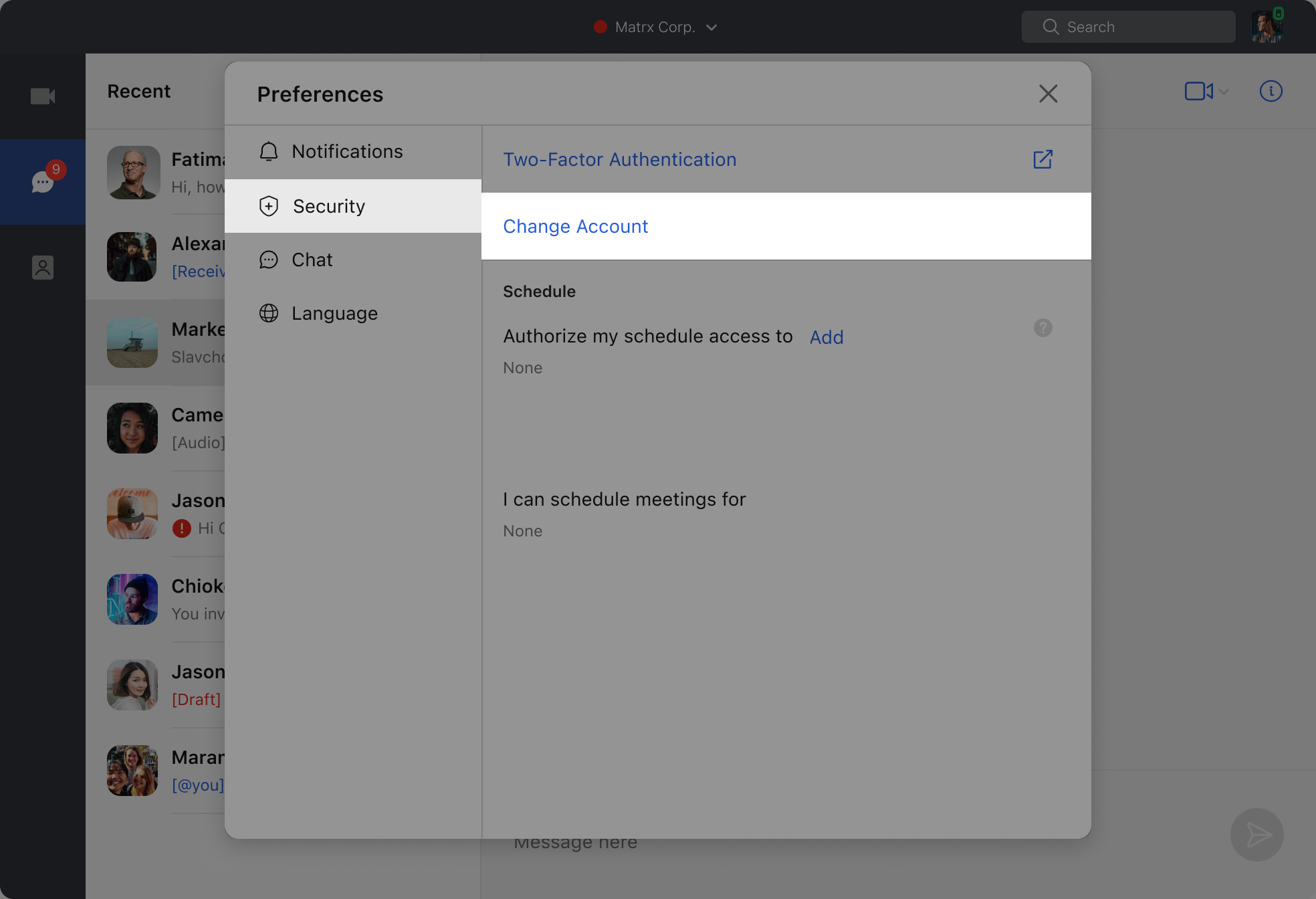
- Click your avatar, and click Preferences in the drop list
- In Preferences pop-up, go to Security -> Change account
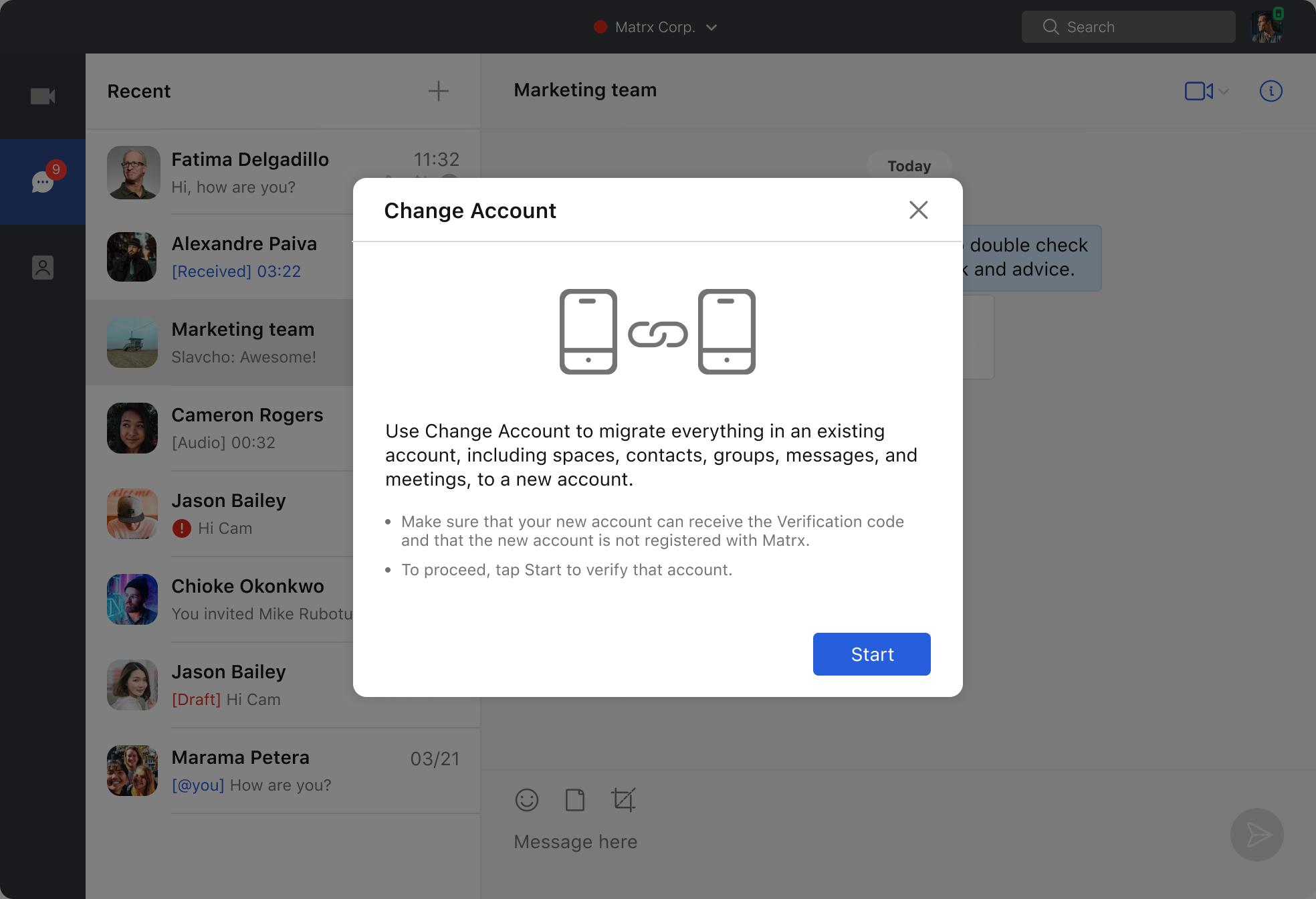
- ⚠️Please be aware that:
- Change account will migrate everything in an existing account, including spaces, contacts, groups, messages, and meetings, to a new account.
- Make sure that your new account can receive the Verification code and that the new account is not registered with Matrx.
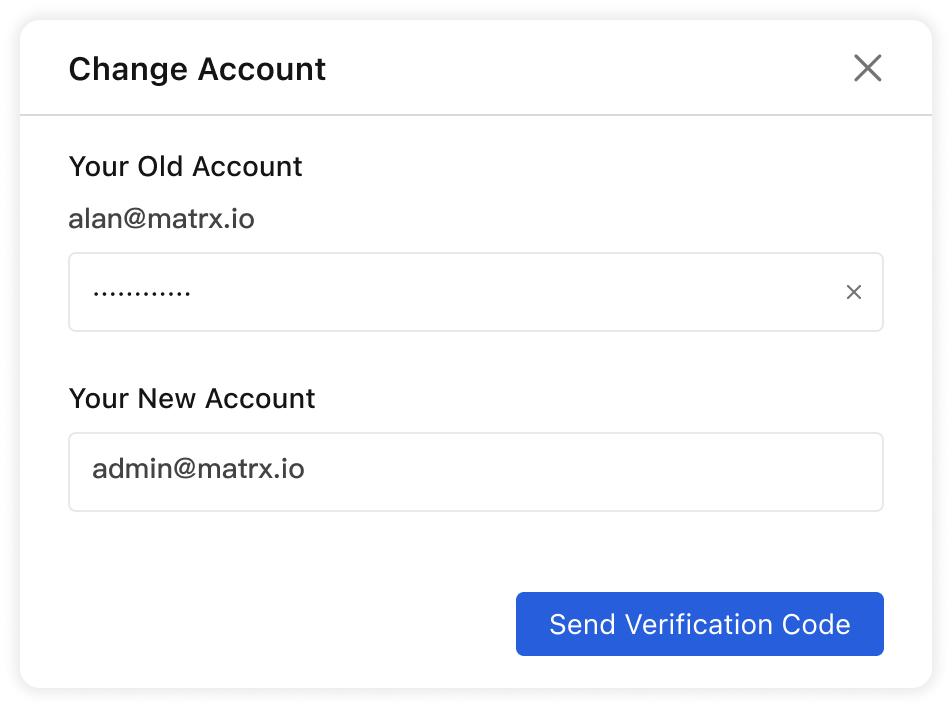
- Then input your old account, and your new one
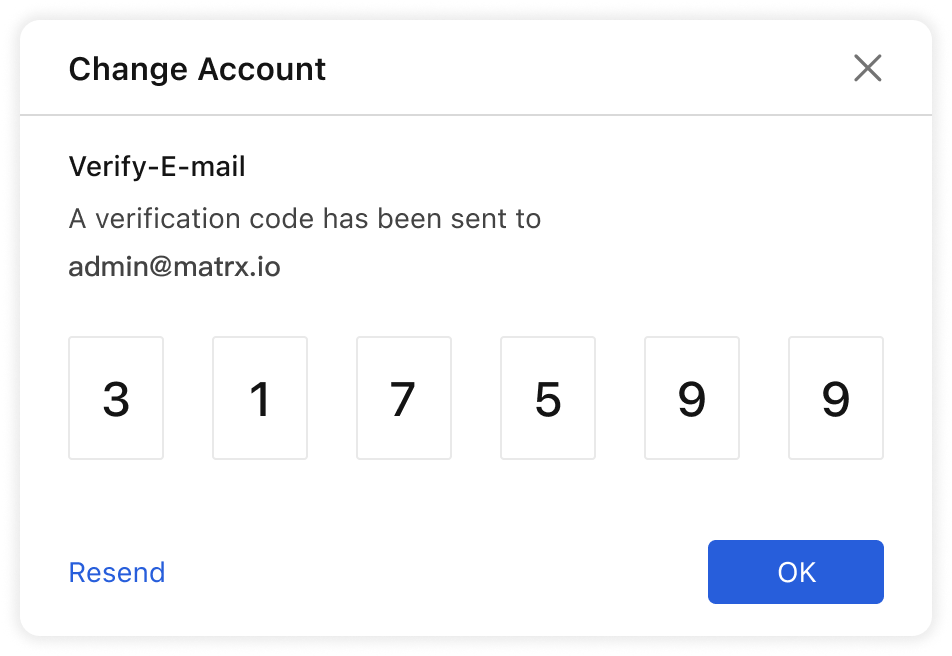
- Verify the email by verify the code Matrx sent you via email
- Finally create a password for the new account
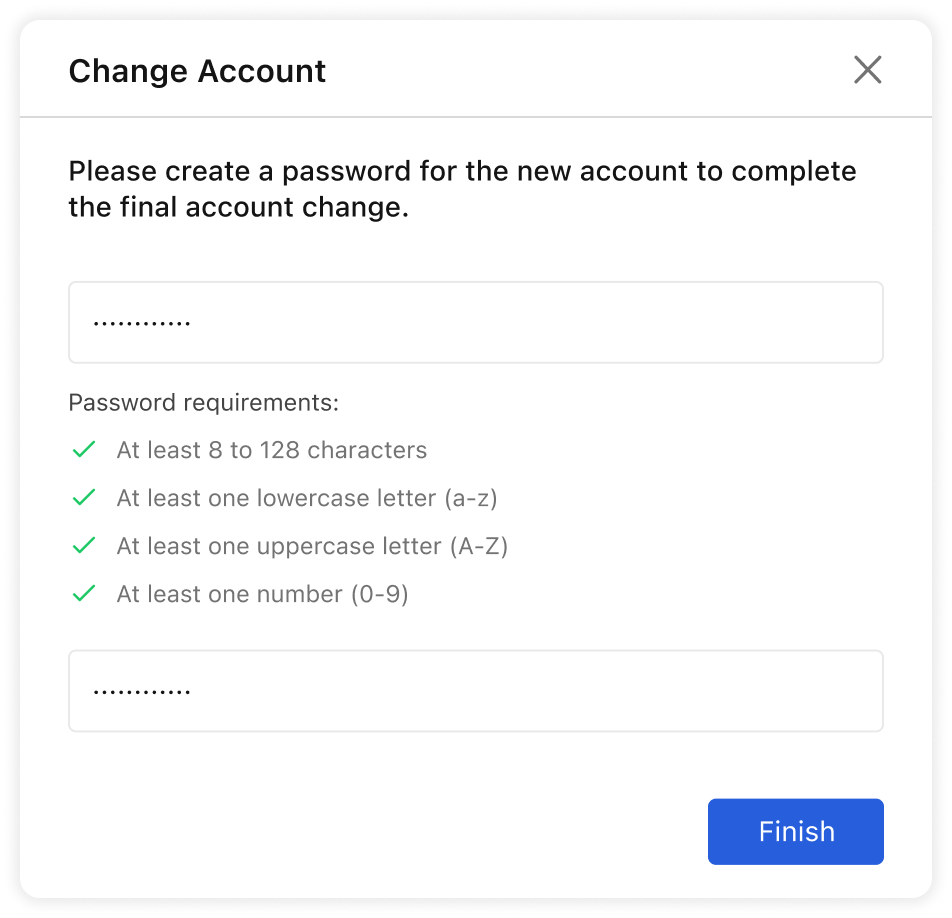
- After all that, you can login your new account.
Android and iOS
- Click your avatar, and go to Security -> Change account
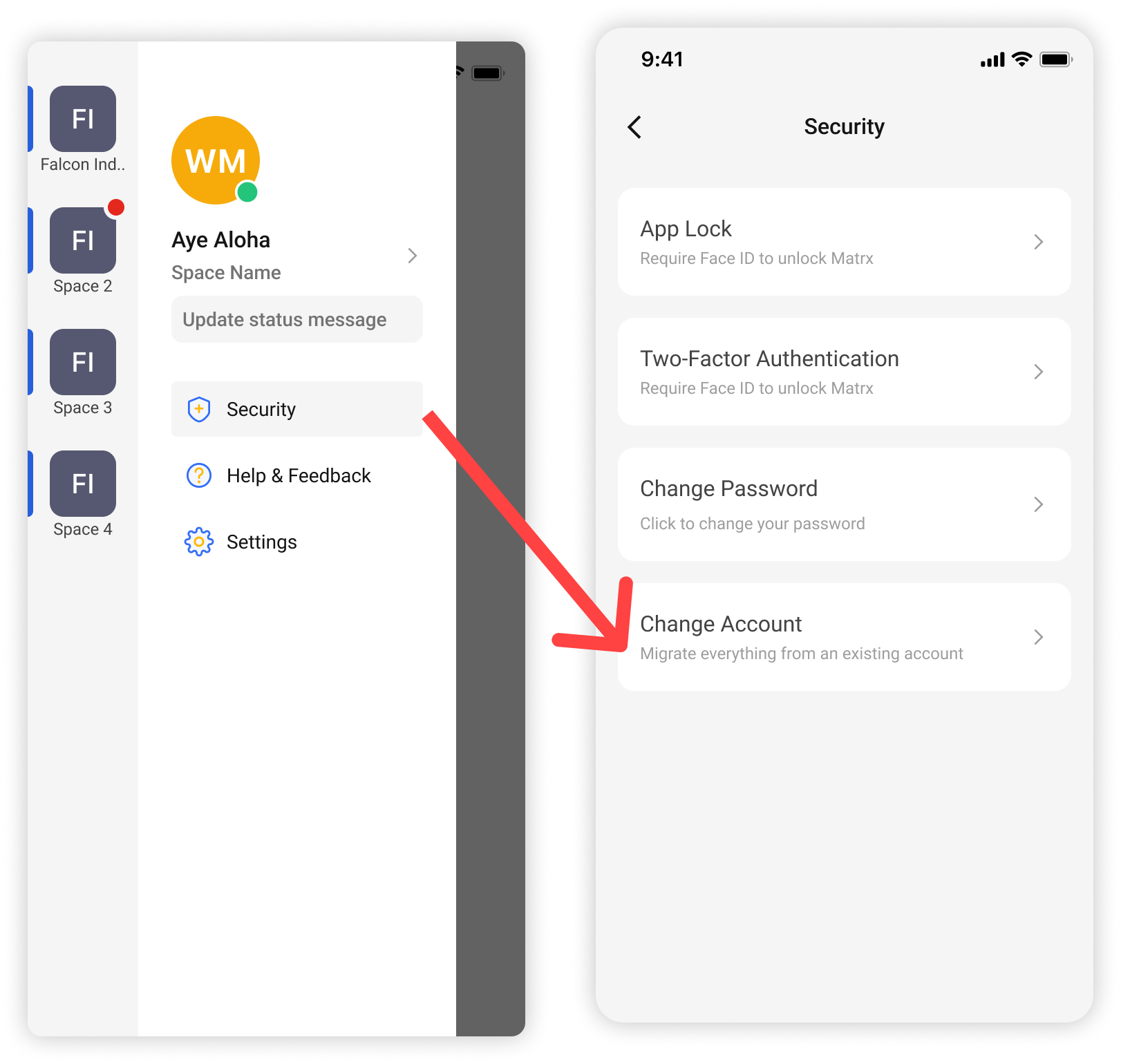
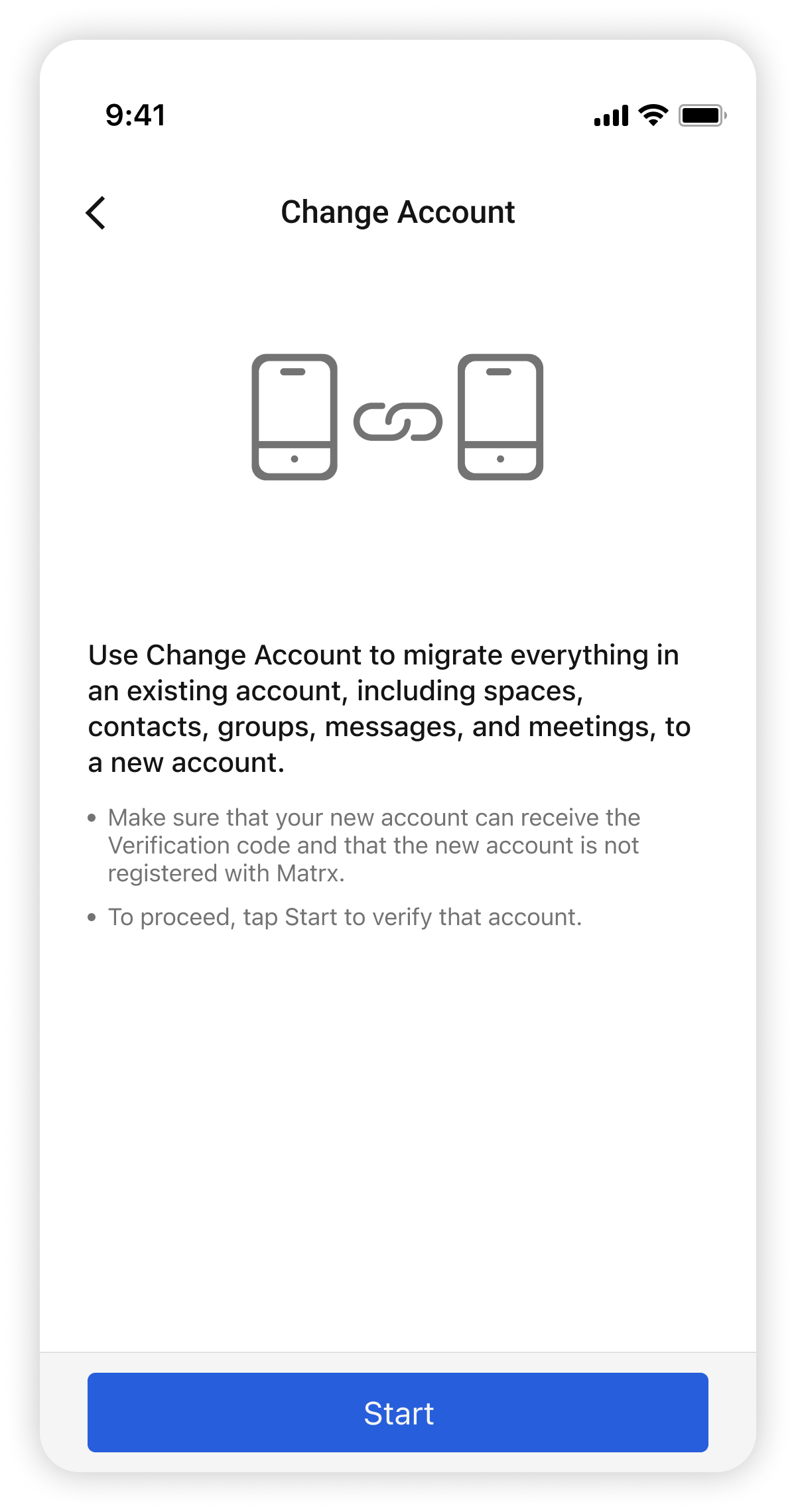
- ⚠️Please be aware that:
- Change account will migrate everything in an existing account, including spaces, contacts, groups, messages, and meetings, to a new account.
- Make sure that your new account can receive the Verification code and that the new account is not registered with Matrx.
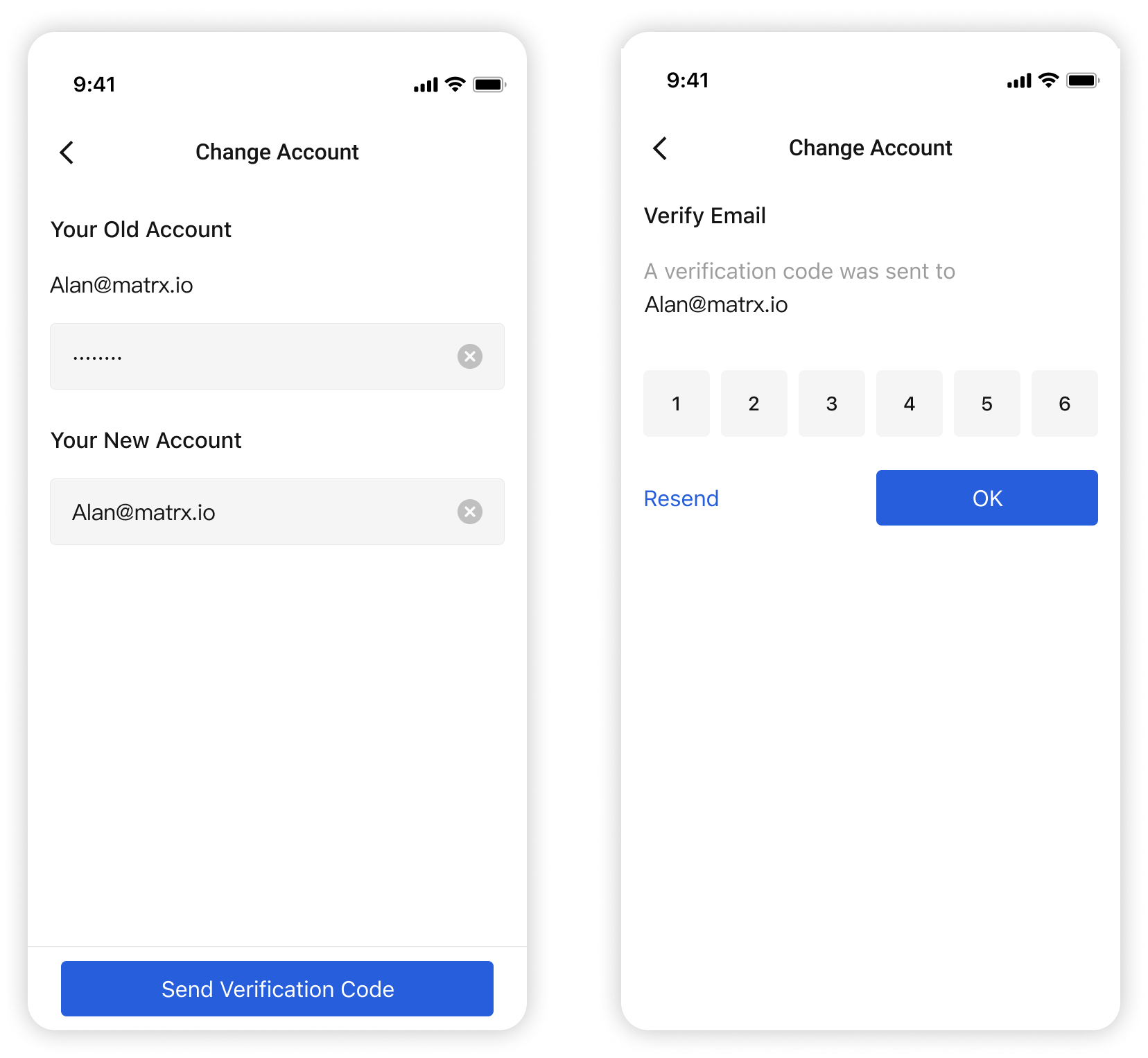
- Then input your old account, and your new one, and verify the email by verify the code Matrx sent you via email.
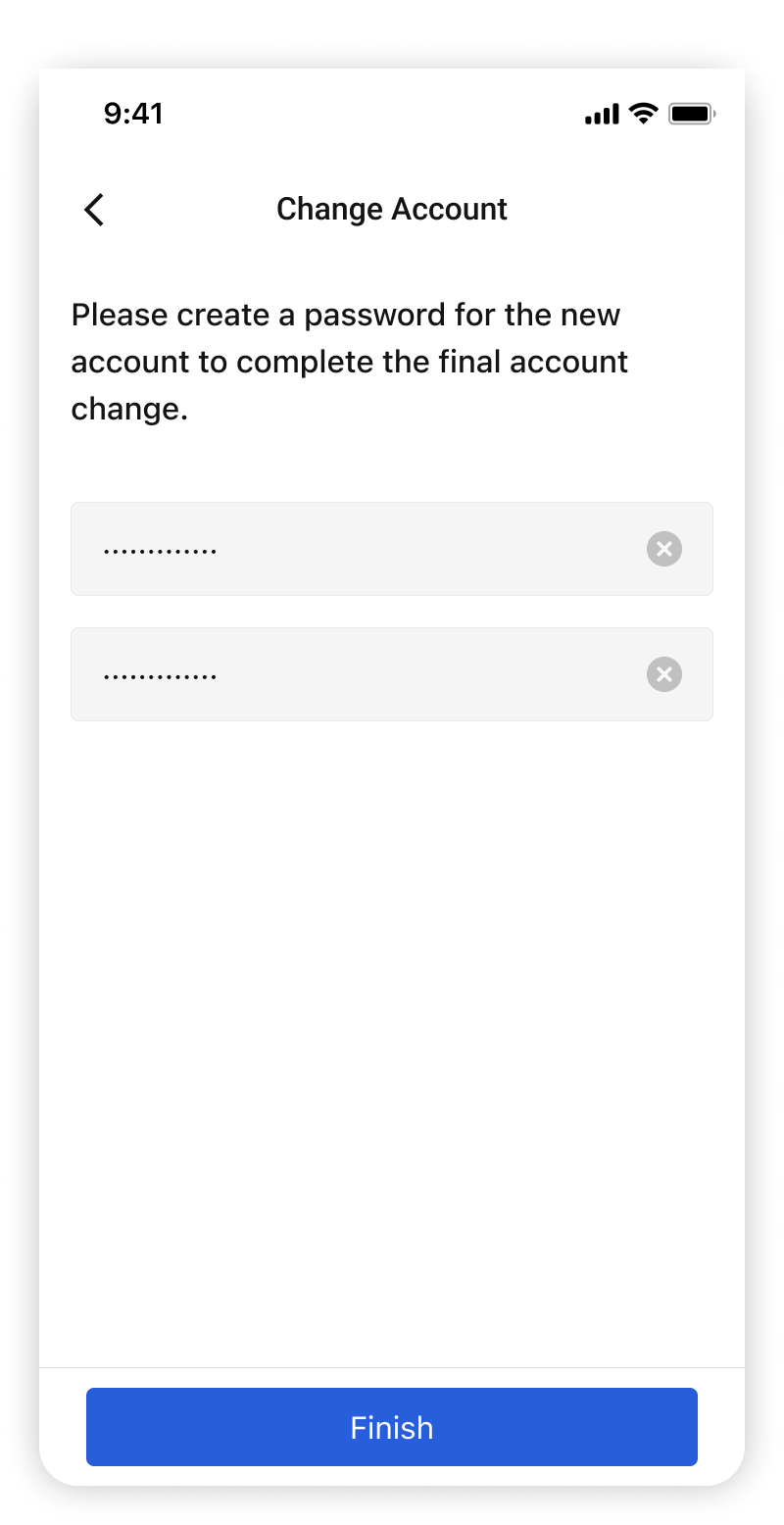
- Finally create a password for the new account
- After all that, you can login your new account.